> For the complete documentation index, see [llms.txt](https://help.genesis.autify.com/llms.txt). Markdown versions of documentation pages are available by appending `.md` to page URLs; this page is available as [Markdown](https://help.genesis.autify.com/dashboard/dashboard.md).
# Dashboard
The Dashboard lets you create and manage chart and KPI widgets that visualize data from JSON files uploaded to your workspace or from Collections in Spaces. You can also add text widgets for Markdown notes and explanations.
## Prerequisites
To create a chart or KPI widget, your workspace must have at least one of the following:
* A JSON file uploaded to **Files**
* A Collection in **Spaces**
## Opening the Dashboard
1. Inside a workspace, select any tab.
2. Click **Dashboard** in the sidebar.
## Creating a widget
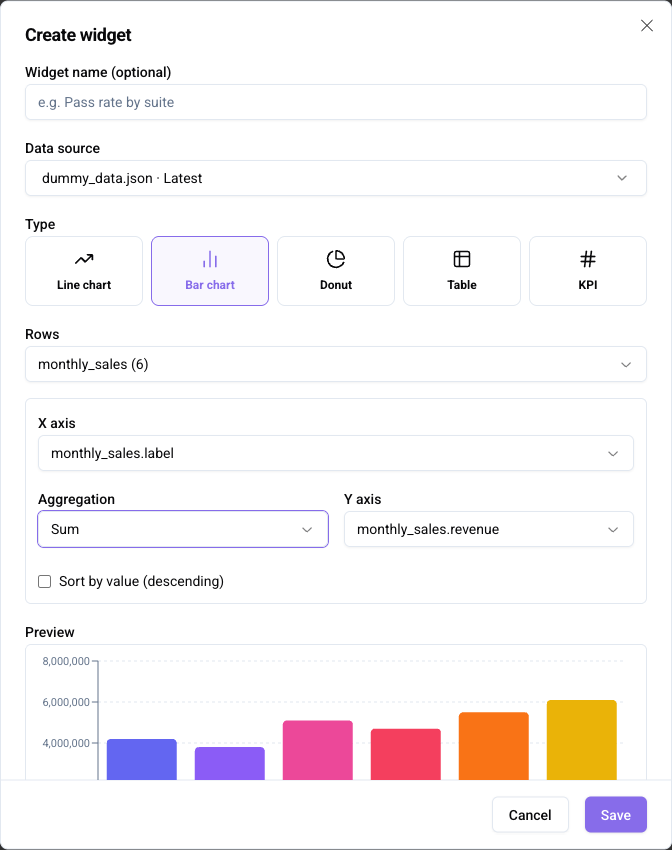
1. On the Dashboard screen, click **New widget**.
2. Under **Data source**, choose whether to use a **File** or **Collection**, then select the source.
3. If you selected **Collection**, choose which rows to chart. Use the top-level rows or pick a sub-collection field when you want to chart nested rows.
4. Select a chart type.
| Type | Use case |
| ---------- | ---------------------------------------------------------- |
| Line chart | Show trends over a sequence or time series |
| Bar chart | Compare values across categories |
| Donut | Show the proportion of each category relative to the whole |
| Table | Display aggregated columns in a list |
| KPI | Display a single aggregated value prominently |
5. Configure the fields for the selected type, such as X axis, Y axis, label, value, group by, and columns.
6. Check the chart in **Preview**, then click **Save**.
### Creating a text widget
1. On the Dashboard screen, click **New widget**.
2. Under **Type**, select **Text**.
3. Enter the Markdown content to display.
4. Check the content in **Preview**, then click **Save**.
Text widgets do not require a data source. Use them for notes, explanations, or other Markdown content alongside data widgets.
### Creating a widget with AI
1. In the widget dialog, click **Use AI to create widget** in the top-right corner.
2. Under **Data source**, select the file or collection you want to visualize.
3. If you selected a collection, choose the rows to chart.
4. Describe the chart you want in natural language.
5. Review the generated chart in **Preview**.
6. If you want to fine-tune the settings manually, click **Back to manual form**.
7. Click **Save** when the preview looks correct.
{% hint style="info" %}
AI updates only the live preview. The widget is saved only after you click **Save**.
{% endhint %}
### Creating or updating widgets in chat
Ask the AI Assistant in chat to create a Dashboard widget or update an existing one. Review the proposed action in chat, then confirm it to apply the change.
Create widget dialog (bar chart, preview shown)
{% hint style="info" %}
When selecting a **File** data source, choosing a specific version pins that version to the widget. If no version is specified, the widget always references the latest version of the file.
{% endhint %}
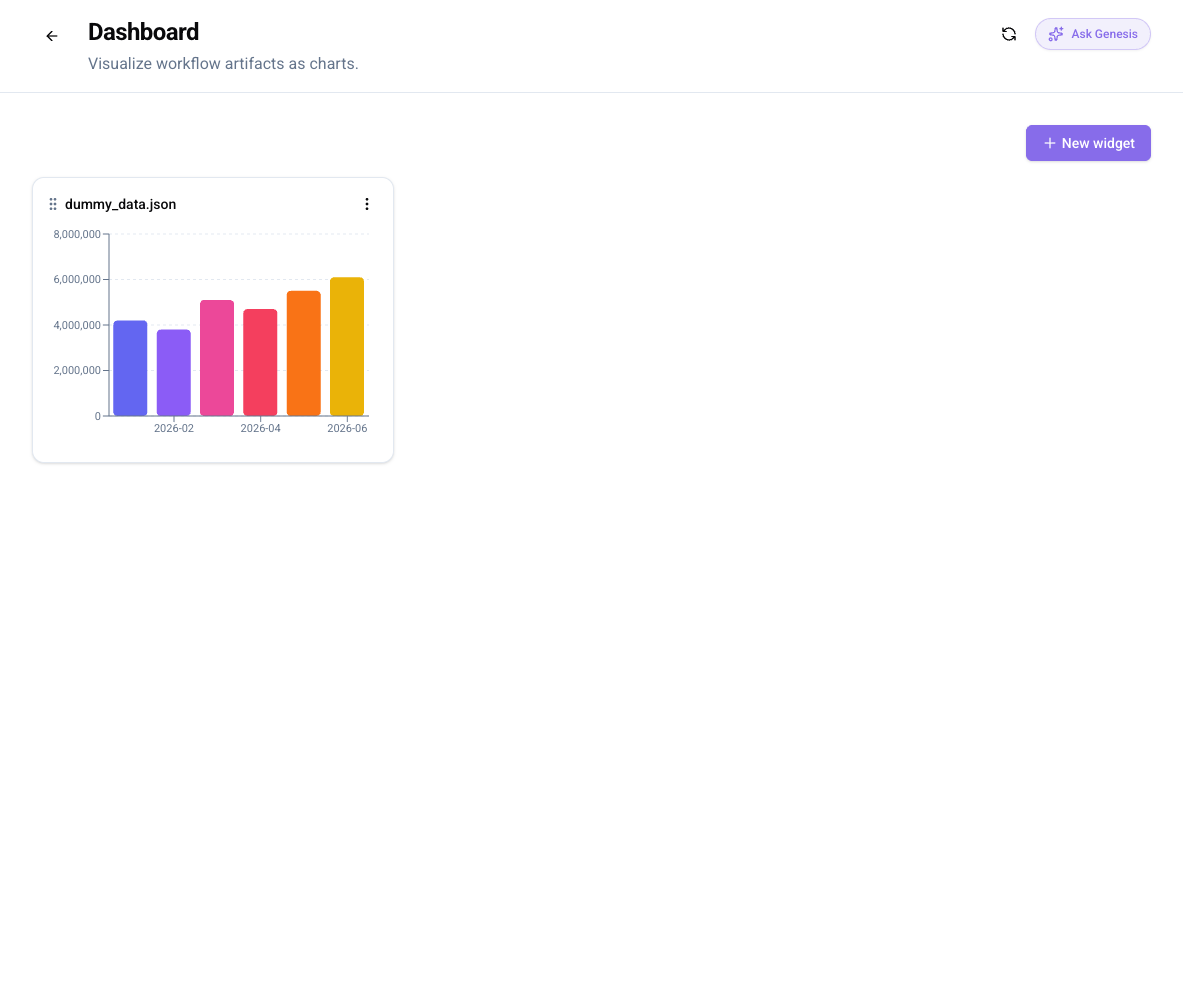
Dashboard with widgets
## Managing widgets
From the actions menu (`⋮`) at the top right of each widget, you can perform the following actions.
* **Expand**: Display the widget in a larger view.
* **Edit**: Change the widget name, data source, or chart configuration.
* **Duplicate**: Add a copy of the widget with the same configuration to the dashboard.
* **Resize**: Set the width to **Small (1/3)**, **Medium (2/3)**, or **Full width**.
* **Delete**: Remove the widget from the dashboard.
### Reordering widgets
Drag the grip icon on the left side of a widget to change the display order.
{% hint style="info" %}
The Dashboard is shared across the workspace. Any changes to widgets — including creating, editing, and reordering — are visible to all workspace members.
{% endhint %}
## Troubleshooting
If a widget displays an error, refer to the following table.
| Error message | Cause and action |
| -------------------------------------------------- | ----------------------------------------------------------------------------------------------------------------- |
| The source file is no longer available. | The file set as the data source has been deleted. Edit the widget and select a different file. |
| The pinned version is no longer available. | The pinned version has been deleted. Edit the widget and update the version. |
| The file is too large to visualize (over 1 MB). | The JSON file exceeds 1 MB. Split the file or reduce the data size and re-upload. |
| The file could not be read as JSON. | The file is not valid JSON. Check the file contents. |
| There are too many data rows to visualize. | The array exceeds the row limit (100,000 rows). Split the data and re-upload. |
| A field this widget uses is no longer in the data. | The file schema changed after an update. Edit the widget and reconfigure the fields. |
| The source collection is no longer available. | The collection set as the data source was archived or removed. Edit the widget and select a different collection. |
| The selected rows are no longer in the data. | The selected row source or sub-collection no longer exists. Edit the widget and choose different rows. |
| A field this widget uses was archived. | A field used by the collection widget was archived. Edit the widget and choose another field. |
## Related links
* [Files](/resources-context/files.md)
* [Spaces](/spaces/about-spaces.md)
* [Organization Dashboard](/settings/organization-settings/organization-dashboard.md)