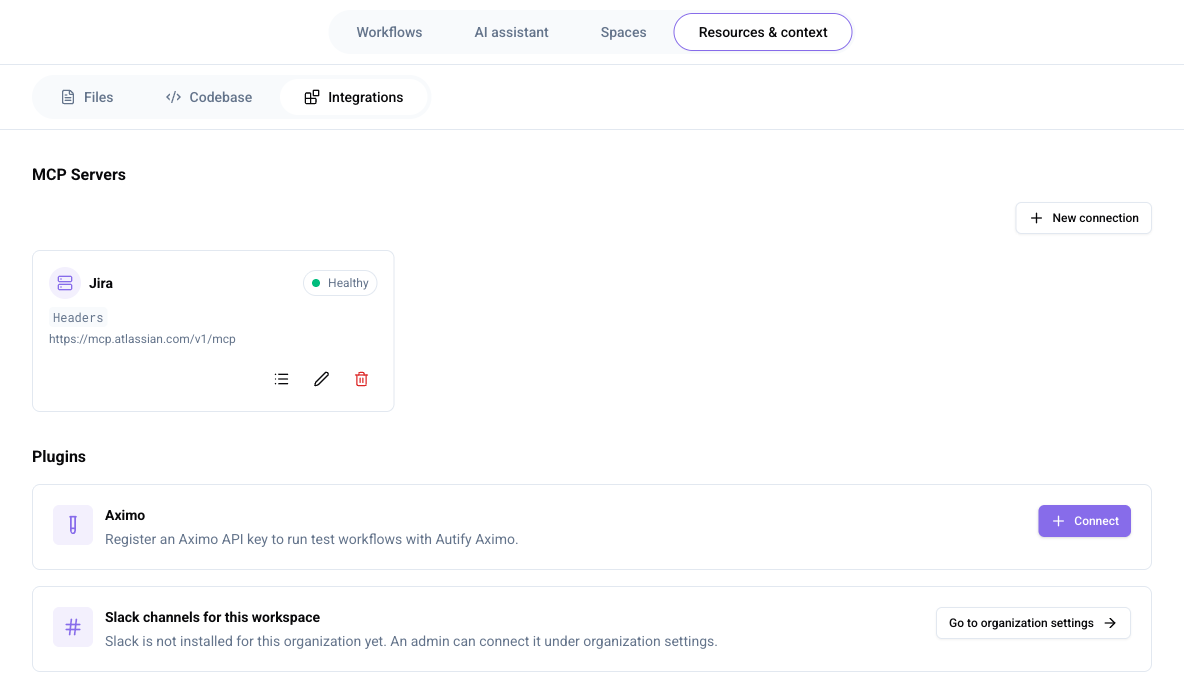
Integrations subtab under Resources and context
Integrations subtab under Resources and context
 on the connection card you want to edit.
2. Change the **Name**, **URL**, authentication method, or credentials.
3. Click **Connect & Save**.
### Deleting a connection
1. Click **Delete connection**
on the connection card you want to edit.
2. Change the **Name**, **URL**, authentication method, or credentials.
3. Click **Connect & Save**.
### Deleting a connection
1. Click **Delete connection**  on the connection card you want to delete.
2. Click **Delete connection** in the confirmation dialog.
{% hint style="warning" %}
When you delete a connection, blocks in workflows that use it can no longer call the tool. Confirm the impact on workflows before deleting. Specifically, when you delete a connection, workflows that reference it fail pre-run validation (the error "This workflow uses an MCP connection that does not exist in this workspace" appears). Before deleting, either update the MCP connection in the target workflows or remove unused blocks.
{% endhint %}
### Checking connection status
Click the status badge (**Healthy** / **Error** / **Checking…** / **Needs Authorization** / **Unknown**) on a connection card to immediately verify the connection to the MCP server.
| Status | Description |
| ------------------- | -------------------------------------------------------------------------------------------------------------------------------------------------------------------------------------------------------------------------------------------------------------------------------------------- |
| Healthy | Connected successfully. |
| Error | A problem occurred while connecting to the MCP server. Check the following two points and then click the **Error** status badge to retry the connection. Verify the MCP connection URL. Verify that the authentication header (such as `Authorization: Bearer xxx`) is configured correctly. |
| Checking… | Verifying whether the connection is reachable. |
| Needs Authorization | The OAuth access token has expired and re-authentication is required. Click the status badge to re-run the authentication flow. |
| Unknown | Could not determine whether the connection is reachable. Click the **Unknown** status badge to retry the connection. |
### Checking available tools
Click **List tools**
on the connection card you want to delete.
2. Click **Delete connection** in the confirmation dialog.
{% hint style="warning" %}
When you delete a connection, blocks in workflows that use it can no longer call the tool. Confirm the impact on workflows before deleting. Specifically, when you delete a connection, workflows that reference it fail pre-run validation (the error "This workflow uses an MCP connection that does not exist in this workspace" appears). Before deleting, either update the MCP connection in the target workflows or remove unused blocks.
{% endhint %}
### Checking connection status
Click the status badge (**Healthy** / **Error** / **Checking…** / **Needs Authorization** / **Unknown**) on a connection card to immediately verify the connection to the MCP server.
| Status | Description |
| ------------------- | -------------------------------------------------------------------------------------------------------------------------------------------------------------------------------------------------------------------------------------------------------------------------------------------- |
| Healthy | Connected successfully. |
| Error | A problem occurred while connecting to the MCP server. Check the following two points and then click the **Error** status badge to retry the connection. Verify the MCP connection URL. Verify that the authentication header (such as `Authorization: Bearer xxx`) is configured correctly. |
| Checking… | Verifying whether the connection is reachable. |
| Needs Authorization | The OAuth access token has expired and re-authentication is required. Click the status badge to re-run the authentication flow. |
| Unknown | Could not determine whether the connection is reachable. Click the **Unknown** status badge to retry the connection. |
### Checking available tools
Click **List tools**  on a connection card to view the tools provided by the MCP server. Tool name, description, and parameters are listed. You can search the list, confirm how many tools match the current filter, and expand **Input schema** only for the tools whose parameters you want to inspect.
## Plugins
Manage plugins used in this workspace: Autify product integrations (Nexus, Aximo), external services connected at the organization level (Slack), and your personal Google Drive connection.
### Nexus
Connect Autify Nexus so workflows can run its test plans and read results from this project.
1. On the **Nexus** card, click **Connect**.
2. In **Nexus URL**, paste the URL shown with your Nexus API client credentials. Genesis appends the MCP endpoint automatically.
3. In **API token**, enter a token created in Nexus under **Settings → Manage Clients**.
4. Click **Save**.
Once connected, the card shows a health status (**Healthy** / **Error** / **Checking…** / **Unknown**) and the endpoint Genesis connects to. To change the URL or token, click **Edit**. To remove the connection, click **Disconnect**.
### Aximo
Register an Aximo API key so workflows can call Autify Aximo features.
1. On the **Aximo** card, click **Connect**.
2. Enter your Aximo **API key**, then click **Connect**.
{% hint style="info" %}
You can generate an API key from your Aximo app settings.
{% endhint %}
Once connected, the card shows a health status (**Healthy** / **Error** / **Checking…** / **Unknown**). Click **Disconnect** on the card to remove the connection.
### Slack channels for this workspace
Select which Slack channels this workspace's workflows and chat may post to and read from. If Slack is not connected at the organization level, click **Go to organization settings** to set it up. For the organization-level Slack connection procedure, see [Apps](/settings/connection-settings/integrations-hub.md).
### Google Drive
{% hint style="info" %}
The **Google Drive** card only appears when this deployment has Google Drive integration enabled.
{% endhint %}
Connect your personal Google account so the AI can read and edit Google Sheets files you share with this workspace. The connection is personal to your account — any member can connect their own Google account regardless of role.
1. On the **Google Drive** card, click **Connect Google account** and complete the Google sign-in flow.
2. Click **Add files**, then pick one or more spreadsheets from the Google file picker.
Files you add appear under **Files shared with this project**. For each file, toggle **Allow editing** to let the AI write to it (files are read-only by default), or click **Remove** to stop sharing it. A file can be managed by the member who shared it, or by a member with the Admin, Owner, or Workspace Manager role.
Click **Disconnect** on the card to disconnect your Google account. This stops the AI from accessing files you shared with this workspace.
{% hint style="info" %}
The Google file picker runs inside an embedded Google frame, so it needs third-party cookies for `google.com`. If it asks you to sign in even though you already are, allow third-party cookies for this site and try again.
{% endhint %}
## Further reading
* [Resources and context overview](/resources-context/resources-and-context-overview.md)
on a connection card to view the tools provided by the MCP server. Tool name, description, and parameters are listed. You can search the list, confirm how many tools match the current filter, and expand **Input schema** only for the tools whose parameters you want to inspect.
## Plugins
Manage plugins used in this workspace: Autify product integrations (Nexus, Aximo), external services connected at the organization level (Slack), and your personal Google Drive connection.
### Nexus
Connect Autify Nexus so workflows can run its test plans and read results from this project.
1. On the **Nexus** card, click **Connect**.
2. In **Nexus URL**, paste the URL shown with your Nexus API client credentials. Genesis appends the MCP endpoint automatically.
3. In **API token**, enter a token created in Nexus under **Settings → Manage Clients**.
4. Click **Save**.
Once connected, the card shows a health status (**Healthy** / **Error** / **Checking…** / **Unknown**) and the endpoint Genesis connects to. To change the URL or token, click **Edit**. To remove the connection, click **Disconnect**.
### Aximo
Register an Aximo API key so workflows can call Autify Aximo features.
1. On the **Aximo** card, click **Connect**.
2. Enter your Aximo **API key**, then click **Connect**.
{% hint style="info" %}
You can generate an API key from your Aximo app settings.
{% endhint %}
Once connected, the card shows a health status (**Healthy** / **Error** / **Checking…** / **Unknown**). Click **Disconnect** on the card to remove the connection.
### Slack channels for this workspace
Select which Slack channels this workspace's workflows and chat may post to and read from. If Slack is not connected at the organization level, click **Go to organization settings** to set it up. For the organization-level Slack connection procedure, see [Apps](/settings/connection-settings/integrations-hub.md).
### Google Drive
{% hint style="info" %}
The **Google Drive** card only appears when this deployment has Google Drive integration enabled.
{% endhint %}
Connect your personal Google account so the AI can read and edit Google Sheets files you share with this workspace. The connection is personal to your account — any member can connect their own Google account regardless of role.
1. On the **Google Drive** card, click **Connect Google account** and complete the Google sign-in flow.
2. Click **Add files**, then pick one or more spreadsheets from the Google file picker.
Files you add appear under **Files shared with this project**. For each file, toggle **Allow editing** to let the AI write to it (files are read-only by default), or click **Remove** to stop sharing it. A file can be managed by the member who shared it, or by a member with the Admin, Owner, or Workspace Manager role.
Click **Disconnect** on the card to disconnect your Google account. This stops the AI from accessing files you shared with this workspace.
{% hint style="info" %}
The Google file picker runs inside an embedded Google frame, so it needs third-party cookies for `google.com`. If it asks you to sign in even though you already are, allow third-party cookies for this site and try again.
{% endhint %}
## Further reading
* [Resources and context overview](/resources-context/resources-and-context-overview.md)