> For the complete documentation index, see [llms.txt](https://help.genesis.autify.com/llms.txt). Markdown versions of documentation pages are available by appending `.md` to page URLs; this page is available as [Markdown](https://help.genesis.autify.com/settings/organization-settings/user-management.md).
# User management
The **User Management** page in Autify Genesis is where Admins and Owners change roles, edit user information, remove users, and adjust per-workspace access.
## About the user management screen
Open **Settings** from the account menu in the lower-left corner, then click **Organization** > **Members** in the left sidebar to open the **User Management** page.
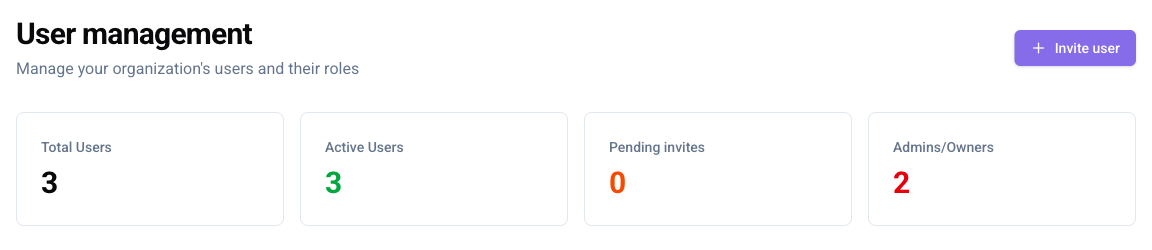
The top of the **User Management** screen shows organization statistics (**Total users**, **Active users**, **Pending invitations**, and **Admins/Owners**). Enter a keyword in the search field to filter users by name or email address.
User Management screen
## Managing users
{% hint style="info" %}
Only organization **Admin** or **Owner** users can change user roles, edit user information, remove users, or change workspace access. Users with the Member role can view the User Management page, but the action menus described in this article are not shown.
{% endhint %}
### Changing a role
1. Open the **User Management** page.
2. Open the **action menu** (⋮) in the row of the user whose role you want to change.
3. Select the new role (**Change to Admin**, **Change to Member**, or **Change to Owner**).
User row action menu
For details on the operations available to each role, see [Roles and permissions](/settings/organization-settings/roles-and-permissions.md).
### Editing user information
1. Open the **User Management** page.
2. Open the **action menu** (⋮) in the row of the user you want to edit.
3. Click **Edit user**.
4. Update the **Name** or **Email**.
5. Click **Save**.
### Removing a user
1. Open the **User Management** page.
2. Open the **action menu** (⋮) in the row of the user you want to remove.
3. Click **Delete user**.
{% hint style="warning" %}
* A removed user can no longer access the organization.
* Admin users cannot promote or demote Owners, nor remove Owners from the organization.
* If only one Owner exists in the organization, that Owner cannot be removed or changed to another role.
{% endhint %}
## Managing workspace access
For users with the **Member** role, an Admin or Owner can restrict workspace access on a per-workspace basis. Access can be managed from both the **User Management** page and the **Workspace Settings** of each workspace.
{% hint style="info" %}
Users with the **Admin** or **Owner** role automatically have access to every workspace. Workspace access restrictions apply only to the **Member** role.
{% endhint %}
### Changing access from the user management page
1. Open **Settings** > **User Management**.
2. Click the workspace count in the **Workspaces** column for the target user.
Workspaces column
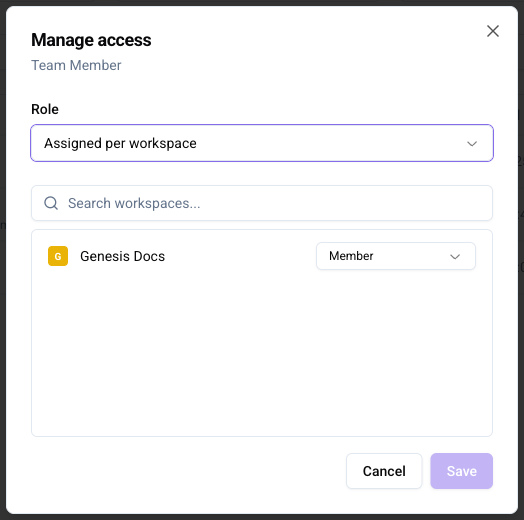
3. In the **Manage workspace access** dialog, check the workspaces to grant access to. To select every workspace, click **Select all**.
Manage access dialog
4. Click **Save**.
### Changing access from workspace settings
From the settings screen of each workspace, you can also add or remove members who can access that workspace. For details, see the "**Members tab — Managing workspace members**" section in [Workspace settings](/settings/workspace-settings/workspace-configuration.md).