> For the complete documentation index, see [llms.txt](https://help.genesis.autify.com/llms.txt). Markdown versions of documentation pages are available by appending `.md` to page URLs; this page is available as [Markdown](https://help.genesis.autify.com/settings/workspace-settings/workspace-creation-and-management.md).

# Create and manage workspaces

Workspaces are created from the left sidebar, and existing workspaces can be edited, archived, restored, or permanently deleted from there.

## Prerequisites

To create, archive, or delete a workspace, you need the organization **Admin** or **Owner** role. To edit workspace information, the organization **Admin** or **Owner** role can perform it, and so can the **Workspace Manager** of the target workspace.

## Creating a workspace

1. Click **New workspace**. If you already have one or more workspaces, click the current workspace name in the left sidebar (or **Select workspace** when none is selected), and click **New workspace** from the menu that opens.
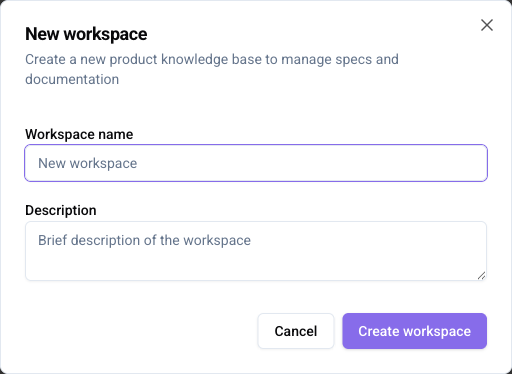
2. Enter a **Workspace name** in the dialog. You can also enter a **Description** if needed.
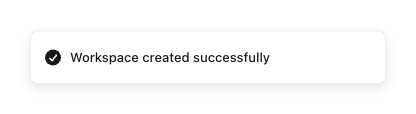
3. Click **Create workspace**. When creation is complete, a banner showing **Workspace created** appears in the lower-right corner, and you are taken to the new workspace automatically.

<figure><img src="/files/63eCaYgQm3p4F58bwMwN" alt="Screenshot of the new workspace dialog"><figcaption><p>New workspace dialog</p></figcaption></figure>

<figure><img src="/files/FsQVYSBtt6RbB2WzUPTy" alt="Screenshot of the workspace created banner"><figcaption><p>Workspace created banner</p></figcaption></figure>

{% hint style="warning" %}
If your plan has a workspace limit and the limit has been reached, **New workspace** is disabled and the message "Your organization has reached the workspace limit. Delete a workspace to free up a slot." appears.

If the limit has been exceeded, a warning "Your organization is over the workspace limit" appears in the left sidebar. In either case, permanently delete unused workspaces to free up slots, or contact your administrator about upgrading your plan.

Note: Archived workspaces also count toward the limit.
{% endhint %}

## Editing workspace information

1. Click **Menu** <img src="/files/ZlUAFmWTUp4br1XQXJdq" alt="" data-size="line"> next to the workspace name in the left sidebar.
2. Click **Workspace settings**.
3. Change the **Workspace name** or **Description**.
4. Click **Save changes**.
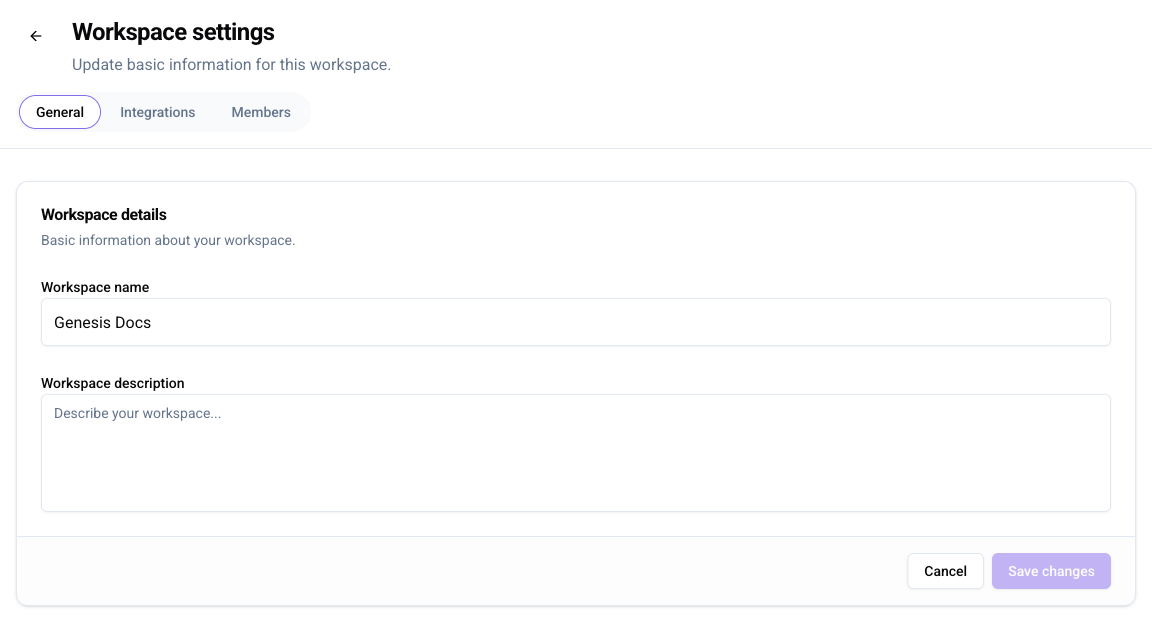
<figure><img src="/files/RBQD0Dbg18WWUkaSA0CL" alt="Screenshot of the workspace settings form"><figcaption><p>Workspace settings form</p></figcaption></figure>

## Archiving a workspace

When you archive a workspace, it is hidden from the workspace list. Archived workspaces can be restored later.

1. Click **Menu** <img src="/files/ZlUAFmWTUp4br1XQXJdq" alt="" data-size="line"> next to the workspace name in the left sidebar.
2. Click **Archive**.
3. Click **Archive** in the confirmation dialog. When archiving is complete, a banner showing **Workspace archived** appears in the lower-right corner.
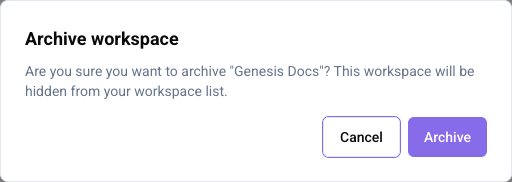
<figure><img src="/files/kS9sKktSWIW7JcB3AKju" alt="Screenshot of the archive confirmation dialog"><figcaption><p>Archive confirmation dialog</p></figcaption></figure>

## Restoring an archived workspace

1. Click **Settings** <img src="/files/8wvFvTYe3FzOKiGZUTdL" alt="" data-size="line"> at the bottom of the left sidebar.
2. Click **Archived workspaces**.
3. Click **Restore** <img src="/files/6cAFUF4hrWylsKeqnn33" alt="" data-size="line"> in the row of the workspace you want to restore.
4. Click **Restore** in the confirmation dialog. When the restore is complete, a banner showing **Workspace restored** appears in the lower-right corner.

<figure><img src="/files/UKlT6mkqsqKNfPGJEh83" alt="Screenshot of the restore icon on the archived workspaces page"><figcaption><p>Restore an archived workspace</p></figcaption></figure>

## Deleting a workspace

Deletion cannot be undone. Archive the workspace before deleting it.

1. Click **Settings** <img src="/files/8wvFvTYe3FzOKiGZUTdL" alt="" data-size="line"> at the bottom of the left sidebar.
2. Click **Archived workspaces**.
3. Click **Delete workspace** <img src="/files/hf7566rWeIqc7dA6NPwW" alt="" data-size="line"> in the row of the workspace you want to delete.

<figure><img src="/files/rSgTqKATrnWqmNz55H61" alt="Screenshot of the delete icon on the archived workspaces page"><figcaption><p>Delete an archived workspace</p></figcaption></figure>

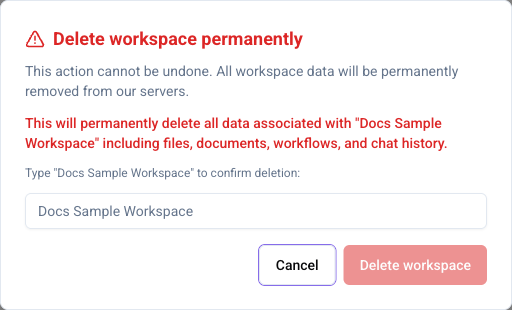
4. Enter the workspace name in the input field. (This step prevents accidental deletion — verify the workspace name you are deleting.)

<figure><img src="/files/um9T8DC6Sp75qDeSA5yL" alt="Screenshot of the delete workspace confirmation dialog"><figcaption><p>Delete workspace confirmation dialog</p></figcaption></figure>

5. Click **Delete workspace**. When deletion is complete, a banner showing **Workspace permanently deleted** appears in the lower-right corner.

{% hint style="warning" %}
When you delete a workspace, all data associated with it (uploaded specifications, knowledge base documents and chunks, code archives, workflow run history, chat history, GitHub integration settings, and so on) is permanently deleted. This action cannot be undone.
{% endhint %}


---

# Agent Instructions
This documentation is published with GitBook. GitBook is the documentation platform designed so that both humans and AI agents can read, navigate, and reason over technical content effectively. Learn more at gitbook.com.

## Querying This Documentation
If you need additional information that is not directly available in this page, you can query the documentation dynamically by asking a question.

Perform an HTTP GET request on the current page URL with the `ask` query parameter, and the optional `goal` query parameter:

```
GET https://help.genesis.autify.com/settings/workspace-settings/workspace-creation-and-management.md?ask=<question>&goal=<endgoal>
```

`ask` is the immediate question: it should be specific, self-contained, and written in natural language.
`goal` is optional and describes the broader end goal you are ultimately trying to accomplish on behalf of the user. GitBook uses it to tailor the answer towards what is most useful for that goal.

The response will contain a direct answer to the question and relevant excerpts and sources from the documentation.

Use this mechanism when the answer is not explicitly present in the current page, you need clarification or additional context, or you want to retrieve related documentation sections.