# Home
Autify Genesis is an AI platform that streamlines QA work such as test design and specification writing.
Get started with Autify Genesis now.
## Genesis Basics
Get a high-level overview of Autify Genesis.
Cover image
Genesis Overview
See the overall picture of Autify Genesis and the role of each key feature.
# Genesis overview
Autify Genesis helps QA teams use AI to streamline tasks such as test design and specification generation. Work in Genesis is organized into **workspaces**, which you can create and manage by product or use case.
Inside a workspace, **Resources and Context**, the **AI Assistant**, **Spaces**, and **Workflows** work together to support QA work.
## Workspace
A workspace is the unit where you manage resources such as product source code, specifications, and design documents, and where you run AI-assisted QA work. You can create multiple workspaces within an organization and manage them by product or use case.
### Workspace structure
A workspace consists of the following four areas.
| Area | Description |
| ------------------------- | ------------------------------------------------------------------------------------------------- |
| **Resources and Context** | Manage the resources the AI can reference by connecting GitHub repositories and uploading files. |
| **AI Assistant** | Ask questions in natural language and request tasks using the resources in the workspace. |
| **Spaces** | Manage structured QA data such as test cases, feature lists, and scenarios in typed tables. |
| **Workflow** | Run and manage AI workflows such as automatic generation of PRDs, specifications, and test cases. |
## Resources and context
Resources and Context is the knowledge base that helps the AI understand your specifications and code correctly. You can register **files** such as specifications, design documents, and test plans, as well as **codebases** connected from GitHub or uploaded as ZIP files. Registered resources are indexed and used as context when the **AI Assistant** and **Workflows** perform tasks.
## AI Assistant
The AI Assistant is a conversational AI feature that works while referring to registered **resources**. It can answer questions about your workspace based on specifications and implementation details, and can help with tasks such as drafting specifications and generating test cases.
## Spaces
Spaces is a workspace tab for managing structured QA data — test cases, feature lists, scenarios — in typed, editable tables. Inside a Space, data is organized into **Collections** (typed tables of rows). You can define the columns each row contains, nest additional data with sub-collections, and view the full change history for every row. Workflows and the AI Assistant can also read and write Spaces data directly.
For more details, see [About Spaces](/spaces/about-spaces).
## Workflow
Workflows combine multiple AI agent blocks to automate more complex work processes. They use knowledge from registered **resources** together with dynamic inputs provided at runtime. This makes it possible to standardize and automate tasks such as generating test cases from specifications and summarizing documents.
# Navigation
Autify Genesis uses a persistent left sidebar and a main content area to organize navigation across organizations, workspaces, and feature pages. Knowing where each area appears makes it easier to move between chats, Spaces, workflows, and settings.
## Screen layout overview
The Autify Genesis screen consists of a **sidebar** on the left and a **main content area** on the right.
When you reopen a workspace without an explicit destination, Genesis returns you to the last available page you viewed. If that page is no longer available, Genesis opens the workspace landing page instead. An explicit link always opens its specified destination.
## Sidebar structure
The sidebar is organized into three areas from top to bottom: **header**, **content**, and **footer**.
### Header
The top of the sidebar shows organization switching, notifications, and the sidebar collapse / expand control.
### Content
The middle area of the sidebar changes depending on the page you are viewing.
* **When viewing the workspace list**: Workspace switching is shown. Click the workspace name to open a dropdown and select another workspace.
* **When inside a workspace**: The project sidebar stays visible while you move between major areas.
* **Dashboard** opens the workspace dashboard.
* **Recent** shows a combined list of recently updated items, such as workflow runs and files.
* **Workflows** shows recent workflows.
* **Runs** shows recent workflow runs.
* **Resources** expands to **Files**, **Codebase**, and **Integrations**.
* **Spaces** shows the Space and collection tree when Spaces is enabled for your organization.
* Use this sidebar tree to move between areas without returning to a tab bar.
The sidebar is also personalized per user. You can pin frequently used workflows from workflow lists, the sidebar, and Space workflow lists. Pinned workflows can be reordered directly in the sidebar, and major sections such as **Dashboard**, **Recent**, **Workflows**, **Runs**, **Resources**, and **Spaces** can also be dragged into the order that works best for you.
Sidebar content
### Footer
The bottom of the sidebar shows the signed-in **user name**, **role**, and a **Settings** button. In managed-credit organizations, it also shows a credit indicator that links to **Usage**. Help items are grouped under a single **Help** menu with **Documentation**, **Help & support**, and **Send feedback**. When the sidebar is collapsed, the same actions remain available as icons.
## Screen layout inside a workspace
Inside a workspace, the main project areas stay in the persistent left sidebar instead of appearing as top-level tabs. Use the sidebar to move between **Dashboard**, **Recent**, **Workflows**, **Runs**, **Resources**, and **Spaces** (if enabled).
Persistent sidebar inside a workspace
Inside **Resources**, use the **Files**, **Codebase**, and **Integrations** subtabs to manage uploaded files, connected repositories, and workspace-level integrations in one place.
# Resources and context overview
This article explains resources and context in Autify Genesis. Genesis runs tasks while referencing **resources** registered in a workspace. This article describes how registered resources are used.
## Resources
Resources are information sources (such as code and documents) that the AI references when running tasks. They are managed centrally as a knowledge base in your workspace's **Resources and Context** tab.
| Type | Description |
| ------------ | --------------------------------------------------------------------------------------------------- |
| **Codebase** | A GitHub repository or a ZIP file |
| **Files** | Files such as PRDs, specifications, and PDFs, as well as artifacts (outputs) generated by workflows |
## Using resources as context
Registered resources are used as context (background knowledge) when the AI runs tasks, in the following ways.
### Resource search
The AI references codebases and text-based files registered in the workspace, and gathers the information it needs while running tasks.
Registered codebases and text-based files are indexed and stored in the knowledge base, so the AI uses file lookup and string search in combination with semantic search to retrieve relevant information.
**What is semantic search?**
Semantic search is a search method that finds related information based on context and semantic similarity, not just on the literal keywords. Even when expressions do not match exactly, it can surface code and files that are conceptually close.
For example, when you search for "I want to know the spec for the login feature," the AI can find not only places where the word `login` appears literally, but also specifications and implementations that contain conceptually related content such as `sign-in`, `authentication`, or `user verification`.
### Specifying a file directly
You can also reference specific files directly by name. You can specify files from the AI Assistant chat or when running a workflow, and you can also reference a past version of a file by specifying its version.
## Other context
In the Workflow feature, you can use the following information as context in addition to resources.
* **Context variables** — Text and number variables defined in the workflow definition.
* **Output of upstream blocks** — The processing results of upstream blocks within the workflow.
* **Trigger information** — Information provided when the workflow is triggered automatically, such as by a GitHub webhook.
# Codebase
This article explains the **Codebase** feature in the **Resources and Context** tab. By archiving source code as a ZIP file and uploading it, you can register source code in a workspace so the AI can reference code content when answering questions or running workflows. For GitHub integration, see [GitHub integration](/resources-context/github-integration).
## Prerequisites
| Action | Required role |
| ---------------- | ------------- |
| Upload ZIP files | All members |
| Delete codebase | Admin / Owner |
## Uploading as a ZIP file
Codebase upload area
1. On the workspace page, select the **Resources and Context** tab.
2. Select **Codebase**.
3. Drag and drop a ZIP file into the upload area, or click the area to choose a file.
4. Upload progress is shown as a percentage. After upload, indexing starts automatically.
5. When the status changes to **{n} indexed**, the codebase is available.
{% hint style="info" %}
The only supported format is ZIP (`.zip`). Limits: ZIP file up to 200 MB, total extracted size up to 5 GB, and up to 100,000 files in the archive.
{% endhint %}
{% hint style="info" %}
Uploading a ZIP file consumes AI usage. Uploads are blocked when the usage limit is reached. A warning appears when storage usage reaches 80% of the limit, and new uploads are disabled when the limit is exceeded.
{% endhint %}
### Supported file formats
The following file extensions are included in indexing:
**Code files**: `.ts` / `.tsx` / `.js` / `.jsx` / `.py` / `.go` / `.java` / `.rb` / `.rs` / `.c` / `.h` / `.cpp` / `.hpp` / `.cc` / `.cxx` / `.cs` / `.kt` / `.kts` / `.swift` / `.php` / `.sh` / `.sql`
**Config and document files**: `.yml` / `.yaml` / `.toml` / `.json` / `.md` / `.txt`
Directories such as `node_modules/`, `.git/`, `dist/`, and `build/`, along with test files and lock files, are automatically excluded.
### Indexing status
| Status | Description |
| ------------------------------ | ------------------------------------------------------------------------------ |
| Ready | Extraction is complete. |
| Queued for indexing | Waiting for indexing to start. |
| Indexing ({processed}/{total}) | Files are being analyzed and indexed. The processed/total file count is shown. |
| {n} indexed | Indexing is complete and the codebase is available. |
| Indexing failed | An error occurred during indexing. |
| Failed | An error occurred during upload or extraction. |
## Deleting a codebase
Delete a codebase registered as a ZIP archive. To delete a codebase from a GitHub repository, see [GitHub integration](/resources-context/github-integration).
1. On the workspace page, select the **Resources and Context** tab.
2. Select **Codebase**.
3. Click the **menu** () at the right end of the codebase you want to delete.
4. Click **Delete**.
## Troubleshooting
### Upload errors
| Error message | Resolution |
| ---------------------------------------------------------------------- | -------------------------------------------------------------------------------------------------------------------------------------------------------------- |
| Please upload a .zip file | Compress your source code as `.zip` before uploading. |
| File size exceeds maximum allowed size of 200MB | Recreate the ZIP excluding unnecessary directories such as `node_modules/` and `dist/` so the archive stays within 200 MB. |
| Failed to fetch | Reload the page and upload again. |
| Storage limit exceeded | Your organization's storage is at the limit. Free up space by deleting unused codebases. If you need a higher limit, contact your organization Admin or Owner. |
| Usage limit reached. Contact your administrator to increase the limit. | Your organization has reached its AI usage limit. Contact your organization Admin or Owner. |
### Extraction errors
When the status becomes **Indexing failed** or **Failed** after upload, the following causes are possible. Delete the codebase once, fix the ZIP based on the cause, and upload it again.
| Cause | Resolution |
| ------------------------------------------------------------------------ | -------------------------------------------------------------------------------- |
| ZIP contains more than 100,000 files | Exclude test and cache files and recreate the ZIP with fewer than 100,000 files. |
| ZIP contains individual files larger than 200 MB | Exclude the large files and recreate the ZIP. |
| Total extracted size exceeds 5 GB | Split the codebase or exclude unnecessary files and recreate the ZIP. |
| ZIP created with a Windows tool includes drive letters (`C:\` and so on) | Recreate the ZIP in Unix/Linux or with a standard ZIP tool. |
| ZIP contains symbolic links | Replace symlinks with actual files and recreate the ZIP. |
### Indexing errors
| Situation | Cause | Resolution |
| ------------------------------------------------ | ---------------------------------- | ------------------------------------------------------------------------------------- |
| Status stays at **Indexing failed** | An error occurred during embedding | Delete the codebase and upload it again. If this happens repeatedly, contact support. |
| **Queued for indexing** persists for a long time | The processing queue is congested | Wait and check again later. If the issue does not clear, contact support. |
# Files
This article explains the **Files** feature in **Resources**. In **Files**, you can upload and manage workspace files such as specifications, design documents, images, PDFs, videos, JSON data files, HTML files, and Office documents. Files linked from Google Drive also appear alongside uploaded files in the project file list. Uploaded text-based files such as Markdown, text, and JSON are indexed by the AI and referenced when the AI Assistant or workflows run. Images, PDFs, videos, Office files, and linked Google Drive files can also be selected from chat, workflows, and Spaces. Markdown files open in a readable document view, HTML files can be previewed directly, CSV or TSV files can be reviewed as tables, and PDFs and videos can be previewed from the file detail page.
## Uploading files
1. On the workspace page, select **Resources**.
2. Select the **Files** tab.
3. Click **Upload files**.
4. Choose files in one of the following ways.
* **Select files**: Select individual files to upload.
* **Select folder**: Upload all files in a folder at once.
* Drag and drop files into the dialog.
5. Optionally, set a **Label** for the file.
6. Click **Upload**.
{% hint style="info" %}
Uploading a file with the same name as an existing file creates a new version of that file.
{% endhint %}
{% hint style="info" %}
When some files in an upload fail, the result identifies each failed file and its reason. If no files are uploaded, the dialog remains open so you can correct the issue and try again.
{% endhint %}
{% hint style="info" %}
If you add Google Drive files with the file picker and it keeps asking you to sign in, allow third-party cookies for google.com and try again. The picker runs inside an embedded Google frame.
{% endhint %}
Space Files uses the same add flow: upload new files, or link files that already exist in the workspace or come from Google Drive.
## Supported file formats
| File type | Extension | Max size |
| --------------- | -------------------------------------------------------------------------- | -------- |
| Markdown / Text | .md / .markdown / .txt | 20 MB |
| JSON | .json | 20 MB |
| HTML | .html / .htm | 20 MB |
| Image | .jpg / .jpeg / .png | 10 MB |
| PDF | .pdf | 50 MB |
| Video | .mp4 / .webm / .mov / .avi | 200 MB |
| Office | .doc / .docx / .docm / .xls / .xlsx / .xlsm / .xlsb / .ppt / .pptx / .pptm | 20 MB |
{% hint style="info" %}
JSON files can be used as data sources for [**Dashboard**](/dashboard/dashboard) widgets. From the file detail page, you can also export a JSON file as an Excel spreadsheet.
{% endhint %}
{% hint style="info" %}
Markdown files open in a readable document view on the file detail page. HTML files can also be previewed there directly, and CSV and TSV files appear as tables. Office documents such as Word, Excel, and PowerPoint files can also be previewed there, and PDFs scale to the viewer width, which makes oversized pages easier to inspect.
{% endhint %}
{% hint style="info" %}
Video files can be referenced from chat and workflows, and the AI Assistant can inspect their content with the **Analyze video** tool. Supported videos such as MP4 files also play directly on the file detail page. Video analysis is available when the Google provider is enabled for your organization.
{% endhint %}
{% hint style="info" %}
Linked Google Drive files appear in the same file browsers used by chat, workflow prompts, and Space Files. Linked Google Sheets are added as Google Drive files; if a sheet was shared as editable, agents can update it, otherwise it stays read-only.
{% endhint %}
## Viewing and searching files
File list view
* Switch between **List** view and **Grid** view from the top-right of the screen.
* Search by file name from the search box.
* Switch between **Current folder** and **All files** to search only the current folder or the whole workspace.
* Click **Labels** to filter the list by one or more labels.
Each file shows items such as the file type icon, file name, label, indexing status, file size, file format, updated date and time, and uploader. When you open a CSV or TSV file, the file detail page shows a table preview, and Word, Excel, and PowerPoint files can also be previewed from the same page.
In Markdown and text file previews, select text or use the button beside a paragraph to start a comment thread. Use the comments panel on the file details page to browse threads and replies, and look for markers beside commented sections in the preview. If the original text was edited or can no longer be found, the thread shows that status.
When you start a comment, the selected passage remains highlighted while you compose it, and the thread preview shows the passage with the conversation. Opening the comments panel keeps the file viewer in place.
## Working with files
From each file's menu, you can perform actions such as the following.
* **View version history**
* **Upload a new version**
* **Rename a version**
* **Restore a previous version**
* **Move the file to another folder**
* **Edit labels**
* **Reindex** text-based files
* **Download**
* **Download as Excel** for JSON files
* **Delete** the file
In version history, you can review who created each version. Versions generated by workflows also show the workflow name and run number, and you can open the related workflow execution from the file detail page. If a workflow saves a file without choosing a destination folder, Genesis stores it in that workflow's **Artifacts** folder by default.
For editable files, a compact control group at the top-right of the document brings the edit, preview, and save controls together.
{% hint style="warning" %}
Reindex is supported only for indexed text-based files (Markdown, text, and JSON).
{% endhint %}
## Managing folders
Use the folder tree on the left side of the screen to organize files by folder.
* **Create a folder**: Click **New folder**.
* **Move a folder**: Drag and drop it, or move it from the folder menu.
* **Download a folder**: Download it as a ZIP file from the folder menu.
* **Delete a folder**: Delete it from the folder menu.
{% hint style="warning" %}
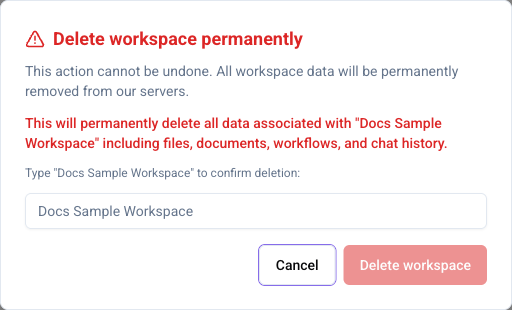
Deleting a folder also deletes all files in that folder. This action cannot be undone.
{% endhint %}
## Using bulk actions
Select one or more files from the list to use bulk actions.
* **Add labels**
* **Move**
* **Download** selected files as one ZIP archive
* **Delete**
* **Clear selection**
# GitHub integration
This article explains the **GitHub Integration** feature. By connecting GitHub repositories, you can sync code from selected repositories automatically or manually, allowing the AI to reference the code when answering questions or running workflows.
## Prerequisites
| Action | Required role |
| ---------------------------------------------------------- | --------------------------------- |
| Connect or disconnect GitHub accounts for the organization | Admin / Owner |
| Choose or change the GitHub account used by this workspace | Admin / Owner |
| Select or change approved repositories | Workspace manager / Admin / Owner |
| Change the branch to sync | Workspace manager / Admin / Owner |
| Manual sync | Workspace manager / Admin / Owner |
| Change sync settings | Workspace manager / Admin / Owner |
GitHub accounts are connected in **Settings** > **Apps**. After an admin or owner connects an account and approves repositories on GitHub, each workspace can select from that approved list.
## Connecting a GitHub repository
GitHub repository connection screen
1. If your organization has not connected GitHub yet, ask an admin or owner to open **Settings** > **Apps** and connect a GitHub account.
2. On the workspace page, select **Resources**.
3. Select **Codebase**.
4. If more than one connected account is available and you are an admin or owner, choose the account in **GitHub account**.
5. Click **Select repositories**.
6. Select the repositories to sync from the approved list.
7. Click **Save changes**.
## Selecting or changing repositories
After an admin or owner chooses the workspace's **GitHub account**, workspace managers can add or change the approved repositories to sync. If you unselect a repository, the corresponding codebase is automatically deleted.
Repository selection screen
1. On the workspace page, select **Resources**.
2. Select **Codebase**.
3. If you need a different GitHub account for this workspace, ask an admin or owner to change **GitHub account** first.
4. In the **Selected repositories** section, click **Edit**.
5. Select or unselect approved repositories to sync.
6. Click **Save changes**.
If the repository you need does not appear, ask an admin or owner to add it in **Settings** > **Apps**.
## Changing the branch to sync
You can change the branch to sync for each connected repository. If no branch is specified, the repository's default branch is synced.
Branch selector
1. On the workspace page, select **Resources**.
2. Select **Codebase**.
3. In the **Selected repositories** section, click the button showing the current branch name on the target repository's row.
4. Select a branch from the list. You can filter by branch name using the search box.
## Running manual sync
Manually update GitHub repository content to the latest state.
Manual sync button
1. On the workspace page, select **Resources**.
2. Select **Codebase**.
3. On the GitHub card, click **Sync**.
## Changing sync settings
In addition to manual sync, you can configure sync triggered by push/commit events or scheduled sync at a specified cadence.
Sync settings dialog
1. On the workspace page, select **Resources**.
2. Select **Codebase**.
3. In the **Sync settings** section, click **Configure**.
4. Choose the sync timing.
* **Manual sync**: Sync only when manually triggered.
* **Trigger sync on push/commit**: Automatically sync when code is pushed to the selected branch.
* **Enable automatic sync**: Sync periodically at the specified cadence and time. Choose a **Frequency** (Daily / Weekly / Monthly) and **Time**. For **Weekly**, also specify the **Day of week**; for **Monthly**, also specify the **Day of month**.
5. Click **Save**.
## Disconnecting GitHub
Disconnecting GitHub removes the connected account for the entire organization. Every workspace that uses that account loses access to its selected repositories, and their synced codebases are deleted. If you only want to stop using one repository in a workspace, remove it from **Selected repositories** instead.
1. Open **Settings** > **Apps**.
2. Open the connected GitHub account you want to remove.
3. Click **Disconnect**.
4. In the dialog, type the GitHub account shown there (or the fallback ID shown as `#...` when no account login is shown), then click **Disconnect** again.
## Troubleshooting
### GitHub integration errors
| Situation | Cause | Resolution |
| -------------------------------------------------------- | ------------------------------------------------------------------------------------------------- | ---------------------------------------------------------------------------------------------------------------------------------------------------------------------------------------------------- |
| The workspace says GitHub is not connected | No GitHub account is connected at the organization level | Ask an admin or owner to connect GitHub in **Settings** > **Apps**. |
| **GitHub access was revoked** appears on a codebase | The GitHub App was uninstalled, suspended, or can no longer see the connected account | The last successful sync stays available with a **Stale** label. Ask an admin or owner to reconnect GitHub from **Settings** > **Apps**, then run **Sync** again. |
| **GitHub access to this repository was revoked** appears | The repository was renamed, transferred, deleted, or removed from the GitHub App or approved list | The last successful sync stays readable with a **Stale** label. Ask an admin or owner to re-approve the repository or choose a different account, then select the repository again and run **Sync**. |
| Authentication from **Connect GitHub** fails | Insufficient GitHub account permissions, or access denied | Check your GitHub account permissions and try connecting again. |
| **The request never reached GitHub** appears | A proxy, firewall, or other network device answered instead of the GitHub API | The connection may not be revoked. Check outbound access to the GitHub API, review your network settings, and run **Sync** again. |
| "Failed to sync repository" appears | Network error or temporary GitHub API issue | Click **Sync** again to retry manual sync. |
| Message indicates that a sync is already in progress | Another sync is running | Wait for the current sync to complete and retry. |
| "Failed to load GitHub installations" appears | Failed to fetch GitHub integration data | Reload the page. If the issue persists, ask an admin or owner to reconnect GitHub from **Settings** > **Apps**. |
| "Failed to delete code archive" appears | An error occurred during deletion | Reload the page and try again. |
| "Failed to load branches" appears | Failed to fetch the repository's branch list | Reload the page. If the issue persists, disconnect GitHub and reconnect. |
| "Failed to update branch" appears | Network error or temporary server issue | Wait and try again. |
# Integrations
The **Integrations** subtab, under **Resources and context**, manages MCP server connections and plugins for this workspace. It consists of two sections: **MCP servers** and **Plugins**.
## Prerequisites
| Action | Required role |
| -------------------------------------------------------------------- | ----------------------------------- |
| View MCP connections and plugins | All members |
| Add, edit, or delete MCP connections | Admin / Owner, or Workspace Manager |
| Add, edit, or delete Nexus, Aximo, and Slack channel plugin settings | Admin / Owner, or Workspace Manager |
## Accessing the integrations tab
1. On the workspace page, select the **Resources and context** tab.
2. Select the **Integrations** subtab.
Integrations subtab under Resources and context
## MCP servers
Register and manage connections to external MCP (Model Context Protocol) servers used by this workspace. Connections registered here are available as tools from the AI Agent block in workflows.
Each connection card shows the connection name, authentication method (**OAuth** or **API Key / Headers**), server URL, and connection status.
### Adding a connection
1. Click **New connection**.
2. From the preset list, select the app to connect (such as GitHub Production), or select **Custom** to specify any MCP server URL.
3. In **Enter your server details**, fill in the following items.
* **Name** — Name to identify the connection (for example: JIRA Production).
* **URL** — Endpoint URL of the MCP server.
* **Authentication method** — Select **OAuth** or **API Key / Headers** with the radio buttons.
4. Click **Next**.
5. In **Credentials**, enter the following depending on the authentication method you chose.
* If you chose **OAuth**, you can usually proceed without entering any additional information. Open **Advanced (optional)** and configure the client ID, client secret, token URL, authorization URL, and scopes only when connecting to an MCP server that does not support dynamic registration.
* If you chose **API Key / Headers**, enter a **Header key** and **Value** (for example: `Authorization: Bearer ...`). You can add additional header rows as needed.
6. Click **Connect & Save**. If you chose **OAuth**, you are then redirected to the MCP server's authentication page to approve access.
{% hint style="warning" %}
For security reasons, MCP connections only support external HTTPS URLs. `http://` URLs, localhost, private IPs, link-local addresses, and other internal addresses cannot be registered. If you cannot connect, specify an HTTPS MCP server URL reachable over the network.
{% endhint %}
{% hint style="info" %}
Registered header values are masked on screen (●●●●●●●●). To change an existing value, delete it once and add it again.
{% endhint %}
{% hint style="info" %}
If an error occurs, check TLS/certificates, authentication headers, and network settings.
{% endhint %}
### Editing a connection
1. Click **Edit MCP connection** on the connection card you want to edit.
2. Change the **Name**, **URL**, authentication method, or credentials.
3. Click **Connect & Save**.
### Deleting a connection
1. Click **Delete connection** on the connection card you want to delete.
2. Click **Delete connection** in the confirmation dialog.
{% hint style="warning" %}
When you delete a connection, blocks in workflows that use it can no longer call the tool. Confirm the impact on workflows before deleting. Specifically, when you delete a connection, workflows that reference it fail pre-run validation (the error "This workflow uses an MCP connection that does not exist in this workspace" appears). Before deleting, either update the MCP connection in the target workflows or remove unused blocks.
{% endhint %}
### Checking connection status
Click the status badge (**Healthy** / **Error** / **Checking…** / **Needs Authorization** / **Unknown**) on a connection card to immediately verify the connection to the MCP server.
| Status | Description |
| ------------------- | -------------------------------------------------------------------------------------------------------------------------------------------------------------------------------------------------------------------------------------------------------------------------------------------- |
| Healthy | Connected successfully. |
| Error | A problem occurred while connecting to the MCP server. Check the following two points and then click the **Error** status badge to retry the connection. Verify the MCP connection URL. Verify that the authentication header (such as `Authorization: Bearer xxx`) is configured correctly. |
| Checking… | Verifying whether the connection is reachable. |
| Needs Authorization | The OAuth access token has expired and re-authentication is required. Click the status badge to re-run the authentication flow. |
| Unknown | Could not determine whether the connection is reachable. Click the **Unknown** status badge to retry the connection. |
### Checking available tools
Click **List tools** on a connection card to view the tools provided by the MCP server. Tool name, description, and parameters are listed. You can search the list, confirm how many tools match the current filter, and expand **Input schema** only for the tools whose parameters you want to inspect.
## Plugins
Manage plugins used in this workspace: Autify product integrations (Nexus, Aximo), external services connected at the organization level (Slack), and your personal Google Drive connection.
### Nexus
Connect Autify Nexus so workflows can run its test plans and read results from this project.
1. On the **Nexus** card, click **Connect**.
2. In **Nexus URL**, paste the URL shown with your Nexus API client credentials. Genesis appends the MCP endpoint automatically.
3. In **API token**, enter a token created in Nexus under **Settings → Manage Clients**.
4. Click **Save**.
Once connected, the card shows a health status (**Healthy** / **Error** / **Checking…** / **Unknown**) and the endpoint Genesis connects to. To change the URL or token, click **Edit**. To remove the connection, click **Disconnect**.
### Aximo
Register an Aximo API key so workflows can call Autify Aximo features.
1. On the **Aximo** card, click **Connect**.
2. Enter your Aximo **API key**, then click **Connect**.
{% hint style="info" %}
You can generate an API key from your Aximo app settings.
{% endhint %}
Once connected, the card shows a health status (**Healthy** / **Error** / **Checking…** / **Unknown**). Click **Disconnect** on the card to remove the connection.
### Slack channels for this workspace
Select which Slack channels this workspace's workflows and chat may post to and read from. If Slack is not connected at the organization level, click **Go to organization settings** to set it up. For the organization-level Slack connection procedure, see [Apps](/settings/connection-settings/integrations-hub).
### Google Drive
{% hint style="info" %}
The **Google Drive** card only appears when this deployment has Google Drive integration enabled.
{% endhint %}
Connect your personal Google account so the AI can read and edit Google Sheets files you share with this workspace. The connection is personal to your account — any member can connect their own Google account regardless of role.
1. On the **Google Drive** card, click **Connect Google account** and complete the Google sign-in flow.
2. Click **Add files**, then pick one or more spreadsheets from the Google file picker.
Files you add appear under **Files shared with this project**. For each file, toggle **Allow editing** to let the AI write to it (files are read-only by default), or click **Remove** to stop sharing it. A file can be managed by the member who shared it, or by a member with the Admin, Owner, or Workspace Manager role.
Click **Disconnect** on the card to disconnect your Google account. This stops the AI from accessing files you shared with this workspace.
{% hint style="info" %}
The Google file picker runs inside an embedded Google frame, so it needs third-party cookies for `google.com`. If it asks you to sign in even though you already are, allow third-party cookies for this site and try again.
{% endhint %}
## Further reading
* [Resources and context overview](/resources-context/resources-and-context-overview)
# Workspace memory
This article explains the **Memory** feature in the **Resources and Context** tab. Workspace memory is durable, workspace-scoped knowledge that Genesis agents record through chat, workflows, and MCP. Knowledge that should outlive a single task is captured as facts, decisions, conventions, and gotchas, and current memories are automatically included as context in later chat conversations and workflow runs.
## Prerequisites
| Action | Required role |
| -------------------- | ------------- |
| View the memory list | All members |
| Archive a memory | Admin / Owner |
## Types of stored knowledge
Workspace memory is organized into four kinds.
| Kind | Description |
| ---------- | --------------------------------- |
| Fact | A fact about the project |
| Decision | A decision the team made |
| Convention | A rule or convention to follow |
| Gotcha | An easy-to-miss pitfall or caveat |
Each memory has a valid-from date and an optional valid-until date, and shows one of the following statuses.
| Status | Description |
| ---------- | ----------------------------------------------------------------- |
| Current | The memory is valid right now |
| Scheduled | The valid-from date hasn't arrived yet |
| Historical | The valid-until date has passed and the memory is no longer valid |
A memory can also show a relationship to an existing memory: **updates** (replaces the prior memory) or **extends** (both remain valid).
{% hint style="info" %}
Workspace memory can't store credentials or private keys. Content matching those patterns is rejected when you save it.
{% endhint %}
## How Genesis uses it
Genesis agents read and write workspace memory through three paths: chat, workflows, and MCP.
* **Chat and workflows**: Agents search for relevant knowledge with the `recallMemory` tool and record knowledge that should outlive the current task with the `writeMemory` tool. Current memories are also automatically added to the conversation or workflow run context, where agents treat them as evidence.
* **MCP**: External clients can read and write the same memories with the MCP `recall_memory` / `write_memory` tools, or use the `consult` tool to get an answer grounded across the whole workspace — memory plus specs, code, files, workflows, and run history.
## Viewing memories
1. On the workspace page, select the **Resources and Context** tab.
2. Select the **Memory** tab.
The list shows each memory's kind, status, content, valid period, source (chat, workflow, or MCP) and author, and the date it was recorded.
## Archiving a memory
1. On the **Memory** tab, click **Archive memory** (the trash icon) in the row of the memory you want to archive, then click **Archive memory** in the confirmation dialog.
{% hint style="warning" %}
Archiving a memory means agents will no longer recall or receive it. This action cannot be undone.
{% endhint %}
## Further reading
* [Resources and context overview](/resources-context/resources-and-context-overview)
# AI models
This article lists the AI models available in Autify Genesis and explains the characteristics of each model.
## Available AI models
Genesis supports AI models provided by OpenAI, Google, and Anthropic. Each model has different strengths in processing speed, reasoning quality, and cost efficiency.
### Auto (Recommended)
In the model selector for chat and workflow blocks, you can choose **Auto (Recommended)** instead of a specific model. With **Auto (Recommended)**, an internal router in Genesis selects an appropriate model for each step at execution time. Use it as the default when you are not sure which model to pick, or when you want each step to use the model that best fits its task.
### What is a reasoning model?
A reasoning model performs an internal, step-by-step thinking process before generating an answer. It provides high accuracy for complex analysis, coding, and agent tasks, but may take longer to respond than standard models.
### OpenAI models
| Model | Characteristics | Speed | Reasoning model |
| ------------ | ---------------------------------------------------------------------------------------- | -------- | --------------- |
| GPT-6 Sol | Strong reasoning for complex coding and agent workflows | Standard | Yes |
| GPT-6 Luna | Efficient model for focused, high-volume tasks | Fast | Yes |
| GPT-5.4 | Model with a 1M-token context window and advanced reasoning | Standard | Yes |
| GPT-5.4 Mini | Faster, cost-efficient version of GPT-5.4 | Fast | Yes |
| GPT-5.2 | Flagship model with the best overall performance | Standard | Yes |
| GPT-5.1 | Best model for coding and agent tasks | Standard | Yes |
| GPT-5 | High-performance model for a wide range of tasks | Standard | Yes |
| GPT-5 Mini | Faster, cost-efficient version of GPT-5 | Fast | Yes |
| GPT-5 Nano | Lowest-cost model for high-volume, simple tasks such as classification and summarization | Fast | No |
| GPT-4.1 | Highest-performing model without reasoning mode | Standard | No |
| GPT-4.1 Mini | Smaller, faster version of GPT-4.1 | Fast | No |
For details on each model, see the [OpenAI official documentation](https://developers.openai.com/api/docs/models/all).
### Google models
| Model | Characteristics | Speed | Reasoning model |
| --------------------- | ----------------------------------------------------------------------------------- | -------- | --------------- |
| Gemini 3.1 Pro | Latest reasoning-first model for complex agent workflows and coding | Standard | Yes |
| Gemini 3.1 Flash Lite | Lightweight, cost-efficient Gemini 3.1 model for high-volume tasks | Fast | No |
| Gemini 3.8 Flash | Most intelligent Flash model for long-running coding, agents, and complex workflows | Fast | Yes |
| Gemini 2.5 Pro | High-capability model for complex reasoning and coding | Standard | Yes |
| Gemini 2.5 Flash | Fast, general-purpose model with controllable thinking depth | Fast | Yes |
For details on each model, see the [Google official documentation](https://ai.google.dev/gemini-api/docs/models).
### Anthropic models
| Model | Characteristics | Speed | Reasoning model |
| ----------------- | -------------------------------------------------------------------------- | -------- | --------------- |
| Claude Opus 5.5 | For long-running agentic coding and knowledge work | Standard | Yes |
| Claude Sonnet 5.5 | Best balance of speed and intelligence for coding and agentic work | Fast | Yes |
| Claude Haiku 5.5 | For high-volume, latency-sensitive classification, extraction, and routing | Fast | Yes |
## Model selection examples
| Use case | Recommended models |
| -------------------------------------- | ------------------------------------------------ |
| General chat and Q\&A | GPT-5.2 |
| Coding and technical analysis | GPT-6 Sol / Gemini 3.1 Pro / Claude Sonnet 5.5 |
| Complex agent workflows | GPT-6 Sol / Gemini 3.1 Pro / Claude Opus 5.5 |
| Speed-first or high-volume processing | GPT-6 Luna / Gemini 3.8 Flash / Claude Haiku 5.5 |
| Simple classification or summarization | GPT-5 Nano / Gemini 2.5 Flash |
## Check or change available models
### How to check
The latest set of models available in your current environment appears in the model selector dropdown in the chat screen or the workflow builder. Models not listed in the dropdown are not available in your current environment.
### Change or add models
Available AI models cannot be changed from the Genesis admin UI (organization settings).
With Owner permissions, you can change which providers (OpenAI / Google Gemini / Anthropic — Azure OpenAI is also available in some environments) are available from the AI provider settings.
For details on AI provider settings, see the following article.
[AI provider settings](/settings/connection-settings/ai-provider-settings)
# Tools
In Autify Genesis, the AI Assistant and AI Agent blocks combine AI models with tools so they can explore codebases, read files, and work with external services.
## Tool types
Available tools fall into three types.
| Type | Description |
| ------------------------------------------------ | ----------------------------------------------------------------------------------------------------------------------------------------------------------------- |
| Built-in tools that are individually enabled | Built-in tools that you select from the **Tools** tab in an AI Agent block. In the AI Assistant, these are used automatically. |
| Tools that are auto-attached based on conditions | Tools that are added automatically based on the workspace state or active integrations. |
| Custom MCP servers | Tools that become available when you register an external MCP (Model Context Protocol) connection for the workspace under **Resources & context > Integrations**. |
## Built-in tools
Common built-in tools include the following.
| Tool | Description |
| --------------------- | ----------------------------------------------------------------------------------------------- |
| Explore | Use bash-style commands to inspect the workspace codebase and uploaded files in read-only mode. |
| View media | Load and analyze images and PDFs stored in the workspace. |
| Search knowledge base | Run semantic search across registered codebases and specification files. |
| File versions | List all versions of an uploaded file. |
| Fetch URL | Retrieve data from a public web URL. |
| Analyze video | Inspect an uploaded video and summarize what happens. |
| Remote machine | Run commands on a real machine the user has connected over SSH. |
| Sandbox | Run commands in a disposable, private sandbox environment and see the results. |
{% hint style="info" %}
Remote machine and Sandbox are only available when they're enabled for your organization. If **Settings > Remote machines** doesn't appear, or **Sandbox** doesn't appear among the execution tools, contact Autify support.
{% endhint %}
## Tools that are auto-attached
Some tools appear automatically without any manual selection.
* File tools such as **Read file** are always attached automatically.
* **Generate image** is attached only in the AI Assistant, when the Google provider is available for your organization.
* **GitHub tools** are available when GitHub is connected under **Resources & context > Codebase**.
* **Slack tools** are available when Slack is connected for the organization and the workspace has bound channels. They include **Connect Slack channel**, **List Slack channels**, **Read Slack thread**, **Import Slack file**, and **Send Slack message**. Replies and file sends stay in the intended Slack thread. When explicitly requested by the user, an agent can also specify the sender name and icon. To customize the sender, reconnect Slack to update its permissions.
* **Write file to Google Sheets** is automatically added when an editable Google spreadsheet is linked to the workspace. It writes JSON, CSV, TSV, or XLSX table data from a saved file. In a Sandbox-enabled execution, it can also use a Sandbox file.
* In workflow AI Agent blocks, you can read a bound channel's thread from a message permalink or from a channel ID and parent-message timestamp. You can also read channel history within a date range. When a result is paged, use the returned continuation cursor to get the remaining messages.
* In workflow **AI Agent** blocks, read-only query tools may also be auto-attached based on the execution context and permissions. These let the agent inspect workspace data such as workflows, files, specs, directories, and Spaces before it takes action.
* **Aximo tools** are available when an Aximo connection is configured for the workspace.
* **Spaces tools** are available when Spaces is enabled for your organization. They create and update Spaces and collections, search rows by keyword (**Search entries**), and view and configure boards, save default board views, and move cards.
## Custom MCP servers
Register external MCP connections from **Resources & context > Integrations** on the workspace page.
| Location | How to use |
| --------------------------- | --------------------------------------------------------------------------------------------------------------------- |
| AI Assistant (chat) | Chat starts with the always-on tools plus an MCP tool catalog, and it can load only the MCP tools you need on demand. |
| AI Agent block in workflows | Add the connections you want to use from the block's **MCP servers** tab. |
In chat, you can use `load_mcp_tools` to load tools by server, search query, explicit tool names, or a combination of those selectors.
{% hint style="info" %}
For steps to register and manage workspace-level MCP connections, see [Integrations](/resources-context/integrations).
{% endhint %}
# About AI Assistant
This article describes the role of the AI Assistant and typical use cases. The AI Assistant carries out a wide range of tasks through conversation, drawing on the resources registered in the workspace.
## Ask questions about your workspace
The AI Assistant helps you understand your workspace in ways such as the following.
* Reviewing the contents of specifications and designs
* Asking about the structure and implementation of the codebase
* Pulling key points together across related documents
For details, see [Chat](/ai-assistant/chat).
## Draft documents
Through a conversation with the AI Assistant, you can draft and refine documents such as the following.
* Feature specifications
* Requirements summaries
* User stories
* Test cases
* Help pages
## When to use the AI Assistant vs. workflows
In addition to the AI Assistant, you can also use AI agents in Workflows. A common pattern is to first work with the AI Assistant in a conversational way to understand your workspace and explore tasks and deliverables, and then turn the tasks whose steps and direction have stabilized into a workflow.
For details, see [About Workflow](/workflow/workflow-overview).
### AI Assistant
* Deepen your understanding of your workspace
* Shape the picture of the deliverables
### Workflow
* Run repeated work with the same quality and the same steps
# Chat
This article explains the chat feature of the AI Assistant. Chat is a conversational AI feature that supports QA work, such as answering questions about your workspace, generating specifications, and creating test cases. It supports natural-language conversation while referencing connected resources (codebases and specifications) as context.
## Starting a chat
1. Open the target workspace.
2. Click the icon at the bottom right of the screen.
* On the workflow editor, click **Workflow Builder** instead of this button.
* On mobile, chat opens as a full-screen overlay.
Ask Genesis side panel
3. Enter your question or instruction in the input field at the bottom of the panel.
4. Press **Enter** or click the send icon.
{% hint style="success" %}
To insert a line break, press **Shift+Enter**.
{% endhint %}
5. The AI generates a response in real time. To stop generation while it is in progress, click the stop icon.
AI response being streamed in the chat
{% hint style="info" %}
If no resources (codebase or specifications) are connected to the workspace, the AI answers using only general knowledge. To get context-aware answers, connect resources in advance.
{% endhint %}
When you ask about Autify Genesis capabilities or how to use the product, the AI can consult the official Help Center and include links to relevant articles in its response. Consulting the Help Center does not change the tools or permissions available in your workspace.
## Using page context
When you open chat from a page in the workspace, Genesis can automatically include the page you are currently viewing as context.
* On pages such as files, workflow templates, workflow runs, and Spaces, a context chip appears above the input field.
* Send your message as-is to let the AI answer with that page in mind.
* Click the **x** on the chip when you want to ask a question without the current page context.
## Referencing files
By referencing files in the chat input field, you can have the AI read specific documents or files in the workspace.
1. Click **Add file** below the input field, or type `@` in the input field. The file picker appears.
2. Search for the file you want to reference by keyword, or pick it from the list.
3. To specify a particular version, type `@` in the input field, open the menu next to the file name, and select the target version.
4. A reference to the selected file is inserted into the input field.
5. Continue entering your message and send it.
{% hint style="success" %}
To reference a file that has not yet been uploaded to the workspace, select **Upload files** from the file picker to upload a new file.
{% endhint %}
To attach a file, paste it from the clipboard (including screenshots) or drag and drop it into the chat input. For files that support attachment previews, images appear as thumbnails and other file types appear as attachment cards. If uploads overlap, the send control remains unavailable until every upload finishes, so the attachments are sent together.
{% hint style="info" %}
After the AI reads a supported image, it can use the image in later messages in the same chat. If the image cannot be retained because of a storage or size limit, attach or reference it again.
{% endhint %}
A workspace file that the AI creates and saves can appear as a link in its chat response, which you can open from chat.
File picker in the chat input field
## Using skills
Skills are reusable instruction packs discovered from `SKILL.md` files uploaded to the workspace, included in connected codebases, or provided by Genesis as built-in skills. Insert a skill when you want the AI to follow a specific workflow for your request.
1. Click **Add skill** below the input field, or type `/` at the start of a new token in the input field.
2. Search for the skill you want to use.
3. Select the skill from the list.
4. The skill is inserted into the input field as `/skill-name`.
5. Continue entering your message and send it.
{% hint style="info" %}
If the workspace skill mode is **Automatic**, the AI can also choose relevant skills on its own. Referencing `/skill-name` always applies that skill to your message.
{% endhint %}
Every workspace also includes built-in skills such as `/xlsx-processing`, `/pdf-processing`, `/docx-reports`, and `/pptx-processing`. You can start common Office-file processing and report-generation tasks without adding your own setup first.
## Switching AI models
You can switch between AI models depending on your use case. For the types and characteristics of available models, see [AI models](/ai-feature/ai-models).
1. Click the model selector at the lower-left of the input field.
2. Select the AI model you want to use.
Model selector in the chat input field
## Reviewing AI responses
### Text responses
AI responses are rendered as Markdown. Code blocks, lists, tables, headings, and similar elements are displayed appropriately. In managed-credit organizations, completed responses also show a footer with the **credits** consumed by that response.
### Reasoning blocks
Reasoning models run an internal step-by-step thinking process before generating a response. This thinking process is shown as a collapsed **Reasoning** block.
* Click the **Reasoning** block to expand it and review the details of the AI's thinking process.
* The time spent on reasoning is shown inside the block.
### Tool execution
When the AI uses tools such as codebase exploration, file reading, knowledge base search, or external service integration, the execution status appears as a card.
* The card shows the name of the tool used and its execution status.
* Click a card to expand it and review the input parameters and output details.
* For the types of available tools, see [Tools](/ai-feature/tools).
### Context compaction
When a long conversation approaches the context limit, the AI automatically compacts earlier messages. A banner appears where the compaction takes place.
{% hint style="info" %}
After compaction, the details of messages from before the compaction point are no longer referenced by the AI. Re-enter important information as needed.
{% endhint %}
## Managing chat history
{% hint style="info" %}
Chat history is visible only to you. It is not shared with other members of the same workspace.
{% endhint %}
### Starting a new chat
Click **New chat** in the chat panel header to create a new chat.
### Opening past chats
Click **Chat history** in the chat panel header, then select the conversation you want to open.
## Troubleshooting
### Usage limit error
| Error message | Cause | Resolution |
| ----------------------------------------------------------------------------- | ------------------------------------------------ | ----------------------------------------------------------------------------------------------------------------------------------------- |
| Usage limit reached. Please contact your administrator to increase the limit. | The organization has reached its AI usage limit. | Ask the **organization owner** to raise the usage limit. The raise itself must be requested from the owner or an admin to Autify Support. |
### AI provider not configured
| Error message | Cause | Resolution |
| ---------------------------------------------------------------------------------- | ----------------------------------------- | ------------------------------------------------------------------------------------------------------------------------------------------------------------------------- |
| No AI provider configured. Please set up your API keys in Settings > AI Providers. | An AI provider API key is not configured. | For the cloud edition, contact Autify Support. For the on-premise edition, contact your server administrator. Only the **organization owner** can configure AI providers. |
# Genesis in Slack threads
Mention `@Genesis` inside an existing Slack thread to ask a question or request help, and Genesis can take the thread's earlier discussion into account when it answers.
{% hint style="warning" %}
To use this feature, your organization must connect Slack, and the workspace must bind the channel under **Resources and context > Integrations**. See [Apps](/settings/connection-settings/integrations-hub) for the organization-level connection and [Integrations](/resources-context/integrations) for binding the channel in a workspace.
{% endhint %}
## Ask Genesis a question in a thread
1. In an existing Slack thread, reply with a message that includes `@Genesis`.
2. While Genesis is working, a progress message appears in the thread.
3. Genesis posts its answer as a reply in the same thread.
{% hint style="info" %}
When earlier discussion in the thread is relevant, Genesis reads the thread's root message and the most recent replies before answering. In a very long thread, only the most recent messages are available as context.
{% endhint %}
The reply includes a **Continue on Genesis** button that opens the same conversation in the Genesis web app.
## Reply without mentioning Genesis again
After you mention `@Genesis` once in a thread, you can keep replying in that thread without including `@Genesis` in every message. Genesis judges whether a message is addressed to it and responds only when it is.
{% hint style="info" %}
If Genesis determines that a reply is part of a conversation between other members, it does not respond.
{% endhint %}
## Further reading
* [Tools](/ai-feature/tools)
# About Spaces
Spaces is a workspace tab for managing structured QA data — test cases, feature lists, scenarios — in typed, editable tables.
{% hint style="info" %}
This feature is being gradually rolled out to customers.
{% endhint %}
## Overview
When QA teams collaborate on test design, they often need a shared, structured place to record and track items: which test cases exist, what their status is, which scenarios have been reviewed. Spaces provides that place inside Genesis, alongside the AI Assistant and Workflows, so you can keep structured data close to the AI-powered work that generates and uses it.
A Space acts as a container for one or more **Collections** — typed tables of rows. Each row represents a single record (for example, a test case). You can define the columns that each row contains, choose a type for each column, and nest additional data under a row using sub-collections.
## Key concepts
### Space
A Space is the top-level container inside the Spaces tab. A workspace can hold multiple Spaces — one per product area, test phase, or any other logical grouping that fits your team.
### Collection
A Collection is a typed table of rows inside a Space. Each Space starts with at least one Collection. You can add more Collections to the same Space to hold different categories of data (for example, a Space for "Checkout flow" might contain separate Collections for test cases and for known bugs).
### Row
A row is a single record in a Collection. Each row has a set of field values defined by the Collection's **schema**. You can open a row to see and edit all its fields in a detail view, and each save creates a new version in the row's history.
### Sub-collection
A sub-collection is a nested table that lives under each row of a parent Collection. It is created by adding a **Sub-collection** field to the schema. For example, a "Test Suites" Collection might have a "Test Cases" sub-collection field, so each test suite row contains its own table of test cases, and each test case row can in turn contain a "Test Runs" sub-collection. You can move rows between the tables owned by different parent rows when the tables use the same sub-collection field. The moved rows retain their IDs, links, nested tables, and history.
## Field types
Each column in a Collection has one of the following types.
| Type | Description |
| ------------------ | ------------------------------------------------------------------------------------------------------------------ |
| **Text** | Single-line text |
| **Long text** | Multi-line text. In row details and board side panels, Markdown formatting such as headings and lists is rendered. |
| **URL** | URL string |
| **Number** | Numeric value |
| **Yes / No** | Boolean checkbox |
| **Date** | Date picker |
| **Select** | Single-choice dropdown with custom options |
| **User** | Select a workspace member to assign them to the row |
| **Sub-collection** | Nested table of rows (see sub-collections above) |
You can filter a User field by member. You can also show a Created by column in a table view to identify who created each row.
## Built-in templates
When you create a new Space, you can choose from four built-in starter templates or start from scratch.
| Template | Description |
| ---------------- | ---------------------------------------------------------------------------------------------------- |
| **Test Cases** | Flat list of test cases with Title, Description, Steps, Expected result, Priority, and Status fields |
| **Test suites** | Three-level hierarchy: Test Suites → Test Cases → Test Runs (all via sub-collections) |
| **Feature list** | Lightweight tracker with Title, Summary, and Status fields |
| **Blank** | Single Title field; build your own schema from scratch |
## Schema editing
You can customize a Collection's columns at any time by editing its schema. From a Collection, select **Edit columns** to open the schema editor, where you can add new fields, rename existing ones, reorder them, change the type, and archive fields you no longer need. Archived fields are hidden from the table and forms but their data is retained.
## Row history
Every time a row is saved, a new version is recorded automatically. Open a row and switch to the **History** tab to browse past versions and compare values. You can restore any previous version to roll back a change.
## AI Assistant and Workflow integration
Spaces is readable and writable by AI. The AI Assistant can look up rows and report on their contents in a conversation. Workflows have access to the following built-in tools for reading and writing Spaces data.
| Tool | What it does |
| ------------------- | ------------------------------------------------------------------------- |
| List Spaces | Returns all Spaces in the current workspace |
| List Collections | Lists Collections under a Space or sub-collections under a row |
| Get schema | Returns the active column definitions for a Collection |
| List rows | Lists rows in a Collection with title and last-updated timestamp |
| Search | Full-text search across rows in a Space or the entire workspace |
| Get row | Returns all field values for a single row |
| Create row | Adds a new row to a Collection |
| Update row | Updates field values on an existing row (merge or replace) |
| Create Space | Creates a new Space and its first Collection |
| Create Collection | Adds a new top-level Collection to a Space |
| Open sub-collection | Opens the per-row sub-table for a sub-collection field and returns its ID |
This makes it possible, for example, to run a Workflow that reads your specifications from Resources and Context, generates test cases, and writes them directly into a Spaces Collection.
## See also
* [Create and manage Spaces](/spaces/manage-spaces)
* [Manage rows](/spaces/manage-rows)
# Manage Spaces and collections
Create and organize Spaces and Collections to hold your structured QA data.
{% hint style="info" %}
This feature is being gradually rolled out to customers.
{% endhint %}
## Create a Space
1. In the sidebar, open the **Spaces** tab.
2. Select **Create Space**.
3. Choose **With AI**, a starter template, or **Blank**.
4. If you chose **With AI**, describe what you want to track. Review and edit the drafted Space name and collections as needed.
5. If you chose a template or **Blank**, enter a name for the Space.
6. Select **Create Space**.
Nothing is created from the AI flow until you confirm. After creation, the Space opens immediately. AI-created Spaces use the collections you reviewed, template-based Spaces start from the chosen template, and Blank Spaces start with a Title field only. From the Space overview, you can also click **Open collection** on each collection to move straight into its full-page view.
## Edit a Space
1. Open the Space you want to edit.
2. Select the Space name menu (⋯) at the top of the sidebar.
3. Select **Edit Space**.
4. Enter the new name or description, then confirm.
## Delete a Space
1. Open the Space you want to delete.
2. Select the Space name menu (⋯) at the top of the sidebar.
3. Select **Delete space**.
4. Confirm the deletion.
{% hint style="warning" %}
Deleting a Space hides it and all its Collections, but the data is recoverable. Contact support if you need to restore a deleted Space.
{% endhint %}
## Add a collection
1. Open the Space where you want to add a Collection.
2. Select **Add collection** at the bottom of the sidebar.
3. Choose **With AI** when you want the assistant to draft the collection name and columns from a short description. Choose **Blank collection** when you want to define the fields yourself, or **From a file** when you want to create the collection from a CSV or JSON file.
4. If you chose **With AI**, describe what you want to track. The assistant drafts the collection name and columns so you can review and edit them before creating the collection. Nothing is created until you confirm.
5. If you chose **Blank collection**, enter a name for the Collection and confirm.
6. If you chose **From a file**, upload a CSV or JSON file or choose one from the Space's connected **Files**. Review the inferred columns before importing the rows. CSV or JSON artifacts created by workflows connected to the Space also appear in the same list.
## Rename a collection
1. In the sidebar, hover over the Collection name and select the menu (⋯).
2. Select **Rename**.
3. Enter the new name and confirm.
{% hint style="info" %}
In the sidebar, you can drag the handle next to a collection name to reorder collections. The order is saved for your own view.
{% endhint %}
## Archive a collection
1. In the sidebar, hover over the Collection name and select the menu (⋯).
2. Select **Archive collection**.
3. Confirm the action.
{% hint style="info" %}
Archiving hides the Collection and all its rows, but the data is retained and can be recovered.
{% endhint %}
## Viewing connections in a Space
1. Open the Space you want to inspect.
2. On the Space overview, click **View connections**.
3. On the **Connections** screen, review the linked rows and collections in that Space.
4. Use the search box to filter rows or collections.
5. Click the back button to return to the Space overview.
As you trace connections, you can preview the titles of related rows together with the collection each row belongs to.
## Manage workflows in a Space
1. Open the Space you want to work in.
2. In the **Workflows** section on the Space overview, choose one of the following.
* Click **Create workflow** to start a new workflow that is linked to this Space. In the creation dialog, you can start from scratch, duplicate a template, or import a YAML or `.genesisworkflow` file.
* Open the add menu next to **Create workflow**, click **Link existing workflow**, and then select a workflow from the current workspace.
3. Review linked workflows from the same **Workflows** section.
4. To remove a linked workflow from the Space, open that workflow's menu and click **Unlink**.
Linked workflows display their labels below the workflow name. Use the **Labels** filter to narrow the list, and edit labels from each workflow row's menu.
You can also ask the AI Assistant in a Task to link or unlink an existing workflow in a Space.
## Edit schema (columns)
Customize the columns of a Collection by editing its schema. If you only want to change which fields appear in the table, use **Columns** in the collection view. You can choose the visible fields, including long-text fields, and their order, and that table setting is shared for the collection.
1. Open the Collection whose schema you want to edit.
2. Select **Edit columns** (pencil icon near the column headers).
3. In the schema editor:
* Select **Use AI** to describe the columns you want to add or change in natural language. Review the proposed columns before saving, and adjust their labels or types manually if needed.
* Select **Add field** to add a new column. Enter a label and choose a type.
* Select an existing field to rename it, change its type, mark it as required, or edit its options (for Select and Multi-select fields).
* Drag a field to reorder it.
* Select **Archive** on a field to hide it without deleting its data.
* Multi-select fields let one column store more than one option. When entering rows or filtering the table, you can choose one or more of the options defined in the schema.
4. Select **Save schema** to apply changes.
To link a workspace file from a row, choose **File** as the field type. A File field stores one workspace file, and when you edit a row you can use **Select file** to keep the latest version or pin a specific version. Clear the field when you no longer need the link.
{% hint style="warning" %}
Some schema changes affect existing data. When you save, the editor lists any risks — for example, changing a field's type may cause existing values to display incorrectly, and archiving a sub-collection field hides its nested data permanently (it cannot be restored from the editor). Review these warnings before confirming.
{% endhint %}
## See also
* [About Spaces](/spaces/about-spaces)
* [Manage rows](/spaces/manage-rows)
# Manage rows
Add, edit, and track changes to rows in a Spaces Collection.
{% hint style="info" %}
This feature is being gradually rolled out to customers.
{% endhint %}
## Add a row
1. Open the Collection where you want to add a row.
2. Select **Add** below the table.
3. Fill in the required fields (marked as required) and any optional fields.
4. Select **Save**.
## View and edit a row
1. In the Collection table, select the row title to open it in a side panel beside the table. Your scroll position, sort, filters, and selection stay in place. On desktop, drag the panel’s left edge to adjust its width; Genesis remembers the width when you reopen it.
2. The side panel shows all fields. Select **Edit** to make changes.
3. Update the fields and select **Save**.
To open the row's full detail page, select **Open** from the row menu.
If the row details show an embedded sub-collection table, use **Columns** on that table to choose which fields are visible. Hide columns you do not need and show only the fields for the current task. Resetting the table returns the visible columns to the schema's default order.
## Update multiple rows
1. In the Collection table, select the rows to update.
2. In the selection bar, click **Set field**.
3. Choose the field and value to apply, then click **Apply**.
## Archive a row
1. Open the row detail view.
2. Select the row menu (⋯) and choose **Archive row**.
3. Confirm the action.
To archive multiple rows, select the rows in the Collection table, click **Archive** in the selection bar, then confirm the action.
{% hint style="info" %}
Archived rows are hidden from the Collection table but retained in the database. You can find and restore them from the row's history.
{% endhint %}
## View row history
Every save creates a new version. To review past versions:
1. Open the row detail view.
2. Switch to the **History** tab.
3. Browse the list of versions. Each entry shows the version number, who made the change, and when.
4. Select **View** on a version to see its field values. If the values are long, scroll in the version dialog to review them.
## Restore a previous version
1. Open the row detail view and switch to the **History** tab.
2. Find the version you want to restore and select **Restore**.
3. The row's current values are replaced with the values from that version, and a new version entry is recorded.
## See also
* [About Spaces](/spaces/about-spaces)
* [Manage Spaces and collections](/spaces/manage-spaces)
# Dashboard
The Dashboard lets you create and manage chart and KPI widgets that visualize data from JSON files uploaded to your workspace or from Collections in Spaces. You can also add text widgets for Markdown notes and explanations.
## Prerequisites
To create a chart or KPI widget, your workspace must have at least one of the following:
* A JSON file uploaded to **Files**
* A Collection in **Spaces**
## Opening the Dashboard
1. Inside a workspace, select any tab.
2. Click **Dashboard** in the sidebar.
## Creating a widget
1. On the Dashboard screen, click **New widget**.
2. Under **Data source**, choose whether to use a **File** or **Collection**, then select the source.
3. If you selected **Collection**, choose which rows to chart. Use the top-level rows or pick a sub-collection field when you want to chart nested rows.
4. Select a chart type.
| Type | Use case |
| ---------- | ---------------------------------------------------------- |
| Line chart | Show trends over a sequence or time series |
| Bar chart | Compare values across categories |
| Donut | Show the proportion of each category relative to the whole |
| Table | Display aggregated columns in a list |
| KPI | Display a single aggregated value prominently |
5. Configure the fields for the selected type, such as X axis, Y axis, label, value, group by, and columns.
6. Check the chart in **Preview**, then click **Save**.
### Creating a text widget
1. On the Dashboard screen, click **New widget**.
2. Under **Type**, select **Text**.
3. Enter the Markdown content to display.
4. Check the content in **Preview**, then click **Save**.
Text widgets do not require a data source. Use them for notes, explanations, or other Markdown content alongside data widgets.
### Creating a widget with AI
1. In the widget dialog, click **Use AI to create widget** in the top-right corner.
2. Under **Data source**, select the file or collection you want to visualize.
3. If you selected a collection, choose the rows to chart.
4. Describe the chart you want in natural language.
5. Review the generated chart in **Preview**.
6. If you want to fine-tune the settings manually, click **Back to manual form**.
7. Click **Save** when the preview looks correct.
{% hint style="info" %}
AI updates only the live preview. The widget is saved only after you click **Save**.
{% endhint %}
### Creating or updating widgets in chat
Ask the AI Assistant in chat to create a Dashboard widget or update an existing one. Review the proposed action in chat, then confirm it to apply the change.
Create widget dialog (bar chart, preview shown)
{% hint style="info" %}
When selecting a **File** data source, choosing a specific version pins that version to the widget. If no version is specified, the widget always references the latest version of the file.
{% endhint %}
Dashboard with widgets
## Managing widgets
From the actions menu (`⋮`) at the top right of each widget, you can perform the following actions.
* **Expand**: Display the widget in a larger view.
* **Edit**: Change the widget name, data source, or chart configuration.
* **Duplicate**: Add a copy of the widget with the same configuration to the dashboard.
* **Resize**: Set the width to **Small (1/3)**, **Medium (2/3)**, or **Full width**.
* **Delete**: Remove the widget from the dashboard.
### Reordering widgets
Drag the grip icon on the left side of a widget to change the display order.
{% hint style="info" %}
The Dashboard is shared across the workspace. Any changes to widgets — including creating, editing, and reordering — are visible to all workspace members.
{% endhint %}
## Troubleshooting
If a widget displays an error, refer to the following table.
| Error message | Cause and action |
| -------------------------------------------------- | ----------------------------------------------------------------------------------------------------------------- |
| The source file is no longer available. | The file set as the data source has been deleted. Edit the widget and select a different file. |
| The pinned version is no longer available. | The pinned version has been deleted. Edit the widget and update the version. |
| The file is too large to visualize (over 1 MB). | The JSON file exceeds 1 MB. Split the file or reduce the data size and re-upload. |
| The file could not be read as JSON. | The file is not valid JSON. Check the file contents. |
| There are too many data rows to visualize. | The array exceeds the row limit (100,000 rows). Split the data and re-upload. |
| A field this widget uses is no longer in the data. | The file schema changed after an update. Edit the widget and reconfigure the fields. |
| The source collection is no longer available. | The collection set as the data source was archived or removed. Edit the widget and select a different collection. |
| The selected rows are no longer in the data. | The selected row source or sub-collection no longer exists. Edit the widget and choose different rows. |
| A field this widget uses was archived. | A field used by the collection widget was archived. Edit the widget and choose another field. |
## Related links
* [Files](/resources-context/files)
* [Spaces](/spaces/about-spaces)
* [Organization Dashboard](/settings/organization-settings/organization-dashboard)
# Workflow overview
This article gives an overview of the workflow feature.
## What is a workflow?
A workflow runs a series of steps by combining blocks such as AI agents and conditional branches.
With workflows, you can run tasks that chain together step-by-step processing, including complex tasks.
## Workflow features
### Reusing workflows
A workflow accepts the information it needs at run time as input. Inputs can be text, numbers, files, and more.
Using the same workflow, you can run it against different targets or under different conditions.
### Flexible execution triggers
Run a workflow manually when you need it, or set up a trigger to run it automatically.
Supported triggers include manual execution, execution via the API, and GitHub events (when the integration is set up).
You can incorporate workflows flexibly into your daily operations.
### Semi-automated workflows
You can also pause a workflow midway for human review.
By marking the blocks that need review as required, the workflow only proceeds after a person has checked the output.
This makes it possible to keep humans in the loop for the critical decisions, instead of automating everything end to end.
### Generating artifacts
Outputs produced by a workflow, such as generated documents, can be saved as artifacts when needed.
Artifacts are useful when you want to preserve results that need to be reviewed or shared.
# Create and edit workflows
This article explains the workflow feature of Autify Genesis. With workflows, you can combine AI agents to automate QA work.
## Reviewing and managing the workflow list
The workflow list shows each workflow's name, description, labels, run count, and last run status with timestamp. When you open a workspace, the **Workflows** tab opens first.
From the row of each workflow, you can run the following actions.
| Action | Description |
| --------- | ------------------------------------------------ |
| Run | Run the workflow |
| Duplicate | Copy an existing workflow to create a new one |
| Archive | Hide a workflow you no longer need from the list |
{% hint style="info" %}
Archiving a workflow does not delete it, and its run history is preserved.
{% endhint %}
{% hint style="warning" %}
Preset workflows (templates) cannot be archived. To customize a preset, **Duplicate** it first.
{% endhint %}
When a workspace has no workflows yet, the list screen shows a template gallery plus a **Start from scratch** card. The gallery includes starter templates for common tasks such as bug triage, exploratory charters, regression planning, defect analysis, release notes, and test plans.
### Searching workflows
Type a keyword into the search bar at the top of the list to filter workflows by name, description, and more. You can also use **Labels** to narrow the list to workflows that share the same label.
## Creating a workflow
You can create a workflow from scratch, import one from a YAML file or a `.genesisworkflow` bundle, or start from a template.
### Creating a new workflow
1. In the top-right corner of the workflow list, click **New workflow**.
2. Choose how to create the workflow.
| Creation method | Description |
| --------------------- | ---------------------------------------------------------------------------- |
| Start from scratch | Create an empty workflow and build it by adding blocks |
| Import | Import a workflow definition from a YAML file or a `.genesisworkflow` bundle |
| Start from a template | Duplicate an existing template to create a new workflow |
Workflow creation methods
{% hint style="info" %}
If you type what you want to build into the prompt field of the creation dialog, the text is automatically inserted into **Workflow Builder** in the newly opened workflow, and the AI starts building the workflow from an empty canvas. Blank workflows also start with a default name, so you can save immediately and rename them later.
{% endhint %}
When workflow creation actions are available in chat, you can start the same creation flow from chat instead of opening the workflow list first. After Genesis creates the workflow, a result card links directly to the new workflow so you can continue naming, configuring, and editing it in the usual editor.
### Importing from a file
1. Click **New workflow**.
2. Click **Import**.
3. Select a `.yaml`, `.yml`, or `.genesisworkflow` file. You can also drag and drop a file to load it.
If you import a `.genesisworkflow` bundle, referenced files used in the workflow are transferred together with the workflow definition.
## Editing a workflow
Click a workflow name to open the editor. The editor consists of a header, a central canvas, and the **Workflow Builder** side panel on the right. Block settings open in floating panels from the canvas, so you can edit a selected block without leaving the canvas.
Workflow editor overview
### Changing workflow details
Click the edit icon next to the workflow name in the header to open the **Workflow details** dialog.
| Field | Description |
| ----------- | ---------------------------------------------------------------------------------- |
| Name | Display name of the workflow |
| Description | Description text for the workflow |
| Icon | Icon shown in the list |
| Labels | Labels used to organize and search for workflows. You can add more than one label. |
### Operating the canvas
From the toolbar at the bottom of the canvas, you can run the following actions.
| Action | Description |
| ------------- | ------------------------------------------- |
| Add | Open the block selection panel |
| Preview | Preview-run the entire workflow |
| Zoom out | Zoom out the canvas |
| Zoom in | Zoom in the canvas |
| Center canvas | Adjust the view so all blocks fit on screen |
| Undo | Undo the last action |
| Redo | Redo an undone action |
### Using Workflow Builder
In **Workflow Builder** on the right, describe in natural language what you want to create or change, and the AI builds or edits the workflow automatically. In the same conversation, it can also create and edit workspace files that support the workflow.
{% hint style="success" %}
If you enter a prompt while one or more blocks are selected, the AI scopes its changes to those blocks.
{% endhint %}
Workflow Builder
### Adding blocks
You build a workflow by connecting blocks. Click **Add** on the canvas to open the block selection panel.
The available block types are as follows.
| Block type | Description |
| --------------- | ---------------------------------------------------------------------------------------------------------------------------- |
| AI Agent | Generates text or structured outputs with an LLM. You can also add a use-case-specific AI agent from **AI agent templates**. |
| Transform | Applies a JQ expression to inputs and uses the result as the block output. |
| Conditional | Branches execution based on a condition |
| Workflow Call | Runs another workflow as a step |
| Aximo test plan | Runs an Aximo test plan and waits for the result |
Use the Aximo test plan block when you want a workflow to start an Aximo test plan and wait for its result before continuing.
Block selection panel
For details on configuring the AI Agent block, see [AI Agent block](/workflow/ai-agent-block).
Outputs from upstream blocks you connect are passed to the AI Agent block automatically as context. To reference user inputs or explicitly defined inputs, use `{{variable_name}}`.
To insert a block in the middle of a workflow, click **Add** at the point where you want to insert it.
To edit a block's settings, select the block and click **Block settings** from the node or the current selection. The settings panel opens over the canvas.
### Configuring a Conditional block
| Field | Description |
| ------------------- | ------------------------------------------------------------------------------------------------------------------------- |
| Name | Display name of the block |
| Description | Description text for the block |
| Condition mode | Select AI (evaluated by an LLM) or Expression (evaluated by a JQ expression) |
| Condition prompt | In AI mode, write the condition that the AI evaluates as true or false |
| Condition model | Select the AI model used by the Conditional block to evaluate true or false |
| Thinking effort | For supported reasoning models, adjust how much internal reasoning the Conditional block uses in AI mode |
| JQ expression | In Expression mode, enter a JQ expression that evaluates to true or false against the inputs |
| Then block | The block to run when the condition is true |
| Else block | The block to run when the condition is false (optional) |
| Max loop iterations | When a branch target is an upstream block, set the maximum number of repetitions before switching to the alternate branch |
In a Conditional block, in AI mode, outputs from connected upstream blocks are passed automatically as context. In Expression mode, you can reference the output as `.input` when there is one upstream block, or as variables such as `.review_result` derived from each upstream block's ID when there are multiple. If a block ID contains `-` or `.`, those characters are replaced with `_`.
If the selected model supports it, you can adjust **Thinking effort** to trade off response speed and depth of reasoning. Leave it on **Default** to use the model's recommended setting.
**About JQ expressions**
A JQ expression is a way to extract values from a block's output (JSON data) or to evaluate conditions. The leading `.` means "of this data," and the field name that follows points to a specific value.
| Example | Description |
| ------------------------ | ----------------------------------------------------------------- |
| `.status == "completed"` | Checks whether the value of the `status` field equals "completed" |
| `.count > 0` | Checks whether the value of the `count` field is greater than 0 |
| \`.items | length > 0\` |
| `.result != null` | Checks whether the `result` field is not empty |
{% hint style="warning" %}
A JQ expression used in Expression mode must return either true or false.
{% endhint %}
### Configuring a Transform block
Use a Transform block to apply a JQ expression to inputs. The expression result becomes the block output and can be used by downstream blocks.
| Field | Description |
| ------------- | ------------------------------------ |
| Name | Display name of the block |
| Description | Description text for the block |
| JQ expression | JQ expression to apply to the inputs |
Connect at least one upstream block or configure an input. With one connected upstream block, reference its output as `.input`. With multiple upstream blocks, reference each output by a variable derived from its block ID, such as `.review_result`; `-` and `.` in block IDs are replaced with `_`.
Before a run starts, Genesis validates that Transform blocks have input and that their JQ expressions are valid. Fix validation errors before running the workflow.
### Configuring a Workflow Call block
Select the Workflow Call block and configure the following in the **Details** tab of the block settings panel.
| Field | Description |
| ----------- | ---------------------------------------------- |
| Name | Display name of the block |
| Description | Description text for the block |
| Workflow | Select the workflow to run as a child workflow |
{% hint style="warning" %}
If the workflow selected as the child workflow is archived or deleted, this block shows a validation error. Select a different workflow to fix the error.
{% endhint %}
If the child workflow has user inputs, configure per-call values in **Inputs** on the same **Details** tab. Each field starts with the value saved on the child workflow. Leave a field unchanged to use that saved value for this Workflow Call block, or enter a different value only for this call. To discard an override, click **Reset to the workflow's saved value**.
### Configuring user inputs
User inputs are dynamic values that the user can change at run time.
1. In the header, click **User inputs**.
2. Click **Add user input** to add an input item.
3. Set the type (Text, Number, or File) for each input item.
You can reference an added user input from prompts using the `{{variable_name}}` format.
User inputs settings
### Operating on blocks
Right-click a block on the canvas to run the following actions. You can also operate on multiple selected blocks at once.
Right-clicking a block selects that block before the menu opens. The menu header shows the selected block name, or the number of selected blocks when multiple blocks are selected. Right-click the empty canvas to clear the current selection and open a menu with canvas actions such as **Paste**.
| Action | Description |
| ------------ | ---------------------------------------------- |
| Copy | Copy the selected blocks to the clipboard |
| Cut | Cut the selected blocks |
| Paste | Paste the copied or cut blocks onto the canvas |
| Delete | Delete the selected blocks |
| New Workflow | Split the selected blocks into a new workflow |
{% hint style="warning" %}
A workflow must contain at least one block. You cannot cut the last remaining block.
{% endhint %}
### Saving a workflow
Click **Save** in the header to save your changes. If there are unsaved changes, a dialog appears when you leave the screen, asking whether to save.
{% hint style="info" %}
You can save even when there are validation errors. However, you cannot run the workflow until all errors are fixed.
{% endhint %}
### Exporting a workflow
To download the workflow as a `.genesisworkflow` bundle, in the top-right of the editor, click **More actions**, then click **Export**. If the prompt references files, the bundle includes those referenced files together with the workflow definition.
### Configuring workflow triggers
Workflow triggers let you start a workflow automatically from external systems (the API), a recurring schedule, or GitHub events (push, pull request, and so on), without manually clicking the run button.
For details, see [Configure triggers](/workflow/workflow-execution#configure-triggers) in "Run a Workflow."
## Review feature
When you enable **Review required** in the block settings panel, the workflow pauses after that block finishes and waits for human review. The reviewer can choose one of the following actions.
{% hint style="info" %}
Review required is available on AI Agent blocks.
{% endhint %}
| Action | Description |
| -------------------- | ----------------------------------------------------------------------- |
| Approve | Pass the output to the next block as is and resume the workflow |
| Approve with changes | Edit the output, then pass it to the next block and resume the workflow |
| Reject | Stop the workflow |
{% hint style="info" %}
A run that is waiting for review stays paused until it is approved or rejected.
{% endhint %}
## Troubleshooting
### Validation errors
| Situation | Cause | Resolution |
| --------------------------------------------------------- | ------------------------------------------------- | ------------------------------------------------------------------------------------ |
| Cannot run a workflow | Unresolved validation errors remain | Click the error count shown in the header to review the details, then fix the issues |
| "Circular dependency detected" | A block is connected so that it depends on itself | Review the block connections and remove the cycle |
| "Depends on a non-existent block" | The referenced block was deleted | Reconfigure the input reference |
| "The Then and Else of the Conditional block are the same" | The same block is set as both Then and Else | Specify different blocks |
| "Select a child workflow" | No workflow is set for the Workflow Call block | Select a workflow in the block settings panel |
| "The selected child workflow is no longer available" | The configured workflow was archived or deleted | Select another workflow |
### Model errors
| Situation | Cause | Resolution |
| ----------------------------------- | ---------------------------------------------------------- | ------------------------ |
| "The selected model is unavailable" | The selected model is not provided by any enabled provider | Select a different model |
# AI Agent block
This article explains how to configure and use the AI Agent block in Autify Genesis. The AI Agent block is the basic workflow unit that uses an LLM (large language model) to generate text or structured data.
## Basic settings
Click a block to open the **Details** tab in the inspector on the right. Configure the following fields.
| Field | Description |
| ----------------------- | ------------------------------------------------------------------------------------------------------------------------------------------------------------------------------------- |
| Name | Display name of the block. Appears on the canvas and in the inspector. |
| Description | Additional explanation of the block's role or processing. |
| Prompt | Instructions for the AI agent. Reference user inputs or explicitly defined inputs as `{{variable_name}}`. Outputs from connected upstream blocks are passed automatically as context. |
| Save output as artifact | When enabled, the output of this block is saved as a downloadable artifact. |
| Review required | When enabled, the workflow pauses after this block runs and waits for manual approval. |
| Model | Select the AI model to use. Multiple models are available per provider. |
## Writing prompts
There are two ways to use values in a prompt: reference user inputs with `{{variable_name}}`, or use outputs from connected upstream blocks as automatic context.
### Referencing user inputs as variables
Use `{{variable_name}}` in a prompt to reference user inputs provided at run time or inputs explicitly defined on this block.
Binding an input to an AI Agent block alone does not pass it to the model. Include its matching `{{variable_name}}` in the prompt. Do not use `{{variable_name.field_name}}`; only the bare input name is interpolated.
To insert a variable, click **Variable** at the top of the prompt editor to open the variable insertion menu. Depending on your configuration, the menu shows the following types.
| Variable type | Description | Reference example |
| ------------- | ----------------------------------------------------- | -------------------- |
| Inputs | Input variables defined on this block | `{{input_key}}` |
| Context | User inputs provided by the user at workflow run time | `{{my_input}}` |
| Block outputs | Outputs from other blocks added explicitly as inputs | `{{previous_block}}` |
If you only want to use upstream block outputs as automatic context, you do not need to insert a variable.
{% hint style="warning" %}
If a variable referenced in the prompt is not defined in the block's inputs, validation fails. Use the variable insertion menu to pick from the available variables.
{% endhint %}
### Referencing outputs from connected upstream blocks
Outputs from upstream blocks connected to this block on the canvas are passed automatically as context at run time. To use upstream outputs, you do not need to insert `{{variable_name}}` each time.
When there are connections, the count of available connected blocks and the block names appear below the prompt field. Write your prompt assuming the outputs of those blocks.
### Referencing files, folders, and skills
You can insert workspace files, folders, and skills directly into the prompt so the AI agent can use them during execution.
#### Files and folders
1. Click **Add file** at the top of the prompt editor to open the file browser.
2. Search for files, browse folders, and select the files or folders you want to insert.
3. Add the selected items. They are inserted into the prompt as references.
4. To reference a particular file version, type `@` in the prompt, open the menu next to the file name, and select the target version.
When you reference a folder, the AI agent can inspect files inside that folder during execution.
Project file and folder references are resolved again at run time from their internal IDs. If you move or rename a referenced item after writing the prompt, Genesis updates the current `/project/files/...` path automatically when the workflow runs.
AI agents can also create new project files or edit existing text files directly during chat and workflow runs. Creating or editing project files supports Markdown, text, JSON, and HTML files. If an agent creates a file in the sandbox first, it can save that file back into the project file explorer before the run ends.
After the run finishes, files written by the agent are shown in the chat header or the workflow run details so you can open them directly.
#### Skills
Skills are reusable instruction packs discovered from `SKILL.md` files uploaded to the workspace or included in connected codebases.
1. Click **Add skill** at the top of the prompt editor, or type `/` at the start of a new token in the prompt.
2. Search for the skill you want to use.
3. Select the skill from the list.
4. The skill is inserted into the prompt as `/skill-name`.
If the workspace skill mode is **Automatic**, the AI agent can also choose relevant skills on its own. Referencing `/skill-name` always applies that skill to this prompt.
### Refining a prompt
Click **Refine** in the top-right of the prompt editor to use the AI-based prompt improvement feature.
| Action | Description |
| ------------------ | ---------------------------------------------------------------------------------- |
| Auto improve | Tightens language and clarifies steps |
| Make actionable | Rewrites the prompt to include clear outputs, acceptance criteria, and constraints |
| Custom instruction | Enter your own improvement request and the AI adjusts the prompt accordingly |
Refine prompt screen
## Selecting a model
From the **Model** dropdown, select a model that fits the task. For details on available models, see [AI Models](/ai-feature/ai-models).
## Saving as an artifact
When you enable **Save output as artifact**, this block's output is saved as a downloadable file.
1. Turn on **Save output as artifact** in the inspector.
2. Enter a file name in **Artifact title** (if omitted, a name is generated automatically).
3. In **Artifact format**, choose **Markdown**, **JSON**, **HTML**, or **CSV**.
4. In **On re-run**, choose how the artifact should be updated on re-runs.
| Mode | Description |
| ------------- | ----------------------------------------------------------------------------------------- |
| Regenerate | Each run writes a new artifact from scratch. Good when every run should stand on its own. |
| Edit in place | Re-runs apply targeted edits to the latest version of the existing artifact. |
If **Structured output** is enabled, the artifact format is fixed to **JSON**.
{% hint style="info" %}
Saved artifacts can be accessed and downloaded from the execution details screen after the workflow run completes. Saved HTML artifacts open as rendered previews from execution details and file details. For versions created with **Edit in place**, open the diff panel against the previous version from the **Edits** chip, which shows the added and removed line counts. Click a line in the diff panel to jump to the matching position in the current document.
{% endhint %}
## Using the review feature
When you enable **Review required**, the workflow pauses after this block runs and waits for human review. For details, see [Review feature](/workflow/workflow-creation#review-feature) in "Create and Edit Workflows."
## Advanced options
Expand **Advanced options** in the inspector to access the following advanced settings.
Advanced options screen
### Structured output
When you enable **Structured output**, you can define the AI agent's output format with a JSON Schema. This makes it easier for downstream blocks to access specific fields in this block's output.
You can define a schema in two ways.
| Edit mode | Description |
| ------------- | ---------------------------------------------------------------- |
| Schema editor | UI designer mode to add, delete, and configure fields one by one |
| JSON | Text mode to input a JSON Schema directly |
In the schema editor, configure the following for each field.
| Field | Description |
| ---------------------- | ------------------------------------------------------------------------------------- |
| Field name | Property name in the output JSON |
| Schema type | Select from string / number / boolean / array / object |
| Description (optional) | Additional explanation for the AI agent. Helps the agent generate appropriate values. |
| Required | Whether the field is required |
Click **Refine schema** to enter natural-language instructions for the AI to adjust the schema automatically.
{% hint style="warning" %}
When structured output is enabled, validation fails if the schema has no fields.
{% endhint %}
### Thinking effort
For supported reasoning models, **Thinking effort** lets you adjust how much internal reasoning the AI Agent block uses. Leave it on **Default** to use the model's recommended setting. Raise it for more complex tasks, or lower it when you want faster responses for simpler tasks.
If the selected model does not support **Thinking effort**, the control is unavailable.
### Tools
Under **Tools**, select the built-in tools the AI agent can use during execution. Enabled tools are called automatically when the agent determines they are needed.
Enabled tools appear as icons on the block on the canvas. Click the **+** button in the bottom-right of the block to add or remove tools in a popover with the same content as the **Tools** tab, without opening the inspector.
When external service integrations such as GitHub, Slack, or Aximo are configured, the corresponding tools do not appear in the **Tools** tab, and the AI agent uses them automatically at run time. For the full list of tool types and conditions, see [Tools](/ai-feature/tools).
### MCP server
Under **MCP servers**, you can add external MCP (Model Context Protocol) connections registered on the workspace to extend the agent's capabilities. For how to register external MCP connections, see [Integrations](/resources-context/integrations).
## Troubleshooting
### Model errors
| Situation | Cause | Resolution |
| --------------------------------------------- | ---------------------------------------------------------- | ------------------------ |
| "The selected model '{model}' is unavailable" | The selected model is not provided by any enabled provider | Select a different model |
### Structured output errors
| Situation | Cause | Resolution |
| ----------------------------------------- | ----------------------------------------------------------- | ------------------------------------------------------------- |
| Cannot run with structured output enabled | No fields are defined in the schema | Add fields in the schema editor, or disable structured output |
| "Invalid JSON schema" | The content entered in JSON mode is not a valid JSON Schema | Verify and fix the JSON syntax |
### Prompt errors
| Situation | Cause | Resolution |
| -------------------------------------------------------- | ------------------------------------------------------------------------ | ------------------------------------------------------------------------------------------------------- |
| "Variables used in the prompt are not defined in inputs" | An input corresponding to a `{{variable_name}}` in the prompt is missing | Reinsert the variable from the variable insertion menu, or add the matching input in the **Inputs** tab |
| The block shows a file validation error before execution | A file referenced in the prompt was deleted from the workspace | Remove the stale reference, or insert the current file again from **Add file**, then rerun the workflow |
### MCP server errors
| Situation | Cause | Resolution |
| --------------------------------------------------------------- | --------------------------------------------------------------------------------------- | -------------------------------------------------------- |
| "Using an MCP connection that does not exist in this workspace" | The MCP connection referenced by the block was deleted, or belongs to another workspace | Re-add the connection in MCP server settings |
| The connection check shows "Error" | The MCP server is not responding, or the credentials are invalid | Verify the URL and credentials, then edit the connection |
# Run a workflow
This article explains how to run workflows, use preview runs, and configure triggers.
## Execution triggers
You can start a workflow in the following five ways.
| Trigger | Description |
| ----------------- | --------------------------------------------------------------------------------- |
| Manual run | Start the workflow immediately from the UI |
| API trigger | Start the workflow from an external system via HTTP request |
| Scheduled trigger | Start the workflow automatically on a recurring schedule |
| GitHub Webhook | Start the workflow automatically based on GitHub events |
| Row changes | Start the workflow when a selected field in a Space row changes to a chosen value |
{% hint style="warning" %}
By default, the same workflow can run multiple executions concurrently. In the trigger settings for **API access**, **Schedule**, **GitHub webhooks**, and **Row changes**, you can change the concurrency behavior to **Run in parallel** or **Cancel previous executions**. If your organization reaches its workflow concurrency limit, additional runs enter **Queued** and start automatically when a slot frees up.
{% endhint %}
## Manual run
You can start a workflow manually from either the list screen or the editor screen.
**Run from the list screen**
In the action menu of each row of the workflow list, click **Run** (the play icon).
{% hint style="info" %}
If the workflow has no user inputs configured, a confirmation screen appears so you can enter inputs and run the workflow directly.
{% endhint %}
## Preview run
A preview run is recorded in the run history just like a regular run, but it is marked with a "Preview" label in the list so you can tell it apart from production runs.
Artifacts generated by a preview run appear in the Artifacts list, but are not indexed into the knowledge base (so they are not searchable).
After you save the workflow, the latest completed preview result is restored even if you reload the page, so you can keep reviewing it in the editor.
If a preview run pauses at a review-required block, a review dialog opens in the builder. Approve or reject it there without leaving the editor; if you close the dialog, select **Review** in the block's preview result to open it again.
### Previewing the entire workflow
1. Open the editor screen.
2. In the toolbar at the bottom-right of the canvas, click **Preview** (the preview icon).
3. The run dialog opens. If user inputs are configured, review or edit the values before execution.
4. Click **Run workflow** to start.
You can check the run result in the **Output** tab of the inspector. The final output appears as a file card; select it to open and review the contents. If the output was saved as an artifact, you can also open the file from the card.
While a preview run is in progress, selecting the block shows a **Running** badge in the inspector header, and the **Details** tab is temporarily locked from editing until the run finishes. The **Output** tab and the delete button remain interactive.
### Previewing up to a specific block
Select the block you want to test to open its inspector.
1. Click **Preview run** in the inspector.
2. If the preview needs user inputs, review them in the dialog and start the run.
3. When the run finishes, the inspector switches to **Preview result** so you can review the block output in place.
4. Click **Back to block details** when you want to return to editing.
This runs only as far as the selected block, so it is useful when you want to verify part of the workflow quickly. Blocks outside the selected preview path are excluded from that preview, so they do not stay shown as pending results.
## Configure triggers
In the top-right of the workflow editor, click **More actions**, then click **Triggers** to configure automatic-execution triggers. You can also review and update these trigger settings from the AI Assistant or MCP tools while you build the workflow.
Trigger settings
### Row changes
Use a row-change trigger to start a workflow when a select or multi-select field in a Space collection moves to a selected value.
1. Enable **Row changes**.
2. Under **Collection**, select the Space collection to watch.
3. Under **Field**, select a select or multi-select field.
4. Under **Changes to**, select **Any value** or the specific values that should start the workflow.
5. Under **Changes made by**, select whether changes by people only or by people and other workflows can start the workflow.
6. Under **Concurrency**, choose how Genesis handles a new change while a run for the same row is pending or running.
7. Click **Save trigger**.
The workflow starts only when the watched field moves to a selected value. Creating a row, saving the same value, and changing other fields do not start a run. Changes made by the workflow itself do not start another run.
### API access
By sending an HTTP request, you can start a workflow from an external system or a CI/CD pipeline.
API access settings
1. Enable the **API access** switch.
2. Under **Concurrency**, choose how Genesis should handle a new API request while an earlier API-triggered run of the same workflow is still pending or running.
| Option | Description |
| -------------------------- | ----------------------------------------------------------------------------------------------- |
| Run in parallel | Start the new run and keep the earlier run going |
| Cancel previous executions | Cancel older pending or running API-triggered runs of the same workflow, then start the new run |
3. Copy the **API endpoint** URL shown on screen.
4. Send a POST request that includes the API key in the `x-api-key` header.
```http
POST {API endpoint URL}
x-api-key: {API key}
Content-Type: application/json
{
"field_name": "value"
}
```
{% hint style="info" %}
You can manage API keys from **Settings > API keys**.
{% endhint %}
### Schedule
You can run a workflow automatically on a recurring schedule.
1. Enable the **Schedule** switch.
2. Under **Frequency**, choose **Hourly**, **Daily**, **Weekdays**, **Weekly**, or **Custom**.
3. Set the minute or time, and if needed select the day of week, timezone, or a custom cron expression.
4. Review the schedule preview and the **Next runs** list, then under **Concurrency** choose how Genesis should handle a new scheduled run while an earlier scheduled run of the same workflow is still pending or running.
| Option | Description |
| -------------------------- | ------------------------------------------------------------------------------------------- |
| Run in parallel | Start the new run and keep the earlier run going |
| Cancel previous executions | Cancel older pending or running scheduled runs of the same workflow, then start the new run |
5. Click **Save schedule**.
{% hint style="warning" %}
When you use **Custom**, the schedule must run at least 15 minutes apart.
{% endhint %}
{% hint style="info" %}
When the workflow is triggered by a schedule, default values are used for the workflow's user inputs. The run uses the permissions of the member who configured the schedule.
{% endhint %}
### GitHub webhook
You can run a workflow automatically based on GitHub events.
{% hint style="warning" %}
To use GitHub Webhook triggers, GitHub must already be connected to the workspace. Connect GitHub from **Settings**.
{% endhint %}
GitHub Webhook settings
1. Enable the **GitHub webhooks** switch.
2. Under **Trigger on these events**, select the events that should start the workflow.
| Event | Description |
| ------------ | ----------------------------------------------------------- |
| Push | Triggered when code is pushed to a branch |
| Pull request | Triggered when a pull request is opened, closed, or updated |
| Release | Triggered when a new release is published |
3. Under **Concurrency**, choose how Genesis should handle a new matching GitHub event while an earlier GitHub-triggered run of the same workflow is still pending or running.
| Option | Description |
| -------------------------- | ----------------------------------------------------------------------------------------------------------------------------- |
| Run in parallel | Start the new run and keep the earlier run going |
| Cancel previous executions | Cancel older pending or running GitHub-triggered runs that match the same workflow, branch, and event, then start the new run |
4. Optionally, under **Repositories**, select target repositories. If left empty, all connected repositories are targeted.
5. Optionally, under **Branches**, enter branch patterns (for example, `main`, `release/*`). If left empty, all branches are targeted.
{% hint style="info" %}
When the workflow is triggered by GitHub, default values are used for the workflow's user inputs. The run uses the permissions of the member who configured the GitHub webhook.
{% endhint %}
## Actions during execution
### Evaluating a run
To evaluate the result of a completed, failed, or blocked run, open its execution details and click **Evaluate run** in the chat panel. Genesis starts an evaluation with the run context and reports Pass, Fail, or Inconclusive.
This action appears only when the run has a result to evaluate and the evaluation skill is available.
While an AI Agent block is running, you can send **Feedback for the running agent** from the execution details screen. Sent feedback is queued and added before the agent's next turn, so you can steer a long-running task without stopping the run.
While an AI Agent block is using a tool, the activity panel shows the active tool call before it finishes, so you can see the work in progress.
When an AI Agent waits for a read-only status check, the execution details screen shows what it is waiting for, elapsed time, the next check, and the last value. Click **Check now** to run the check immediately, or click **Stop waiting and continue** to continue the agent with the last value.
If a deployment interrupts a run in progress, Genesis resumes it automatically. Completed blocks are not run again, but the interrupted block starts again; design blocks that cause external side effects so that they can be run again safely.
* When an AI Agent spans multiple tool calls, the activity timeline can show short progress updates so you can follow the current phase before the next tool starts.
* If an MCP connection used by the AI Agent block becomes unavailable, the execution details screen shows guidance to fix that connection. Check the listed connection name, reconnect or reauthorize it from **Resources & context > Integrations**, and then continue the run.
### Stopping a run
You can manually stop a running or waiting workflow.
1. Open the execution details screen.
2. Click **Stop**.
A stopped workflow becomes **Cancelled** in status. You can resume it later.
{% hint style="info" %}
There is no timeout on a run. Processing does not stop automatically until it completes. For long-running executions, stop the workflow manually as needed.
{% endhint %}
{% hint style="info" %}
If **Cancel previous executions** is selected for **API access**, **Schedule**, or **GitHub webhooks**, Genesis can also cancel an older run automatically when a newer matching trigger arrives. In the execution header, this appears as **Cancelled by new trigger**.
{% endhint %}
### Resuming a run
You can resume a stopped (Cancelled) workflow.
1. Open the execution details screen.
2. Click **Resume**.
If the organization is already at its concurrent execution limit when you resume, the run enters **Queued** and starts automatically when a slot frees up.
### Edit and re-run from here
While reviewing a past run, you can rewrite the prompt of a specific AI Agent block and re-run from there. Upstream block outputs are carried over, so there is no need to re-run upstream processing. The prompt edit applies only to this re-run and does not modify the workflow template itself.
1. Open the workflow execution details screen.
2. Click the AI Agent block on the graph you want to re-run.
3. In the inspector or on the graph node's hover button, click **Edit & re-run from here**.
4. Edit the prompt in the dialog, then click **Re-run workflow**.
A new run is created. Upstream block outputs and artifacts are carried over, and execution restarts from the edited block forward.
{% hint style="info" %}
Edit & re-run from here is not available from runs of archived workflows.
{% endhint %}
### Reviewing a block
If approval is configured for a block, the run enters **Review pending** after that block completes. The workflow does not move on to the next block until a reviewer takes action.
If an AI Agent block needs missing information while it is running, the run enters **Input required** instead of block review. From the alert on the execution details screen, review the request, click **Provide input**, add the missing information, and click **Resolve and continue** to resume the same run. If you cannot resolve the request, click **Stop workflow** to end the run as **Blocked**. A blocked run cannot be continued.
Block review
Click **Review** to open the output review screen.
* Click **Approve** to continue to the next block.
* Click **Approve with changes** to edit the block output and then approve.
* Click **Reject** to end the workflow as failed.
If a review-required block creates or updates files, those file changes stay pending until the block is approved. Review the pending file changes before you choose **Approve**, **Approve with changes**, or **Reject**.
{% hint style="info" %}
Executions waiting in **Review pending** do not consume an organization concurrency slot. After approval, a resumed run follows the same admit-or-queue behavior as other runs.
{% endhint %}
## Execution statuses
| Status | Description |
| -------------- | ---------------------------------------------------------------------------------- |
| Pending | Waiting to start |
| Running | Currently processing |
| Review pending | Waiting for block approval |
| Input required | Waiting for additional information before the run can continue |
| Blocked | Ended from an unresolved input request and cannot be continued |
| Completed | All blocks finished successfully |
| Failed | Stopped because of an error |
| Queued | Waiting for an execution slot to open; starts automatically when capacity frees up |
| Cancelled | Stopped manually by a user or automatically replaced by a newer matching trigger |
| Skipped | Excluded from execution by a Conditional block or similar |
{% hint style="warning" %}
If any block fails, no downstream blocks are run and the entire workflow ends with **Failed** status. There is no "continue running on block failure" option.
{% endhint %}
{% hint style="info" %}
When a loop is configured via Conditional blocks, exceeding the maximum number of iterations forces the workflow to end with an error. You can change the maximum loop count in the block settings. When unset, the default is 3.
{% endhint %}
## Troubleshooting
### User input validation errors
| Message | Cause | Resolution |
| ------------------------------------------------------------------------------------------------------------------------- | --------------------------------------------------- | ----------------------------------------------------- |
| The text field "{label}" cannot be empty. Please provide a value. | A required text field has no value | Enter a value in the field and run the workflow again |
| The number field "{label}" cannot be empty. Please provide a value. | A required text or number field has no value | Enter a value in the field and run the workflow again |
| The file "{label}" could not be found or is no longer available. Please upload the file again or select a different file. | The uploaded file was deleted or became unavailable | Upload the file again, or select a different file |
### Usage limit errors
| Situation | Cause | Resolution |
| ------------------------------------------------- | -------------------------------------------- | ---------------------------------------------------- |
| Cannot run because "Usage limit reached" is shown | The organization has reached its usage limit | Contact your administrator to request a higher limit |
### GitHub webhook errors
| Situation | Cause | Resolution |
| ---------------------------------------- | ---------------------------------------- | -------------------------------- |
| Cannot enable the GitHub webhooks switch | GitHub is not connected to the workspace | Connect GitHub from **Settings** |
# View run history
This article explains the workflow run history screen. It covers reviewing the run list, reviewing the details of each run, and accessing artifacts. For how to stop, resume, and review a run, see [Run a workflow](/workflow/workflow-execution).
## Reviewing the run history list
This section explains how to access the workflow run history list and how to read each column.
### Accessing the Runs tab
1. Open the workspace page.
2. Select the **Workflows** tab at the top.
3. Click the **Runs** tab.
Run history list
### Reading the list
The run history list shows the following columns.
| Column | Description |
| ---------------- | ---------------------------------------------------------------------------------------------------------------------------------------------------------------------------------- |
| Name | Workflow name. When available, the run number (for example, `#12`) appears on the same row. Runs started as a preview from the workflow builder are marked with a "Preview" badge. |
| Overall progress | Shows the number of completed blocks out of the total as a progress bar. |
| Status | Current run state. For details on each status, see [Run a workflow](/workflow/workflow-execution). |
| Started | Timestamp when the run was created. |
| Credit usage | Credits consumed by the run. This column may be hidden depending on your organization's setup. |
| Triggered by | The source of the run, such as a manual run, API, GitHub, or schedule. Manual runs show the user's name when it is available. |
| Artifacts | The number of artifacts generated by the run. For **Review pending** runs, this column also shows **Review artifact** so you can open the waiting output. |
In the **Status** column, runs in **Review pending**, **Input required**, or **Blocked** use an attention icon instead of the running spinner, so you can spot runs that need human action.
### Searching and refreshing runs
* Type a workflow name into the search field (**Search runs...**) at the top of the screen to filter the list in real time.
* To refresh the list manually, click the refresh icon to the right of the search field.
### Loading more
The list shows the first 50 runs. When there are more than 50, **Load more runs** appears at the bottom of the list. Click it to load the next 50 runs.
## Reviewing run details
This section explains how to open the run details screen and what information you can review on it.
### Opening the details screen
Click a row in the run history list to navigate to the details screen for that run.
Run details screen
### Reviewing the execution header
At the top of the details screen, the header shows the workflow name, the run number, the current status, and **Triggered by**. Manual runs display the user's name. API-triggered and GitHub-triggered runs display the trigger type when a user name is not available.
When the run uses an older saved version of the workflow, the header also shows **Workflow version** with the version number and the time that version was saved.
### Reviewing the graph view
The graph view on the left shows the blocks that make up the workflow as nodes. Each block is colored according to its status. Click a block to show its details in the side panel on the right.
### Reviewing the side panel
The side panel shows the following information from top to bottom.
**Past executions**
A dropdown lets you select past runs of the same workflow. Switching runs lets you compare results.
**Overall progress**
Shows the number of completed blocks out of the total as a progress bar.
**Block details**
Shows information about the block selected in the graph view.
* **Run time**: Start time → end time and duration.
* **Inputs**: Input values to the block.
* **Output**: Output value of the block (text, structured data, or other formats).
* **Changed files**: Files that the block saved or updated. The panel shows the count, and each file name opens its file details page.
* **Condition result / Reasoning**: For Conditional blocks, the condition result (true or false). When the AI evaluates the condition, the "Reasoning" section also shows the AI's rationale.
* **View execution result**: For a Workflow Call block, a link to the execution details of the child workflow.
* Error message (if the block failed).
## Reviewing artifacts
When artifacts are generated by a run, the count appears in the **Artifacts** column of the list. For runs in **Review pending**, the same column also shows **Review artifact**, which opens the execution details so you can review the waiting output.
1. Click the count in the **Artifacts** column.
2. A popup shows the list of generated artifacts.
3. Click an artifact name to open its content in a new tab.
## Troubleshooting
### Failure to load run history
| Situation | Cause | Resolution |
| -------------------------------------------------- | ------------------------------------------------ | -------------------------------------------------------- |
| The run history list does not load | Network or server error | Reload the page. If the issue persists, contact support. |
| An error message appears on the run details screen | The run ID is invalid, or you do not have access | Verify the URL. If the issue persists, contact support. |
# Review edit history
Every time you save a workflow, Genesis records it as a new version in the workflow's edit history. Edit history lets you review what changed between versions, compare a version with the one saved before it, and read or add notes that explain why a change was made.
## Opening edit history
1. Open the workflow you want to review.
2. In the top-right of the editor, click **More actions**, then click **Edit history**.
## Reading the version list
Each row in the version list shows the following information.
| Item | Description |
| -------------- | ----------------------------------------------------------------------------------------------------------------------------------------------------------------------------- |
| Version number | The version's sequential number, shown as `v{n}`. |
| Current | A badge shown on the version currently loaded in the editor. |
| Author | The name of the user who saved the version. |
| Saved | A relative timestamp showing when the version was saved. |
| Change summary | The blocks and workflow details (title, description) that were added, edited, or removed compared to the previous version. The first version shows "Initial version" instead. |
## Comparing a version with the previous version
To see a version's changes in more detail, click its change summary to expand it. This shows a field-by-field comparison between the version and the one saved immediately before it, labeled `v{previous version} → v{this version}`. Added, edited, and removed blocks and workflow details are each labeled accordingly.
{% hint style="info" %}
The oldest version in the list has no previous version to compare against, so its row cannot be expanded.
{% endhint %}
## Adding and updating notes
You can attach a note to any version to record why a change was made. Any project member can add or edit a note on any version.
1. Next to the version, click the actions icon (⋮).
2. Click **Add a note** (or **Edit note** if the version already has one).
3. Enter your note, then click **Save**.
Notes can be up to 200 characters.
{% hint style="success" %}
Press Cmd/Ctrl + Enter to save a note without clicking **Save**, or Esc to cancel.
{% endhint %}
### Viewing a note's edit history
If a note has been edited before, its actions menu also shows **View note history**. Click it to see who changed the note and when, including when a note was cleared.
## Restoring a previous version
To load an older version into the editor, next to that version click the actions icon (⋮), then click **Restore this version**. This loads the version's blocks and settings into the canvas as unsaved changes; the workflow is not saved automatically. To keep the restored version, save the workflow. For details, see [Saving a workflow](/workflow/workflow-creation#saving-a-workflow) in "Create and edit workflows."
## How edit history differs from run history
Edit history and run history track different things. Edit history covers saved versions of the workflow definition itself: its blocks, settings, title, and description, along with who saved each version and any notes. Run history covers records of workflow executions: their status, outputs, and artifacts.
Use edit history to see how the workflow's design changed over time, and use run history to see how the workflow performed when it ran. For details, see [View run history](/workflow/workflow-execution-history).
## Troubleshooting
### Failure to load or update edit history
| Situation | Cause | Resolution |
| ------------------------------------------ | ----------------------------------------------------------- | ----------------------------------------------------------------------------------- |
| Edit history does not load | Network or server error | Reload the page. If the issue persists, contact support. |
| Saving a note or restoring a version fails | Network or server error, or the note exceeds 200 characters | Shorten the note if needed, then try again. If the issue persists, contact support. |
# GitHub webhook trigger context
When a workflow is automatically triggered by a GitHub Webhook, metadata from the triggering GitHub event is automatically generated as context. This article describes the context fields passed for each event.
## How context works
When a workflow is triggered by a GitHub Webhook, the system extracts metadata from the event payload and structures it as **trigger context**. This context is automatically appended to the system prompt of AI Agent Blocks in the workflow, so the AI can reference the trigger metadata without any explicit configuration.
## Fields common to all events
These fields are always passed for every GitHub Webhook event.
| Field | Description | Example |
| ------------ | -------------------------------------------------- | --------------------------------- |
| `event` | The type of event that triggered the workflow | `push`, `pull_request`, `release` |
| `repository` | The full name of the repository | `owner/repo-name` |
| `branch` | The base branch name | `main`, `release/v2` |
| `sender` | The login name of the user who triggered the event | `username` |
{% hint style="info" %}
All field values are passed as strings. Numeric values (such as PR numbers) are also passed as strings.
{% endhint %}
## Event-specific fields
### Push
Additional fields passed when code is pushed to a branch.
| Field | Description | Example |
| --------------- | ------------------------------------------ | --------------------------------------------- |
| `commitSha` | The SHA of the HEAD commit | `abc123def456...` |
| `commitMessage` | The message of the HEAD commit | `Fix: update login process` |
| `commitUrl` | The URL of the HEAD commit | `https://github.com/owner/repo/commit/abc123` |
| `commitCount` | The number of commits included in the push | `3` |
### Pull request
Additional fields passed when a pull request is opened, updated, or closed.
| Field | Description | Example |
| ------------ | ------------------------------ | --------------------------------------- |
| `action` | The action performed on the PR | `opened`, `closed`, `synchronize` |
| `prNumber` | The PR number | `42` |
| `prTitle` | The title of the PR | `Feature: new dashboard` |
| `prUrl` | The URL of the PR | `https://github.com/owner/repo/pull/42` |
| `headBranch` | The source branch of the PR | `feature/new-dashboard` |
| `baseBranch` | The target branch of the PR | `main` |
| `headSha` | The HEAD commit SHA of the PR | `def456abc123...` |
| `merged` | Whether the PR has been merged | `true`, `false` |
### Release
Additional fields passed when a new release is published.
| Field | Description | Example |
| ------------- | ------------------------------------ | --------------------------------------------------- |
| `action` | The action performed on the release | `published`, `created`, `edited` |
| `tagName` | The tag name of the release | `v1.2.3` |
| `releaseName` | The name of the release | `Version 1.2.3` |
| `releaseUrl` | The URL of the release | `https://github.com/owner/repo/releases/tag/v1.2.3` |
| `prerelease` | Whether the release is a pre-release | `true`, `false` |
## How to reference context
Trigger context is automatically appended to the system prompt of AI Agent Blocks in the following format.
```
## Trigger Context
This workflow was automatically triggered. Here is the trigger metadata:
- **type**: github
- **event**: push
- **repository**: owner/repo-name
- **branch**: main
- **sender**: username
- **commitSha**: abc123def456...
- **commitMessage**: Fix: update login process
- **commitUrl**: https://github.com/owner/repo/commit/abc123
- **commitCount**: 1
```
By simply writing "Summarize the commit message" in the AI Agent Block prompt, the AI can automatically reference the commit information from the context.
## Related pages
* [Run a workflow](/workflow/workflow-execution)
* [GitHub integration](/resources-context/github-integration)
# API guide
This article explains the available API types in Autify Genesis, how to use them, and their limitations.
## API key management
For creating, checking, and deleting API keys, see [API key management](/settings/organization-settings/api-key-management).
## Triggering a workflow via API
To trigger a workflow from an external application or program, enable **API access**.
Use the following steps to enable the setting and check the endpoint.
### 1. Opening the workflow editor
Open the editor for the workflow that you want to trigger via API.
### 2. Opening the trigger settings menu
At the top of the screen, click **More actions**, then click **Triggers** in the menu.
Trigger settings menu
### 3. Enabling API access
By default, API access is set to OFF.
1. Turn the **API access** switch to ON.
2. Under **Concurrency**, choose how Genesis should handle a new API request while an earlier API-triggered run of the same workflow is still pending or running.
| Option | Description |
| -------------------------- | ----------------------------------------------------------------------------------------------- |
| Run in parallel | Start the new run and keep the earlier run going |
| Cancel previous executions | Cancel older pending or running API-triggered runs of the same workflow, then start the new run |
### 4. Checking the API endpoint
When API access is ON, the dedicated **API endpoint** is shown.
API access settings
* Endpoint format: `https://genesis.autify.com/api/workflows/{templateId}/trigger`
## REST API
Using an API key, you can trigger Genesis workflows from external systems and check their execution status.
### Triggering a workflow
**Endpoint**
```http
POST /api/workflows/{templateId}/trigger
```
**Request headers**
| Header | Value | Description |
| -------------- | ------------------ | ----------- |
| `x-api-key` | Issued API key | Required |
| `Content-Type` | `application/json` | Recommended |
**Request body**
Specify the context variables defined in the workflow as key-value pairs in JSON.
```json
{
"variable1": "value1",
"variable2": "value2"
}
```
{% hint style="info" %}
All payload values must be **strings**. Numbers, arrays, and objects are not supported. Including a key that is not defined in the workflow results in an error.
{% endhint %}
{% hint style="info" %}
If **Cancel previous executions** is selected in the workflow trigger settings, a new API request cancels earlier pending or running API-triggered executions of the same workflow before the new one starts.
{% endhint %}
**Response (success)**
```json
{
"success": true,
"executionId": "xxxxxxxx-xxxx-xxxx-xxxx-xxxxxxxxxxxx"
}
```
Use the returned `executionId` to check execution status.
**Request example (curl)**
```bash
curl -X POST https://genesis.autify.com/api/workflows/{templateId}/trigger \
-H "x-api-key: your-api-key" \
-H "Content-Type: application/json" \
-d '{"target_url": "https://example.com"}'
```
### Getting execution status
**Endpoint**
```http
GET /api/executions/{executionId}
```
**Request headers**
| Header | Value | Description |
| ----------- | -------------- | ----------- |
| `x-api-key` | Issued API key | Required |
**Request example (curl)**
```bash
curl -X GET https://genesis.autify.com/api/executions/{executionId} \
-H "x-api-key: your-api-key"
```
**Response example (success)**
```json
{
"id": "xxxxxxxx-xxxx-xxxx-xxxx-xxxxxxxxxxxx",
"status": "running",
"workflowName": "Workflow name",
"blockCount": 5,
"completedBlocks": 2,
"createdAt": "2026-03-16T00:00:00.000Z",
"updatedAt": "2026-03-16T00:00:05.000Z",
"startedAt": "2026-03-16T00:00:01.000Z",
"finishedAt": null,
"cancelRequestedAt": null,
"cancelReason": null,
"error": null,
"triggerType": "api",
"triggerPayload": {
"exampleField": "exampleValue"
},
"triggerMetadata": {
"ip": "xxx.xxx.xxx.xxx",
"userAgent": "curl/8.0.0",
"apiKeyId": "ak_xxxxxxxxxxxx"
},
"state": {
"workflowId": "xxxxxxxx-xxxx-xxxx-xxxx-xxxxxxxxxxxx",
"executionId": "xxxxxxxx-xxxx-xxxx-xxxx-xxxxxxxxxxxx",
"status": "running",
"blocks": {
"block-1": {
"status": "completed",
"startTime": "2026-03-16T00:00:01.000Z",
"endTime": "2026-03-16T00:00:02.000Z",
"inputs": {},
"output": "..."
}
},
"createdAt": "2026-03-16T00:00:00.000Z",
"updatedAt": "2026-03-16T00:00:05.000Z"
}
}
```
**Execution status values**
| Status | Description |
| ---------------- | ---------------------- |
| `pending` | Waiting to run |
| `running` | Running |
| `completed` | Completed |
| `failed` | Failed |
| `cancelled` | Cancelled |
| `skipped` | Skipped by a condition |
| `review_pending` | Waiting for review |
## Troubleshooting
### Authentication errors
| Situation | Cause | Resolution |
| --------------------------------------------------------- | --------------------------------------------------------------------- | ------------------------------------------------------ |
| `Missing API key` (401) | The `x-api-key` header is missing | Add the `x-api-key` header |
| `Invalid API key` (401) | The API key is invalid or does not exist | Verify that you are using a valid API key |
| `API key is not associated with an organization` (403) | The API key is not linked to an organization | Recreate a valid API key |
| `Unauthorized` (403) | The user for the API key is not a member of the target organization | Use an API key issued by a member of that organization |
| `API key does not have access to this organization` (403) | The API key's organization does not match the workflow's organization | Use an API key issued in the same organization |
### Payload errors
| Situation | Cause | Resolution |
| ----------------------------------------------------------- | -------------------------------------------------------------- | --------------------------------------------------------- |
| `Invalid JSON payload` (400) | The request body is not valid JSON | Check the JSON syntax |
| `Payload too large` (413) | The payload exceeds 10 MB | Keep the payload size under 10 MB |
| `Invalid payload: expected object with string values` (500) | A payload value is not a string (number, array, etc.) | Use string values for all fields |
| `Unexpected fields in payload` (500) | The payload contains a key that is not defined in the workflow | Update the keys to match the workflow's context variables |
### Resource errors
| Situation | Cause | Resolution |
| ------------------------------------------------------------- | -------------------------------------------------------------- | --------------------------------------------------------------------- |
| `Workflow template not found or API access not enabled` (404) | The template ID does not exist, or the API trigger is disabled | Verify the template ID, or enable API access in the workflow settings |
| `Invalid template ID` (400) | The template ID is not in UUID format | Use a valid template ID |
| `Usage limit reached` (403) | The organization has reached its credit limit | Ask an administrator to add credits |
| `Workflow template must belong to a project` (400) | The template is not linked to a project | Link the template to an existing project |
| `Project not found` (404) | The project linked to the template does not exist | Check the project settings |
| `Execution not found` (404) | No execution exists for the specified `executionId` | Verify that the `executionId` is valid |
# Workspace
The **Workspace** category groups every workspace-related setting in Autify Genesis. From here you can create, edit, archive, and delete workspaces, and configure each workspace's basic information, MCP connections, and member access.
## Managing workspaces
For steps to create, edit, archive, restore, or delete a workspace, see [Create and manage workspaces](/settings/workspace-settings/workspace-creation-and-management).
## Workspace settings
To change basic information and manage members from the workspace settings screen, see [Workspace settings](/settings/workspace-settings/workspace-configuration). To manage external MCP connections and plugins, see [Integrations](/resources-context/integrations).
# Create and manage workspaces
Workspaces are created from the left sidebar, and existing workspaces can be edited, archived, restored, or permanently deleted from there.
## Prerequisites
To create, archive, or delete a workspace, you need the organization **Admin** or **Owner** role. To edit workspace information, the organization **Admin** or **Owner** role can perform it, and so can the **Workspace Manager** of the target workspace.
## Creating a workspace
1. Click **New workspace**. If you already have one or more workspaces, click the current workspace name in the left sidebar (or **Select workspace** when none is selected), and click **New workspace** from the menu that opens.
2. Enter a **Workspace name** in the dialog. You can also enter a **Description** if needed.
3. Click **Create workspace**. When creation is complete, a banner showing **Workspace created** appears in the lower-right corner, and you are taken to the new workspace automatically.
New workspace dialog
Workspace created banner
{% hint style="warning" %}
If your plan has a workspace limit and the limit has been reached, **New workspace** is disabled and the message "Your organization has reached the workspace limit. Delete a workspace to free up a slot." appears.
If the limit has been exceeded, a warning "Your organization is over the workspace limit" appears in the left sidebar. In either case, permanently delete unused workspaces to free up slots, or contact your administrator about upgrading your plan.
Note: Archived workspaces also count toward the limit.
{% endhint %}
## Editing workspace information
1. Click **Menu** next to the workspace name in the left sidebar.
2. Click **Workspace settings**.
3. Change the **Workspace name** or **Description**.
4. Click **Save changes**.
Workspace settings form
## Archiving a workspace
When you archive a workspace, it is hidden from the workspace list. Archived workspaces can be restored later.
1. Click **Menu** next to the workspace name in the left sidebar.
2. Click **Archive**.
3. Click **Archive** in the confirmation dialog. When archiving is complete, a banner showing **Workspace archived** appears in the lower-right corner.
Archive confirmation dialog
## Restoring an archived workspace
1. Click **Settings** at the bottom of the left sidebar.
2. Click **Archived workspaces**.
3. Click **Restore** in the row of the workspace you want to restore.
4. Click **Restore** in the confirmation dialog. When the restore is complete, a banner showing **Workspace restored** appears in the lower-right corner.
Restore an archived workspace
## Deleting a workspace
Deletion cannot be undone. Archive the workspace before deleting it.
1. Click **Settings** at the bottom of the left sidebar.
2. Click **Archived workspaces**.
3. Click **Delete workspace** in the row of the workspace you want to delete.
Delete an archived workspace
4. Enter the workspace name in the input field. (This step prevents accidental deletion — verify the workspace name you are deleting.)
Delete workspace confirmation dialog
5. Click **Delete workspace**. When deletion is complete, a banner showing **Workspace permanently deleted** appears in the lower-right corner.
{% hint style="warning" %}
When you delete a workspace, all data associated with it (uploaded specifications, knowledge base documents and chunks, code archives, workflow run history, chat history, GitHub integration settings, and so on) is permanently deleted. This action cannot be undone.
{% endhint %}
# Workspace settings
The workspace settings screen lets you change a workspace's basic information, choose how skills are used, and manage workspace members. This article describes each tab and the steps for each task. MCP connections and plugins have moved to the **Integrations** subtab under **Resources and context**.
## Prerequisites
Changing workspace settings requires the organization **Admin** or **Owner** role, or the **Workspace Manager** role of the target workspace.
{% hint style="info" %}
The **Members** tab appears for **Admin**, **Owner**, and **Workspace Manager** roles. It does not appear for users whose workspace role is **Member**.
{% endhint %}
## Accessing the Settings Screen
1. In the left sidebar, click **Menu** next to the workspace name.
2. Click **Workspace settings**.
Workspace name menu
The settings screen has two tabs: **General** and **Members**.
## General Tab — Changing Basic Information
In the **Workspace details** section of the **General** tab, you can change the workspace name and description.
The **General** tab also includes a **Skills** section. Skills are reusable instruction packs discovered from uploaded `SKILL.md` files, connected codebases, and Genesis built-in skills. This setting affects both AI Assistant chat and AI Agent blocks in workflows.
Every workspace starts with built-in skills such as `/xlsx-processing`, `/pdf-processing`, `/docx-reports`, and `/pptx-processing`. If the workspace uploads or connects a same-named `SKILL.md`, that workspace-specific skill takes precedence over the built-in one.
| Mode | Description |
| --------- | ---------------------------------------------------------------------------------------------------------- |
| Automatic | AI can see all skills and use relevant ones automatically. Typing `/skill-name` always applies that skill. |
| Manual | Skills are used only when you explicitly reference them as `/skill-name`. |
## Members Tab — Managing Workspace Members
The **Members** tab manages which organization members can access this workspace.
{% hint style="info" %}
The **Members** tab appears for **Admin**, **Owner**, and **Workspace Manager** roles. Users with the organization **Owner** or **Admin** role automatically have access to every workspace. They are shown as "Organization Owner" or "Organization Admin" in the member list and cannot be removed on a per-workspace basis.
{% endhint %}
### Assigning Members
1. Click **Manage members**.
2. Enter a name or email address in the search form to filter target users.
3. Click the member you want to assign.
{% hint style="info" %}
The list shows only Member-role users in the organization who have not yet been assigned to this workspace.
{% endhint %}
### Removing Members
1. Click **Menu** in the row of the member you want to remove.
2. Click **Remove member**.
{% hint style="warning" %}
A member removed from the workspace can no longer access this workspace's files, chats, and workflows.
{% endhint %}
# Personal settings
**Personal Settings** in Autify Genesis covers viewing your profile, managing two-factor authentication, and switching theme and language.
## Profile and two-factor authentication
Open the account menu in the lower-left corner, click **Settings**, and select **Personal** > **Profile** in the left sidebar.
Account menu
### Profile
You can view information for the signed-in user. This screen is read-only and cannot be edited.
{% hint style="info" %}
To change your name or email address, ask an Owner or Admin to update it from **User Management**.
{% endhint %}
| Field | Description |
| ---------------- | ------------------------------ |
| **Name** | Display name of the user |
| **Email** | Email address used for sign-in |
| **Organization** | Organization you belong to |
### Two-factor authentication
The **Two-factor authentication** section appears at the bottom of the profile page. Add an authenticator app code to your sign-in to strengthen account security.
{% hint style="info" %}
If you sign in with SSO or a Google account, two-factor authentication is managed by your external identity provider. You cannot configure it in Autify Genesis.
{% endhint %}
#### Enabling two-factor authentication
1. In the **Two-factor authentication** section, click **Enable**.
2. In the password confirmation dialog, enter your current password and click **Continue**.
3. Scan the QR code with your authenticator app, or register the app with the **Manual entry key**.
4. Save the displayed **Backup codes** in a secure location, and select **I have saved my backup codes in a safe place**.
5. Enter the 6-digit **Verification code** shown in your authenticator app.
6. Click **Finish setup**.
{% hint style="warning" %}
Backup codes are a recovery method when you lose access to your authenticator app. Each code can only be used once.
{% endhint %}
#### Disabling two-factor authentication
1. In the **Two-factor authentication** section, click **Disable**.
2. In the confirmation dialog, enter your current password and click **Disable**.
## Theme and language
Change your theme and language directly from the account menu in the lower-left corner. Settings are saved in your browser and persist for future sessions. On a different browser or device, you need to choose theme and language again.
### Theme
Hover over **Theme** in the account menu to open a submenu. Choose one of the following.
| Option | Description |
| ---------- | ----------------------------------------------- |
| **Light** | Bright theme with white background |
| **Dark** | Dark theme with black background |
| **System** | Follows your OS appearance setting (light/dark) |
A check mark appears next to the currently selected theme.
Theme menu
### Language
Hover over **Language** in the account menu to open a submenu. Choose one of the following languages.
| Option | Language |
| ----------- | -------- |
| **English** | English |
| **日本語** | Japanese |
| **한국어** | Korean |
A check mark appears next to the currently selected language. After selection, the screen automatically refreshes and the UI is shown in the selected language.
Language menu
# Join an organization
Joining an Autify Genesis organization starts from an invitation link sent by an organization admin. Follow the steps that match your current account state.
## Joining an organization from an invitation link
Access to Autify Genesis starts from an invitation email sent by an organization admin. You cannot create an account on your own without an invitation.
{% hint style="warning" %}
Invitation links expire 72 hours after the invitation email is sent. If the link has expired, ask the organization admin to resend the invitation.
{% endhint %}
### If you do not have an account
{% hint style="info" %}
Use at least 8 characters with uppercase, lowercase, a number, and a special character. Your password cannot match your email address.
{% endhint %}
1. Open the invitation email from the organization admin.
2. Click the invitation link in the email.
3. Enter your **Name** on the invitation page.
4. Enter a **Password**.
5. Click **Create account & join**.
After creating the account, you are signed in automatically and taken to the invitation confirmation page. Click **Accept invitation** to finish joining the organization.
### If you already have an account
1. Open the invitation email from the organization admin.
2. Click the invitation link in the email.
3. If you are not signed in with the invited email address, sign in on the login page using the invited email address.
4. When the invitation confirmation page appears, click **Accept invitation**.
{% hint style="info" %}
The invitation link can only be used with the email address listed in the invitation email. If you are signed in with a different email address, you cannot join the organization.
{% endhint %}
### If your account has no password set
If you have used Autify Genesis only with a Google account, your account exists but has no password set. In that case, a password setup screen appears when you open the invitation link.
1. Open the invitation email from the organization admin.
2. Click the invitation link in the email.
3. Enter a **Password**.
4. Enter the same password again in **Confirm password**.
5. Click **Set a new password**.
6. When the invitation confirmation page appears, click **Accept invitation**.
{% hint style="info" %}
The email address is pre-filled from the invitation and cannot be changed.
{% endhint %}
## Further reading
* [Sign in and out](/settings/personal-settings/login)
# Sign in and out
Autify Genesis supports signing in with email and password or with a Google account. If you forget your password, you can reset it from the sign-in page.
## Signing in
Sign in with your email address and password.
1. Open the sign-in page.
2. Enter your email address in **Email**.
3. Enter your password in **Password**.
4. Click **Sign in**.
## Signing in with Google
You can also sign in with a Google account.
{% hint style="info" %}
Sign-in with Google may not be available depending on your organization settings or environment. If it is unavailable, sign in with email and password instead.
{% endhint %}
### Prerequisites
* An Autify Genesis account has been created from an invitation link.
* The email address of the Google account used for sign-in matches the email address of the Genesis account.
### Steps
1. Open the sign-in page.
2. Click **Continue with Google**.
3. On the Google authentication screen, select your account and complete authentication.
## Resetting your password
If you forget your password, you can reset it with the following steps.
### Sending a reset link
1. Open the sign-in page.
2. Click **Forgot password?**.
3. Enter your email address in **Email**.
4. Click **Send reset link**.
If an account exists for the entered email address, a password reset link is sent to it.
{% hint style="warning" %}
Password reset links expire 1 hour after sending. If the link has expired, request a new reset link again.
{% endhint %}
### Setting a new password
1. Click the link in the email you received.
2. Enter the new password in **New password**.
3. Enter the same password again in **Confirm password**.
4. Click **Reset password**.
{% hint style="warning" %}
If the link is invalid or expired, the message "Your reset link is invalid or has expired. Please request a new one." appears. In that case, restart from **Forgot password?** to request a new link.
{% endhint %}
## Signing out
1. Open the account menu in the lower-left corner.
2. Click **Sign out**.
After signing out, your current session ends and you return to the sign-in page.
## Further reading
* [Join an organization](/settings/personal-settings/account-registration)
# Organization
The **Organization** category in the Autify Genesis settings screen groups the articles about roles, users, API keys, usage, the organization dashboard, single sign-on, and security — every setting managed at the organization level.
## Roles and permissions
For organization roles (Owner / Admin / Member), the workspace-level role (Workspace Manager), and the operations each role can perform, see [Roles and permissions](/settings/organization-settings/roles-and-permissions).
## User invitation
For how to invite new users to the organization and manage pending invitations, see [User invitation](/settings/organization-settings/user-invitation).
## User management
For editing user information, changing roles, removing users, and managing workspace access, see [User management](/settings/organization-settings/user-management).
## API keys
For managing API keys that external tools and CI/CD pipelines use to access the Genesis API and the MCP server, see [API key management](/settings/organization-settings/api-key-management).
## Usage
For organization-wide AI usage, managed credits, storage usage, and AI usage alert configuration, see [Usage](/settings/organization-settings/usage).
## Organization Dashboard
For reviewing metrics widgets across all the workspaces you can access, see [Organization Dashboard](/settings/organization-settings/organization-dashboard).
## Single Sign-On
For configuring SSO with an OIDC or SAML 2.0 compatible identity provider, see [Single Sign-On](/settings/organization-settings/sso).
## Security
For restricting sign-in methods used by the organization and enforcing two-factor authentication, see [Security](/settings/organization-settings/security).
# Roles and permissions
Autify Genesis has two types of roles: **organization roles**, which apply across the entire organization, and **workspace roles**, which are granted per workspace.
## Role types
### Organization roles
These roles apply across the entire organization. Every user who joins the organization is assigned one of the organization roles.
#### Owner
The highest-privilege role in the organization. Owners can perform every operation, including inviting, removing, and changing user roles (including promotion to Owner); creating, configuring, archiving, and deleting workspaces; registering and changing AI providers; and configuring AI usage alerts.
#### Admin
The organization management role. Admins can invite, remove, and change user roles (in the Member and Admin range), and create, configure, archive, and delete workspaces. They cannot promote users to Owner.
{% hint style="warning" %}
Promoting users to Owner, and changing roles or removing existing Owners, can only be done by users with Owner privileges.
{% endhint %}
#### Member
The general organization role. Members can view AI provider settings and create, update, or delete API keys, but cannot manage organization, user, or workspace settings. In the workspaces they are assigned to, they can use AI chat and workflows.
### Workspace roles
These roles are granted per workspace. Users with the organization role of Member are assigned as either **Member** or **Workspace Manager** in each workspace. Users with no assignment cannot access that workspace. Users with the organization role of Admin or Owner automatically have access to every workspace.
#### Workspace manager
A role with workspace-level management privileges. Admins or Owners grant this role to members of a specific workspace. Workspace Managers can invite users to their workspace, add or remove members, change roles within the workspace (in the Member and Workspace Manager range), and update workspace settings. They cannot change organization-level roles (such as promoting users to Admin or Owner).
## Permission matrix
Permissions differ by role at the organization level and at the workspace level.
### Organization-level permissions
| Action | Owner | Admin | Member |
| ---------------------------------------- | ----- | ----- | ------ |
| Invite users | ✓ | ✓ | — |
| Cancel invitations | ✓ | ✓ | — |
| Change user role (Member / Admin) | ✓ | ✓ | — |
| Change user role (Owner) | ✓ | — | — |
| Remove users | ✓ | ✓ | — |
| View AI provider settings | ✓ | ✓ | ✓ |
| Enable / disable managed AI providers | ✓ | — | — |
| Register, edit, delete BYOK AI providers | ✓ | — | — |
| Configure AI usage alerts | ✓ | — | — |
| Create workspaces | ✓ | ✓ | — |
| Archive workspaces | ✓ | ✓ | — |
| Delete workspaces | ✓ | ✓ | — |
| Create, edit, delete API keys | ✓ | ✓ | ✓ |
### Workspace-level permissions
Owners and Admins have access to every workspace. Workspace Managers can only act on workspaces where they hold the Workspace Manager role.
| Action | Owner | Admin | Workspace Manager | Member |
| -------------------------------------------------- | ----- | ----- | ----------------- | ------ |
| Use chat and workflows | ✓ | ✓ | ✓ | ✓ |
| Invite users to the workspace | ✓ | ✓ | ✓ | — |
| Cancel or resend invitations | ✓ | ✓ | ✓ | — |
| Add or remove workspace members | ✓ | ✓ | ✓ | — |
| Change workspace role (Member / Workspace Manager) | ✓ | ✓ | ✓ | — |
| Change workspace settings | ✓ | ✓ | ✓ | — |
## Notes
* You cannot change your own role.
* You cannot remove yourself from the organization. Ask another Owner or Admin to do so.
* If only one Owner exists in the organization, that Owner cannot be removed or demoted to Admin or Member. The organization must always have at least one Owner.
* Removing a user from the organization does not delete workspaces or deliverables they created.
* Members can only view and use the workspaces they have been assigned to.
* The Workspace Manager role is independent of the organization role and is granted per workspace. The same user can be a Workspace Manager in one workspace and a Member in another.
* Workspace Managers can only cancel or resend invitations they themselves sent.
* If the last Workspace Manager of a workspace tries to leave the workspace, a warning is displayed indicating that the workspace will have no manager.
# User invitation
Bring new users into your organization by sending an Autify Genesis invitation. From the User management page, you can also resend, cancel, and reassign workspaces for pending invitations.
## Prerequisites
To invite users, you need the **Owner** or **Admin** role.
## Inviting users
1. Open **Settings** from the account menu in the lower-left corner.
2. In the left sidebar, click **Organization** > **Members**. The **User management** page opens.
3. Click **Invite user**.
4. Enter the invitee's email address in **Email address**.
5. Choose the role to grant from **Role**. To invite the user as an organization-level Member (a user whose access is assigned per workspace), select **Assigned per workspace**.
6. Click **Send invitation**.
Invite user dialog
The invitation email is sent. The recipient joins the organization after accepting the invitation.
{% hint style="info" %}
Only an existing Owner can invite users as Owner. An Admin can only invite users as Member or Admin.
{% endhint %}
{% hint style="warning" %}
* You cannot invite a user (same email address) who is already a member of the organization.
* You cannot send a new invitation to an email address that already has a pending invitation. Cancel the existing invitation first if needed, and then send a new one.
{% endhint %}
## Assigning workspaces at invitation time
When inviting with the **Assigned per workspace** role (organization-level Member), you can preselect workspaces to grant access to at invitation time. After the invitation is accepted, the user automatically joins the selected workspaces.
{% hint style="info" %}
Workspace pre-assignment is only supported for the **Assigned per workspace** role. Users invited as **Admin** or **Owner** automatically have access to every workspace.
{% endhint %}
1. In the **Invite user** dialog, select **Assigned per workspace** from **Role**. The **Workspace access** section appears.
2. For each workspace row, select the role to grant (**Member** or **Workspace manager**). Leave **No access** for workspaces you do not want to grant.
Workspace access section
3. Click **Send invitation**.
## Managing pending invitations
If a user has not yet accepted the invitation, they appear in the **Pending invites** section of the **User management** page.
What you see depends on your role.
| Role | Invitations shown |
| --------------------- | -------------------------------------------------------------------------- |
| **Owner** / **Admin** | Every pending invitation in the organization |
| **Workspace manager** | Invitations assigned to a workspace you manage, or invitations you created |
| **Member** | Only invitations you created |
{% hint style="warning" %}
Invitations expire 72 hours after sending. For expired invitations, use **Resend** to issue a new invitation.
{% endhint %}
### Resending an invitation
1. Find the target user in the **Pending invites** section.
2. Click **Resend** in that user's row.
### Canceling an invitation
1. Find the target user in the **Pending invites** section.
2. Click **Cancel** in that user's row.
### Changing the workspaces for a pending invitation
You can change assigned workspaces after sending the invitation, as long as it has not been accepted.
1. Find the target user in the **Pending invites** section.
2. Click the workspace count shown in the **Workspaces** column for that user.
Workspace count for a pending invitation
3. In the **Manage workspace access** dialog, select the role to grant per workspace (**Member** or **Workspace manager**), or select **No access** to revoke access.
Manage workspace access dialog
4. Click **Save**.
# User management
The **User Management** page in Autify Genesis is where Admins and Owners change roles, edit user information, remove users, and adjust per-workspace access.
## About the user management screen
Open **Settings** from the account menu in the lower-left corner, then click **Organization** > **Members** in the left sidebar to open the **User Management** page.
The top of the **User Management** screen shows organization statistics (**Total users**, **Active users**, **Pending invitations**, and **Admins/Owners**). Enter a keyword in the search field to filter users by name or email address.
User Management screen
## Managing users
{% hint style="info" %}
Only organization **Admin** or **Owner** users can change user roles, edit user information, remove users, or change workspace access. Users with the Member role can view the User Management page, but the action menus described in this article are not shown.
{% endhint %}
### Changing a role
1. Open the **User Management** page.
2. Open the **action menu** (⋮) in the row of the user whose role you want to change.
3. Select the new role (**Change to Admin**, **Change to Member**, or **Change to Owner**).
User row action menu
For details on the operations available to each role, see [Roles and permissions](/settings/organization-settings/roles-and-permissions).
### Editing user information
1. Open the **User Management** page.
2. Open the **action menu** (⋮) in the row of the user you want to edit.
3. Click **Edit user**.
4. Update the **Name** or **Email**.
5. Click **Save**.
### Removing a user
1. Open the **User Management** page.
2. Open the **action menu** (⋮) in the row of the user you want to remove.
3. Click **Delete user**.
{% hint style="warning" %}
* A removed user can no longer access the organization.
* Admin users cannot promote or demote Owners, nor remove Owners from the organization.
* If only one Owner exists in the organization, that Owner cannot be removed or changed to another role.
{% endhint %}
## Managing workspace access
For users with the **Member** role, an Admin or Owner can restrict workspace access on a per-workspace basis. Access can be managed from both the **User Management** page and the **Workspace Settings** of each workspace.
{% hint style="info" %}
Users with the **Admin** or **Owner** role automatically have access to every workspace. Workspace access restrictions apply only to the **Member** role.
{% endhint %}
### Changing access from the user management page
1. Open **Settings** > **User Management**.
2. Click the workspace count in the **Workspaces** column for the target user.
Workspaces column
3. In the **Manage workspace access** dialog, check the workspaces to grant access to. To select every workspace, click **Select all**.
Manage access dialog
4. Click **Save**.
### Changing access from workspace settings
From the settings screen of each workspace, you can also add or remove members who can access that workspace. For details, see the "**Members tab — Managing workspace members**" section in [Workspace settings](/settings/workspace-settings/workspace-configuration).
# API keys
Autify Genesis API keys let external tools and CI/CD pipelines access the Genesis API and the Genesis MCP server. Manage your personal keys, and — as an Admin or Owner — keys issued by other organization members.
## API key list
Created API keys appear in a list.
API key list
{% hint style="info" %}
Only the API keys you (the signed-in user) created appear on this screen. API keys created by other users are not shown. Organization Admins and Owners can see every API key in the organization in the **Organization API Keys** section described below.
{% endhint %}
## Creating an API key
1. Click **Create API key**.
2. Enter an easy-to-identify name in **Key name**.
3. Click **Create API key**.
4. The generated API key appears. Copy it.
Dialog shown after creating an API key
{% hint style="danger" %}
You cannot view the API key again after closing this screen. Copy and store it securely before continuing.
{% endhint %}
Created API keys can be used both as the `x-api-key` header for the Genesis API and as the `Authorization: Bearer {API key}` header for the Genesis MCP server. For MCP client setup, see [MCP server](/settings/connection-settings/mcp-server).
## Deleting an API key
1. Click the delete icon in the row of the key you want to delete.
Delete icon for an API key
2. Click **Delete** in the confirmation dialog.
API key delete confirmation dialog
{% hint style="danger" %}
Applications that use the deleted API key stop working. Confirm the impact before deleting it.
{% endhint %}
## Organization API keys
If you are signed in as an Admin or Owner of the organization, the **Organization API Keys** section appears below your personal API key list. This section lists every API key issued by members of the organization, along with the **Created by** information (name and email) and the creation date.
{% hint style="info" %}
The **Organization API Keys** section appears only for Admin and Owner roles. Members see only the API keys they created themselves.
{% endhint %}
When you remove a member from the organization, the API keys they issued are revoked automatically.
Organization API keys list
### Revoking an organization API key
1. Click the delete icon in the row of the key you want to revoke.
2. Click **Revoke** in the **Revoke API key** dialog.
Revoke API key confirmation dialog
{% hint style="danger" %}
Applications that use the revoked API key stop working immediately. Confirm the impact before revoking it.
{% endhint %}
# Usage
The **Usage** screen in Autify Genesis shows organization-wide AI usage and storage usage.
## About the Usage screen
Click **Settings** in the lower-left corner, then click **Organization** > **Usage** in the left sidebar to open this screen. Switch between the **Credits** tab (**Tokens** for BYOK or on-prem organizations) and the **Storage** tab at the top of the screen.
***
## Storage
The **Storage** tab shows total and per-workspace storage usage broken down by category.
Storage tab
### Organization storage
You can view organization-wide storage usage by category.
| Item | Description |
| ------------- | -------------------------------------------- |
| **Codebases** | Storage capacity used by codebases. |
| **Files** | Storage capacity used by uploaded files. |
| **Total** | Total storage usage across the organization. |
{% hint style="warning" %}
When storage usage approaches or exceeds the limit, a warning appears. When the limit is exceeded, file uploads are disabled, so delete unnecessary files or codebases to free up space.
{% endhint %}
### Workspace breakdown
You can view storage usage per workspace (codebase, files, total).
***
## Credits
The **Credits** tab (**Tokens** for BYOK or on-prem organizations) shows organization-wide AI usage. Organizations in managed mode see credits and request counts. Organizations in BYOK mode see token consumption and request counts instead.
Use the time range dropdown at the top of the tab to switch the reporting period.
| Option | Description |
| ----------------- | ------------------------------------------------------- |
| **Last 7 days** | Aggregated over the last 7 days (UTC). |
| **Last 30 days** | Aggregated over the last 30 days (UTC). |
| **Last 90 days** | Aggregated over the last 90 days (UTC). |
| **Current month** | Aggregated from the start of the month until now (UTC). |
| **Last month** | Aggregated over the previous full month (UTC). |
{% hint style="info" %}
Usage is aggregated in UTC and displayed in local time.
{% endhint %}
Credits tab
### Usage totals
Displays the main usage metric for the selected period together with the request count. In managed mode, the summary separates **AI** and **Sandbox** credit consumption. In BYOK mode, the main total remains tokens.
### Usage over time
Shows a line chart of credit (or token) usage over the selected period. Switch the granularity between **Daily** and **Weekly**.
### Usage breakdown
Click **Breakdown by source**, **Breakdown by workspace**, or **Token mix** to view detailed breakdowns.
| Tab | Description |
| -------------------------- | ---------------------------------------------------------------------------------------------------------------------------------------------------------------------------- |
| **Breakdown by source** | Usage by the following source. |
| **Chat** | AI model usage for chat conversations, including assistant replies, tool calls, chat titles, and conversation summaries. AI assistance in Workflow Builder is included here. |
| **Workflow** | AI model usage for workflow runs, including every AI step in a run. |
| **Embeddings** | AI model usage to turn files and traces into vector data for semantic knowledge base search. |
| **Sandbox** | Cloud sandbox usage for running browsers and commands in sessions. It is billed by running time rather than tokens. |
| **Breakdown by workspace** | Usage by workspace. Click a workspace name to open its detailed usage page. |
| **Token mix** | Breakdown of input, output, cached, and reasoning tokens. Shown only for organizations in BYOK mode. |
Each tab can switch between **Chart** and **Table** views.
Usage breakdown
### Managed credits
For organizations using managed mode, you can see the managed credits granted to your organization listed **per grant**. Each row shows the following values.
| Item | Description |
| ------------- | -------------------------------------- |
| **Granted** | Credits granted in this grant. |
| **Consumed** | Credits consumed from this grant. |
| **Remaining** | Credits still available in this grant. |
When multiple credit allocations exist, credits expiring soonest are consumed first. Expired or fully consumed credits also appear in the history.
{% hint style="info" %}
This section does not appear for organizations in **BYOK mode**. BYOK mode has no concept of managed credit grants. The main usage metric is fixed by organization mode: managed mode shows credits, and BYOK mode shows tokens.
{% endhint %}
### AI usage alerts
By setting a credit usage threshold, you can show a warning banner when the organization's AI consumption exceeds the threshold.
Only **Owners** can change alert settings. **Admins** and **Members** can only view the current settings.
#### Configuring an AI usage alert
1. Enter the number of credits at which a warning should fire in **Credit threshold** (integer, 0 or greater).
2. Enter the number of days to aggregate in **Rolling window (days)** (1 to 365).
3. Click **Save**.
AI usage alert settings
{% hint style="info" %}
**Rolling window (days)** specifies the period of "the last N days, including today." When the total credit usage during this period exceeds the **Credit threshold**, a warning banner appears at the top of the screen.
{% endhint %}
#### Warning banner
When the threshold is exceeded, a warning banner appears at the top of the app. The banner shows the current credit usage and the configured threshold.
* Click **Dismiss** to hide the banner in that browser tab.
* Click **Manage alert settings** to open the alert settings screen.
#### Disabling alerts
To disable alerts, clear the **Credit threshold** field and click **Save**.
# Organization Dashboard
The Organization Dashboard lets you review metrics widgets across all the workspaces you can access, grouped by workspace.
## Opening the Organization Dashboard
1. Open **Settings** at the bottom left of the screen.
2. Click **Organization** > **Organization Dashboard** in the left sidebar.
## Reviewing widgets
Widgets are grouped by workspace, sorted alphabetically by workspace name. Click **Open dashboard** on a workspace section to jump to that workspace's dashboard.
{% hint style="info" %}
Widgets on the Organization Dashboard are read-only. Create, edit, or delete widgets from each workspace's dashboard instead.
{% endhint %}
* A workspace with no widgets yet shows a message indicating this.
* If none of your accessible workspaces have widgets, the whole screen shows a message indicating this.
## Further reading
* [Dashboard](/dashboard/dashboard)
# Single Sign-On
With single sign-on (SSO), members of your organization can sign in to Autify Genesis through your company identity provider. Configure an OIDC or SAML 2.0 provider once, and Genesis directs users with a matching email domain to it on sign-in.
## Prerequisites
* To manage SSO providers, you need the organization **Admin** or **Owner** role.
* Prepare the email domain to configure and an identity provider that supports OIDC or SAML 2.0.
## Adding an SSO provider
1. Open **Settings** from the account menu in the lower-left corner, and click **Organization** > **Single Sign-On** in the left sidebar.
2. Click **Set up SSO**.
Set up SSO dialog
3. In **Provider type**, select **OIDC** or **SAML**.
4. In **Email domain**, enter the email domain of users to sign in through SSO (for example: `sso.example.com`).
5. In **Issuer URL**, enter the issuer URL of the identity provider (for example: `https://acme.okta.com`). OIDC endpoints are auto-discovered.
6. Enter the following fields depending on the provider type.
| Provider type | Fields |
| ------------- | ---------------------------------------------------------------------------------------------------------------------------- |
| OIDC | **Client ID**, **Client secret** |
| SAML | **Entry point URL** (the IdP's SAML SSO endpoint), **X.509 certificate** (public certificate used to verify SAML assertions) |
7. Click **Set up SSO**.
8. On the registered provider, click **Get verification record**.
9. Add the displayed DNS TXT record name and value to your domain's DNS settings.
10. After the DNS change propagates, click **Verify domain**. SSO sign-in stays unavailable until verification finishes.
{% hint style="info" %}
After registration, copy the **Redirect URI (add this to your IdP)** shown on the screen and add it to the allowed redirect URLs on the identity provider side. Click the copy icon to copy it to the clipboard.
{% endhint %}
## Reviewing registered SSO providers
The **Single Sign-On** page shows the type of each registered provider (OIDC / SAML), the email domain, the issuer URL, the redirect URI that must be registered with the IdP, and whether domain ownership has been verified. Until verification finishes, SSO sign-in remains unavailable for that provider.
## Removing an SSO provider
1. Open the **Single Sign-On** page.
2. Click **Remove SSO** on the registered provider.
3. Click **Delete** in the confirmation dialog.
{% hint style="warning" %}
After an SSO provider is removed, users who signed in through that provider need to sign in with email and password.
{% endhint %}
## Troubleshooting
| Situation | Cause | Resolution |
| --------------------------------------------------- | ----------------------------------------------------------------------------------- | ---------------------------------------------------------------------------------------------------------------------------- |
| "Client ID is required for OIDC providers." | **Client ID** is missing for an OIDC provider. | Enter the client ID. |
| "Client secret is required for OIDC providers." | **Client secret** is missing for an OIDC provider. | Enter the client secret. |
| "Entry point URL is required for SAML providers." | **Entry point URL** is missing for a SAML provider. | Enter the SAML SSO endpoint URL of the IdP. |
| "X.509 certificate is required for SAML providers." | **X.509 certificate** is missing for a SAML provider. | Paste the public certificate of the IdP. |
| "Failed to register SSO provider." | The credentials entered were not accepted by the IdP. | Verify the issuer URL, client credentials, certificate, and other inputs. |
| "Domain ownership not verified" is shown. | The DNS TXT record has not been added yet, or DNS propagation is still in progress. | Click **Get verification record**, add the displayed TXT record to your domain, then wait and click **Verify domain** again. |
| "Could not verify domain ownership." | Genesis could not find the expected DNS TXT record yet. | Confirm the TXT record name and value, wait for DNS propagation, and retry **Verify domain**. |
## Further reading
* [Security](/settings/organization-settings/security)
# Security
The organization-level **Security** settings in Autify Genesis control the allowed login methods for the organization and enforce two-factor authentication across every member.
Security page
## Prerequisites
* To change security settings, you need the organization **Admin** or **Owner** role.
## Requiring two-factor authentication for the organization
Require every member of the organization to register an authenticator app to reduce the risk of account takeover.
1. Open **Settings** from the account menu in the lower-left corner, and click **Organization** > **Security** in the left sidebar.
2. On the **Two-factor authentication enforcement** card, turn on the **Require two-factor authentication** switch.
3. Enter the **Grace period (days)** in the dialog that appears (0 to 90 days). Setting it to 0 blocks members immediately.
Two-factor authentication enforcement dialog
4. Click **Enable enforcement**.
{% hint style="warning" %}
During the grace period, a banner prompts unenrolled members to enroll. After the grace period ends, members without two-factor authentication enrolled are blocked from the organization.
{% endhint %}
For the steps individual members take to enable two-factor authentication, see [Personal settings](/settings/personal-settings).
### Disabling two-factor authentication enforcement
1. Open the **Security** page.
2. Turn off the **Require two-factor authentication** switch.
## Restricting login methods for the organization
Restrict the authentication providers allowed for the organization. When every method is enabled, there is no restriction.
1. Open the **Security** page.
2. On the **Login method enforcement** card, turn on the switches for the methods you want to allow.
| Method | Description |
| ------------------------ | -------------------------------------------------------------------------------------------------------------------------------------- |
| **Email & password** | Sign in with credentials registered directly in Genesis. |
| **Google** | Sign in with a Google account. |
| **Single Sign-On (SSO)** | Sign in through a registered SSO provider (OIDC / SAML). Configure providers in [Single Sign-On](/settings/organization-settings/sso). |
When only one method is enabled, it cannot be turned off.
{% hint style="warning" %}
When at least one method is disabled, a warning banner appears. Members who cannot sign in with any of the enabled methods will be blocked from the organization. Before restricting methods, confirm that members can reliably sign in with an allowed method.
{% endhint %}
## Further reading
* [Single Sign-On](/settings/organization-settings/sso)
* [Personal settings](/settings/personal-settings)
# Connections
The **Connections** category in the Autify Genesis settings screen groups the articles about AI providers, MCP-compatible clients, and external service integrations used by the organization.
## AI providers
The organization can manage AI providers in one of two modes: **managed mode**, in which the platform manages providers, and **BYOK (Bring Your Own Key) mode**, in which the organization registers its own API keys. For enabling and disabling providers and managing BYOK credentials, see [AI provider settings](/settings/connection-settings/ai-provider-settings).
## MCP server
For how to connect to Genesis from MCP-compatible clients such as Claude Desktop, Cursor, and VS Code, and the list of available tools, see [MCP server](/settings/connection-settings/mcp-server).
## Apps
For connecting external services such as Slack via OAuth at the organization level, see [Apps](/settings/connection-settings/integrations-hub).
# AI provider settings
Autify Genesis offers two modes for managing AI providers: **Managed AI Providers** and **BYOK (Bring Your Own Key)**. Each organization selects one of the two modes when signing up.
In BYOK mode, you can register API keys from your organization's AI providers in Autify Genesis and use them for AI features such as chat generation and knowledge base search.
{% hint style="info" %}
To switch modes after signing up, contact your Autify representative or customer support.
{% endhint %}
## Prerequisites
* Only the **organization Owner** can create, edit, or delete AI provider credentials. Admins and Members can only view the settings.
* To newly enable **BYOK mode**, first contact . After enabling, you can manage providers by following the steps in this article.
## Managed AI providers
### Provider restrictions
Manage which AI providers are available in the organization. Use the toggle on each provider to enable or disable it individually.
When a provider is disabled, its models are removed from workflows and chat.
Provider restrictions
## BYOK (Bring Your Own Key) mode
### Configuring a chat provider
A chat provider is the AI provider used for chat generation. To use AI features, you must configure and enable at least one chat provider.
1. In the **Chat Setup** section, click **Configure** for the provider you want to use (OpenAI, Azure OpenAI, or Google Gemini).
2. When the setup dialog opens, enter the following information.
| Field | Description |
| --------------------------- | -------------------------------------- |
| **API Key** | API key issued by the provider. |
| **Display name (optional)** | Optional name for management purposes. |
{% hint style="info" %}
For **Azure OpenAI**, enter a **Base URL** in addition to the **API Key** (for example: `https://my-resource.openai.azure.com/openai/v1` or `https://my-resource.cognitiveservices.azure.com/openai/v1`). The API version is included in the base URL path and defaults to `v1`.
For **Azure OpenAI** chat setup, after you click **Test Connection**, Genesis detects the deployments available in your Azure resource and shows them before you save. If no deployments are detected, you cannot save yet. Check the resource and region, or add **Deployment overrides (optional)** and test again.
If your Azure deployment name differs from the model ID, specify `model=deployment` pairs in **Deployment overrides (optional)**, separated by commas (for example: `gpt-5.2=my-gpt52-deploy, gpt-5.4=my-gpt54-deploy`). Models without an override use the model ID as the deployment name. Enter the exact Azure deployment name in **Deployment overrides (optional)** and **Deployment name**. Names that include dots (`.`) are supported.
Genesis also uses the models available to your organization for background AI calls such as automatic chat title generation, memory updates, and context compaction in long workflows.
{% endhint %}
3. Click **Test Connection**.
* For **OpenAI** and **Google Gemini**, confirm that **Connection successful** appears.
* For **Azure OpenAI** chat setup, confirm that the detected deployments are listed.
{% hint style="warning" %}
You cannot click **Save** until the connection test succeeds. Run the test first.
{% endhint %}
4. After the test succeeds, click **Save**.
5. Turn on the toggle that appears on the provider card to enable the provider.
You can register multiple chat providers. Each provider's toggle can be turned on or off independently.
### Refreshing Azure OpenAI deployments
If you add or remove Azure deployments later, you can refresh the saved list without re-entering the API key.
1. On the configured **Azure OpenAI** chat provider card, click **Refresh deployments**.
2. Review the detected deployments in the preview dialog.
3. Click **Apply** to replace the saved deployment list.
If you also changed the Azure resource host or path, reopen **Configure**, update **Base URL**, and run **Test Connection** again before you refresh deployments.
### Configuring an embedding provider
An embedding provider is used for knowledge base indexing and search. This is required to use knowledge base features.
1. In the **Embedding Setup** section, click **Configure** for the provider you want to use.
2. As with chat providers, enter the **API Key**. For Azure OpenAI, in addition to the **Base URL**, enter the **Deployment name**. Specify the exact Azure deployment name for the `text-embedding-3-small` model (1536 dimensions) in **Deployment name**. Genesis reuses the saved value for embedding requests.
3. Run **Test Connection**. After the test succeeds, click **Save**.
4. Select the registered provider. Genesis switches to it as soon as you click it and starts rebuilding existing knowledge bases.
{% hint style="warning" %}
Switching embedding providers rebuilds every knowledge base. This may take several minutes.
{% endhint %}
Only one embedding provider can be active at a time.
### Other AI Providers
If **Other AI Providers** is available in your organization, the same settings page also lets you connect any OpenAI-compatible endpoint. These models can be used in chat and workflows.
1. In **Other AI Providers**, click **Add provider**.
2. Enter a name, the OpenAI-compatible **Base URL**, and an **API Key**.
3. Click **Test Connection**. Genesis discovers the models exposed by that endpoint.
4. Review the detected models, then click **Save**.
5. Turn on the provider to make its models available in chat and workflows.
If the endpoint's available models change later, click **Refresh models** on the provider card to update the saved list. Use **Edit** to rename the provider or update its credentials, and use **Remove** to delete it.
### Editing provider credentials
To change the API key or display name of a registered provider, update them with the steps below.
1. Click **Edit** on the provider card you want to change.
2. Enter the new credentials and run **Test Connection**.
3. After the test succeeds, click **Save**.
### Revoking provider credentials
1. Click **Revoke** on the provider card you want to revoke.
2. When the confirmation dialog appears, review the details and click **Revoke**.
{% hint style="danger" %}
Revoking credentials immediately stops every feature that uses them. There is no automatic fallback to platform-managed keys.
{% endhint %}
### Troubleshooting
#### Chat provider is not configured
When no chat provider is enabled, a red warning message appears on the settings page. When you try to open any page other than the settings page, a setup dialog appears and blocks the operation.
| Situation | Cause | Resolution |
| --------------------------------------------------------------------------------------------- | ---------------------------------------------------- | -------------------------------------------------------------- |
| The warning "At least one chat provider must be configured for AI features to work." appears. | No chat provider is configured, or all are disabled. | Configure at least one chat provider and turn on its toggle. |
| The setup dialog appears and operations are blocked (Owner). | In BYOK mode, no chat provider is configured. | Click **Go to AI provider settings** and configure a provider. |
| The setup dialog appears and operations are blocked (Admin / Member). | No chat provider is configured. | Ask the organization Owner to configure AI providers. |
#### Connection test fails
| Situation | Cause | Resolution |
| ----------------------------------------------------------------- | ---------------------------------------------------------------------------------------------------- | ----------------------------------------------------------------------------------------------------------------------------------------------------- |
| "Connection test failed" appears. | The API key is invalid or has expired. | Reissue a valid API key from the provider console and enter it again. |
| Connection test fails for Azure OpenAI. | The base URL (resource and API version part) or the deployment settings are incorrect. | Verify the resource name, region, and deployment settings in the Azure portal, then re-enter the base URL and any required deployment overrides. |
| No deployments are listed after the Azure OpenAI connection test. | Genesis could not find a supported chat deployment with the current resource or deployment settings. | Verify the resource and region. If deployment names differ from model IDs, add **Deployment overrides (optional)** and run **Test Connection** again. |
Connection tests can also fail because of network settings (proxy, firewall), IP restrictions, or temporary provider outages. If the error message includes details from the provider, review those as well.
#### No embedding provider is selected
If registered embedding providers exist but none is selected, a yellow warning message appears: "No embedding provider selected. Knowledge base features will not work." Select one of the providers to activate it.
# MCP server
The **MCP Server** settings expose the connection information needed to integrate Autify Genesis with MCP (Model Context Protocol)-compatible clients such as Claude Desktop, Cursor, VS Code, and Claude Code.
## Server URL
You can view the endpoint URL to configure in MCP-compatible clients (Claude Desktop, Cursor, VS Code, and others). Click **Copy URL** to copy it.
Server URL
## Authentication
The Genesis MCP server supports both OAuth 2.1 with PKCE and API key Bearer authentication.
* If your client uses OAuth, a browser window opens on first connection so you can approve access.
* If your client uses an API key, set the `Authorization: Bearer {API key}` header. To create an API key, see [API key management](/settings/organization-settings/api-key-management).
## Getting started (client-specific setup)
Set up the Genesis MCP server with the steps for the client you use.
### Claude Desktop
Claude Desktop supports only stdio connections. Use `mcp-remote` as a bridge and add the following to `claude_desktop_config.json`. Replace `SERVER-URL` with the Genesis **Server URL**.
```json
{
"mcpServers": {
"genesis": {
"command": "npx",
"args": [
"-y",
"mcp-remote",
"SERVER-URL"
]
}
}
}
```
Alternatively, you can use Claude Connectors (**Settings** > **Connectors** > **Add custom connector**) to connect directly without editing config files. For more information, see [Getting started with custom connectors using remote MCP](https://support.claude.com/en/articles/11175166-getting-started-with-custom-connectors-using-remote-mcp) in Claude Support.
### Cursor / VS Code
Add the following to `.cursor/mcp.json` or `.vscode/mcp.json`. Replace `SERVER-URL` with the Genesis **Server URL**.
```json
{
"mcpServers": {
"genesis": {
"url": "SERVER-URL"
}
}
}
```
### Claude Code
Run the following command in your terminal to add the Genesis MCP server. For more information, see [Model Context Protocol (MCP)](https://code.claude.com/docs/en/mcp) in the Claude Code documentation.
```bash
claude mcp add --transport http genesis \
https://genesis.autify.com/api/mcp
```
{% hint style="info" %}
For clients that use OAuth, a browser window opens on first connection so you can approve access.
{% endhint %}
OAuth authorization screen
## Available tools
The tools that connected MCP clients can call are organized by category. You can browse the latest list and search for tools in the **Available tools** card on the settings page. Each tool has one of the badges **Read**, **Write**, or **Destructive**.
The main categories and representative tools are listed below.
| Category | Representative tools |
| ------------------ | -------------------------------------------------------------------------------------------------------------------------------------------------------------------------------------------------------------------------------------------------------------------- |
| Organization | `get_organization`, `list_organizations` |
| Workspaces | `list_workspaces`, `get_workspace`, `list_codebases` |
| Workflow templates | `list_workflow_templates`, `get_workflow_template`, `create_workflow_template`, `update_workflow_template`, `duplicate_workflow_template`, `archive_workflow_template` |
| Workflow runs | `run_workflow`, `get_workflow_execution`, `list_workflow_executions`, `cancel_workflow_execution`, `resume_workflow_execution`, `get_workflow_execution_usage`, `list_artifacts`, `get_artifact`, `get_artifact_traces` |
| Files | `list_files`, `get_file`, `get_file_content`, `create_file`, `update_file_content`, `delete_file`, `move_file`, `update_file_labels`, `list_file_labels`, `reindex_file`, `list_file_versions`, `delete_file_version`, `restore_file_version`, `rename_file_version` |
| Directories | `list_directories`, `list_directory_contents`, `create_directory`, `update_directory`, `delete_directory`, `move_directory`, `get_directory_breadcrumbs` |
| Knowledge base | `search_knowledge_base` |
| Metrics dashboard | `list_metrics_widgets`, `list_metrics_widget_source_files`, `list_metrics_widget_versions`, `discover_metrics_widget_fields`, `get_metrics_widget_chart_data`, `create_metrics_widget`, `update_metrics_widget` |
| Video | `analyze_video` |
| Bash | `bash` |
For detailed descriptions, parameters, and the Read / Write / Destructive classification of each tool, check the search box on the **Available tools** card or the tool definitions retrieved by each MCP client.
# Apps
The **Apps** settings connect Autify Genesis to external services your organization already uses. Establish OAuth connections at the organization level so that workflows and chat in each workspace can call features of the connected services.
## Prerequisites
* To manage integrations, you need the organization **Admin** or **Owner** role.
* The service you want to connect must be enabled on this deployment.
## Available integrations
Genesis currently supports the following OAuth integration.
* **Slack**: Send messages from Genesis to Slack channels.
## Installing an integration
1. Open **Settings** from the account menu.
2. Select **Connections** > **Apps**.
Apps page
3. Click **Install** on the service card.
4. Review the requested scopes and approve the connection.
After authorization, the card shows that the service is connected.
## Disconnecting an integration
1. Open the **Apps** page.
2. Click **Disconnect** on the connected card.
When you disconnect, the token is revoked and workflows and chat can no longer call that integration.
## Workspace-side setup
To connect Autify Nexus for a workspace, open the workspace's **Resources & context > Integrations** tab and, under "Plugins", click **Connect** on the Nexus card. Enter the Nexus URL shown with your API client credentials and an API token, then click **Save**. Genesis checks the connection before saving it and appends the MCP endpoint to the URL.
After you connect Nexus, chat and AI Agent blocks in the workspace can use its tools to work with Nexus test plans and results. You need permission to manage plugins to connect, edit, or disconnect Nexus.
The same **Resources & context > Integrations** tab also manages Aximo and, when enabled on this deployment, Google Drive.
For Slack specifically, after connecting it at the organization level as described above, use **Resources & context > Integrations** to choose the channels that workspace may use.
You can also start from Slack. Open Genesis in Slack App Home, choose which Genesis workspace should own the current channel, and bind it there. For private channels, invite Genesis first with `/invite @Genesis` in Slack. After a channel is connected, review or change its bindings and agent settings from the same Genesis workspace page.
For details, see [Integrations](/resources-context/integrations).
# Remote Machines
Connect your own machine over SSH so Genesis Agents can run commands on it by name ("bring your own compute").
{% hint style="warning" %}
Remote Machines is available only when it has been enabled for your organization. If **Remote Machines** doesn't appear in Settings, contact Autify support.
{% endhint %}
## Prerequisites
* To add, edit, delete, or enable/disable a machine, you need the organization **Admin** or **Owner** role. The **Member** role can only view registered machines.
* The machine you add must be reachable over SSH, and you need a username and credentials (a private key or a password) for connecting to it.
## Adding a machine
1. Open **Settings** from the account menu in the lower-left corner, and click **Connections** > **Remote Machines** in the left sidebar.
2. Click **Add machine**.
3. In **Name**, enter the name Genesis Agents use to reference this machine.
4. In **Description**, enter what this machine is for (optional). It's shown to Genesis Agents to help them pick the right machine.
5. In **Host** and **Port**, enter the SSH host you're connecting to (for example: `example.com` or `10.0.0.5`) and the port number (the default is `22`).
6. In **Username**, enter the username used to connect over SSH.
7. In **Authentication**, select **Private key** or **Password**.
8. Enter the following fields depending on the authentication method you selected.
| Authentication method | Fields |
| --------------------- | --------------------------------------------------------------------------- |
| Private key | **Private key (PEM)**, **Key passphrase** (if the key has a passphrase set) |
| Password | **Password** |
9. In **Availability**, set which workspaces can use this machine. See [Setting the availability](#setting-the-availability), later in this article.
10. Click **Test connection**. On the first connection, the confirmation dialog described in [Verifying a machine's identity](#verifying-a-machines-identity), later in this article, appears.
11. After the connection test succeeds, click **Save**.
{% hint style="info" %}
The private key, passphrase, and password you enter are encrypted at rest.
{% endhint %}
## Verifying a machine's identity
When you connect to a host for the first time, or after you change the host or port, Genesis retrieves the machine's SSH host key fingerprint before connecting and shows it in a confirmation dialog. Confirm that the displayed fingerprint matches the machine you're connecting to, then click **Trust and test**.
To re-fetch the host key for a registered machine, click **Re-verify identity** on the machine's edit screen. Re-verifying requires entering the current credentials.
## Setting the availability
You can set which workspaces can use each machine.
* Enabling **Available in all workspaces** lets Genesis Agents in every workspace in your organization use the machine.
* Disabling it restricts the machine to only the workspaces you select individually from the workspace list. You must select at least one workspace.
## Managing machines
The **Remote Machines** page lists each registered machine's name, authentication method, connection status (not tested yet / reachable / unreachable), and availability. For each machine, you can:
* **Test connection**: Verify the SSH connection to the machine using the saved credentials.
* **Enabled** switch: Toggle whether Genesis Agents can use the machine. The machine's registration is retained even when disabled.
* **Edit**: Change the name, connection details, authentication method, or availability.
* **Delete**: Remove the machine's registration.
{% hint style="danger" %}
Deleting a machine means Genesis Agents can no longer run commands on it. This cannot be undone.
{% endhint %}
## Further reading
* [Connections](/settings/connection-settings)
* [Tools](/ai-feature/tools)
# Basic support information
Autify Genesis customer support has different hours, supported languages, and scope depending on the subscription plan.
## Support plan for current subscribers
| Item | Basic Support (Cloud plan) | Basic Support (Self-hosted plan) |
| ---------------------- | ------------------------------------------------------------------------------------------------------------------------- | ------------------------------------------------------------------------------------------------------------------------------------------------------------------------------- |
| Support hours | Business days, 10:00–18:00 (JST) | Business days, 10:00–18:00 (JST) |
| Inquiry intake hours | 24/7 | 24/7 |
| Supported languages | English, Japanese | English, Japanese |
| Time to first response | Within 2 business days | Within 2 business days |
| Scope of support |
• Questions about how to use Autify Genesis • Troubleshooting for common errors • Accepting feature requests
|
• Questions about how to use Autify Genesis • Troubleshooting for common errors • Inquiries about Autify Genesis environment setup • Accepting feature requests
|
{% hint style="info" %}
Inquiries received outside business hours are addressed on the following business day or later, in the order they were received.
{% endhint %}
## Information regarding support provision
* This support is provided by us to the extent commercially reasonable for the purpose of assisting customers in using this service.
* The provision of support is based on the premise that customers will provide information and cooperate with us, and it does not guarantee the achievement of specific results, the resolution of issues, or the completion of deliverables.
* The use of this service, its results, and any actions taken based on our advice shall be carried out at the customer's own discretion and responsibility.
* This support includes guidance on general usage, advice on configurations, and other similar assistance, but does not include tasks aimed at executing customer-specific operations, acting as a proxy for individual development or implementation work, or creating deliverables.
* If such assistance is required, it may be provided under a separate contract. Please note that the content, provision hours, and scope of support are subject to change without prior notice.
# Support contact methods
Autify Genesis customer support offers different contact channels depending on contract status. Use the channel that matches the situation.
## Existing customers
The contact channel differs based on the engagement status.
### During implementation consulting
Contact the implementation consulting representative directly.
### After implementation consulting
Click the **Help & support** button in the lower left corner of the screen to start a chat and submit your inquiry.
## Prospective customers
If you are interested in Autify Genesis, contact us through the [Inquiry form](https://autify.jp/contact) on the Autify website.
# Inquiries that may be difficult to support
Some inquiries are difficult to support due to the characteristics of the product or of customer support itself. The following are representative cases.
## Support for AI
Due to the nature of generative AI (large language models), outputs depend on the input information and the AI model used. As a result, outputs may not match expectations, and reproducibility can be difficult to achieve.
Because of these characteristics, the scope of support is limited for inquiries about generated results or the internal workings of the AI models in use, such as output accuracy or tendencies.
## Questions in advanced usage or consulting domains
The following questions in advanced usage or consulting domains are outside the scope of support.
* Creating, tuning, or reviewing prompts or workflows on a customer's behalf to produce specific results
* Assistance with model selection based on customer use cases, or comparative evaluation of multiple models
* Investigation or assistance that takes the contents of customer-specific specifications, source code, or test data connected to Autify Genesis as the working premise
## Inquiries about incidents
When an incident occurs in Autify Genesis, Autify aims to share information promptly and support problem resolution.
The cause of an incident may include information that cannot be disclosed due to security constraints or the constraints of external services in use, so detailed information may not be available.
{% hint style="info" %}
When customer support cannot address an inquiry, [Autify Pro Service](https://autify.jp/products/proservice) on the Autify website may be able to provide support.
{% endhint %}
# 2026
{% updates format="full" %}
{% update date="2026-10-22" %}
## October 22, 2026 release
### Notice
#### Autify's response to the Node.js security update
[On October 21, 2026, a Node.js security update](https://nodejs.org/en/blog/vulnerability/october-2026-security-releases) (external site) was released, and we confirmed that it also affects Genesis. We completed our response on October 22, 2026 at 14:38 (JST).
#### Use of PHP
Autify products, including Genesis, do not use the PHP language.
{% endupdate %}
{% update date="2026-10-19" %}
## Workflow updates from chat and clearer upload feedback
### New features
* When you request changes to an existing workflow from Tasks or chat, you can now save them directly as a new version.
### Improvements
* When a file upload fails, it is now easier to identify the file and the reason for the failure.
{% endupdate %}
{% update date="2026-10-15" %}
## Chat image references and workflow output improvements
### Improvements
* Images loaded in chat are now easier to reference in later messages.
### Bug fixes
* Fixed an issue where the same final answer appeared more than once in workflow AI Agent blocks.
{% endupdate %}
{% update date="2026-10-14" %}
## Workflow triggers and waiting for work
### New features
* You can now start a workflow automatically when the value of a select field in a Spaces row changes to a specified state.
* AI agents can now wait for work they start to finish, check its status, and then continue with the next step.
{% endupdate %}
{% update date="2026-10-13" %}
## Editing files in Workflow Builder
### New features
* In Workflow Builder, you can now create and edit workspace files while changing a workflow.
{% endupdate %}
{% update date="2026-10-08" %}
## Improved task, Spaces, and AI model actions
### New features
* You can now pin tasks to the sidebar and search for them by title.
* You can now choose Gemini 3.8 Flash and Claude 5.5 models in chat and workflows.
### Improvements
* You can now load more tasks in the task list when needed.
* You can now resize and keep the width of the Spaces row details panel, making long version content easier to review.
{% endupdate %}
{% update date="2026-10-08" %}
## Fixed sign-in in some network environments
### Bug fixes
* Fixed an issue that prevented sign-in in some network environments.
{% endupdate %}
{% update date="2026-10-08" %}
## Improved AI agent file references and Spaces actions
### Improvements
* AI agents can now pass file contents to another action without displaying them again.
* You can now more easily reorder fields and displayed columns in Spaces from chat.
{% endupdate %}
{% update date="2026-10-07" %}
## Added Google Sheets data transfer
### New features
* AI agents in chat and workflows can now transfer tabular data from files to linked Google Sheets.
{% endupdate %}
{% update date="2026-10-06" %}
## Improved task integration and workspace navigation
### New features
* AI agents in Tasks can now wait for results from multiple delegated tasks, combine them, and use the summary in later processing.
* When you ask product questions, Genesis can now use relevant Help Center articles to inform its answers.
### Improvements
* You can now resize the workspace sidebar and keep your preferred width, making it easier to start work from Tasks.
* Workflows started from Slack now show who requested the run and the original message.
{% endupdate %}
{% update date="2026-10-05" %}
## Improved task management and Spaces row actions
### New features
* You can now archive tasks to organize your list and restore archived tasks when needed.
* When you select a row in a Spaces table, you can now review and edit it in a side panel without leaving the list.
### Bug fixes
* The Spaces board settings dialog now makes long settings easier to review.
{% endupdate %}
{% update date="2026-10-02" %}
## Added Slack information access
### New features
* AI blocks in workflows can now access threads and past channel history from connected Slack channels.
{% endupdate %}
{% update date="2026-10-01" %}
## Improved workflow artifacts and editing
### New features
* AI Agent and Transform blocks can now save CSV artifacts and display them as tables.
* When you drag blocks on the workflow canvas, you can now align them with nearby blocks.
### Bug fixes
* When an AI Agent block prompt refers to an input selected at run time, the selected value is now passed correctly.
{% endupdate %}
{% update date="2026-09-28" %}
## Improved Spaces and workflow usability
### New features
* You can now select up to 20 rows in a Spaces table to update a field value or archive them in bulk.
* You can now save output from Transform blocks as artifacts and edit multi-line JQ expressions more easily.
### Improvements
* Long-text fields in Spaces now make Markdown easier to edit and read.
* When AI searches specifications, results are organized by file, making relevant files easier to open.
{% endupdate %}
{% update date="2026-09-28" %}
## Improved workflow and chat run visibility
### New features
* Workflow calls can now pass parent workflow values and output from upstream blocks to child workflows, then use child workflow results in later processing.
* You can now move rows between the same type of sub-collections in Spaces.
### Improvements
* When an AI Agent block runs an artifact review, you can now view the review result and findings from the block activity.
* The workflow run list now shows in-progress progress and final status in one indicator.
* If sending a chat message fails, your input is restored so you can send it again more easily.
{% endupdate %}
{% update date="2026-09-25" %}
## Expanded dashboard and AI model options
### New features
* You can now add a text widget to a dashboard to display Markdown descriptions and notes without selecting a data source.
* GPT-6 Sol and GPT-6 Luna are now available as OpenAI models in chat and workflows.
{% endupdate %}
{% update date="2026-09-24" %}
## Added AI provider and dashboard features
### New features
* Organizations using BYOK can now connect Amazon Bedrock as an AI provider and use its available models in chat and workflows.
* From Dashboard or Spaces chat, you can now review AI suggestions before creating or updating metrics widgets.
* From an MCP client, you can now review workflow runs waiting for input or review and continue the required action.
{% endupdate %}
{% update date="2026-09-17" %}
## Long-text display and board updates in Spaces
### New features
* Long-text fields in Spaces now display Markdown formatting, such as headings and lists, in an easier-to-read format.
* Spaces boards can now display rows from sub-collections together and filter them by their parent row.
{% endupdate %}
{% update date="2026-09-17" %}
## Usage breakdown clarity improvements
### Improvements
* You can now use tooltips to see what each usage category means in the source breakdown on the Usage page.
{% endupdate %}
{% update date="2026-09-17" %}
## Select-column filters in Spaces
### New features
* You can now filter a select column in Spaces for rows whose value does not match a specified value.
{% endupdate %}
{% update date="2026-09-17" %}
## Workflow transformations and result review
### New features
* You can now add Transform blocks to workflows and use JQ expressions to process output from upstream blocks.
### Improvements
* You can now identify issues with a Transform block's input settings or JQ expression before running the workflow.
* You can now copy task messages, and open an AI Agent block's final output as a file for easier review.
* Creating and duplicating workflows with names that include Japanese or Korean characters is now more reliable.
{% endupdate %}
{% update date="2026-09-16" %}
## Filtering Spaces tables
### New features
* You can now filter rows in Spaces tables by text, number, date, and relation columns.
{% endupdate %}
{% update date="2026-09-15" %}
## Spaces board and AI action updates
### New features
* When you open a card in a Spaces board, you can now review and edit its content in a side panel without leaving the board.
* AI agents in Tasks can now review and configure Spaces boards, save view settings, and move cards.
{% endupdate %}
{% update date="2026-09-14" %}
## Workflow runs and Spaces board updates
### New features
* AI agents can now view and configure Spaces boards, save view settings, and move cards.
### Improvements
* Scheduled workflows now show their schedule in the trigger display.
### Bug fixes
* Workflows interrupted while running are now easier to resume from saved progress.
{% endupdate %}
{% update date="2026-09-11" %}
## Spaces board views and workflow run updates
### New features
* You can now filter or sort Spaces boards and save view settings as the default.
### Bug fixes
* When you use a negated filter in a board, rows in collections without the filtered column now display correctly.
{% endupdate %}
{% update date="2026-09-10" %}
## Editing Spaces and interface improvements
### New features
* You can now ask AI agents in Tasks to add or update columns in existing collections.
### Improvements
* You can now edit a Space's name and description after creating it.
* It is now easier to keep your place while chat is responding, and the sidebar and tables are easier to view.
{% endupdate %}
{% update date="2026-09-09" %}
## Slack and Spaces workflow integration
### New features
* You can now customize the display name and icon of AI agent responses in Slack when requested.
* AI agents in Tasks can now link or unlink existing workflows from Spaces.
### Bug fixes
* Pressing Enter in non-destructive confirmation dialogs now performs the primary action.
{% endupdate %}
{% update date="2026-09-08" %}
## Nexus test plan runs and Spaces updates
### New features
* You can now run a Nexus test plan in a workflow and branch subsequent processing based on the result.
* You can now group rows in a Spaces board by member and change assignees by dragging cards.
* You can now change the display order of columns in Spaces tables, including the title column.
### Improvements
* It is now easier to reorder sidebar sections and pinned workflows, and task screen interactions and display are more reliable.
### Bug fixes
* Fixed an issue where tables flickered when you hovered over them on the workflow run review screen.
{% endupdate %}
{% update date="2026-09-07" %}
## Nexus integration and workspace collaboration updates
### New features
* You can now connect Nexus from workspace integration settings and use Nexus tools in chat and workflows.
* You can now show needed fields on cards in Spaces boards, reorder cards, and move them to other columns.
### Improvements
* Card dragging and the order of cards after you move them to another column are now more reliable in Spaces boards.
* When you reopen a chat that has been open for a long time, you can now see guidance on when to summarize it before continuing.
* Chat can now refer to workspace memory more easily and keeps those references after a conversation is summarized.
### Bug fixes
* Opening a nonexistent workspace URL or interacting with a conversation that has already finished is now handled appropriately.
{% endupdate %}
{% update date="2026-09-04" %}
## Spaces board view
### New features
* In Spaces, you can now use a board view in addition to table and connection views, group rows into columns by a select field, and configure the columns and cards to display.
{% endupdate %}
{% update date="2026-09-02" %}
## Exporting Spaces collections as JSON
### New features
* You can now save a Spaces collection to your workspace as a JSON file or download it.
{% endupdate %}
{% update date="2026-09-02" %}
## Workspace task and file updates
### New features
* You can now share private tasks with workspace members and continue the same conversation together.
* You can now use an action to evaluate completed, failed, or blocked workflow runs.
* You can now preview files in a Spaces row without leaving the row and edit files that refer to their latest version there.
{% endupdate %}
{% update date="2026-09-01" %}
## Workflow results and usage page reliability
### Improvements
* AI Agent blocks can now pass results to the next block more reliably.
### Bug fixes
* You can now scroll the workspace usage page to review its breakdown.
{% endupdate %}
{% update date="2026-08-31" %}
## File attachments and table navigation improvements
### Improvements
* Chat now waits for all added files to finish uploading before you can send the message.
* In file details, it is now easier to use the edit, preview, and save actions.
### Bug fixes
* On iPhone and iPad, you can now open selected rows in Spaces tables.
* When a workflow run is interrupted, it is now easier to continue while preserving completed work.
{% endupdate %}
{% update date="2026-08-28" %}
## Dialog display and workflow trigger reliability
### Improvements
* It is now easier to review dialogs that include long file names or workflow names.
### Bug fixes
* For workflows started on a schedule or by a GitHub webhook, tools now use the permissions of the member who configured the workflow.
{% endupdate %}
{% update date="2026-08-28" %}
## Chat file references and comment interactions
### New features
* You can now review images, videos, documents, and other files added to chat with previews that make the file type clear.
* You can now add files pasted from the clipboard to chat.
### Improvements
* When you add a comment to a file, it is now easier to review the selected text together with the comment.
{% endupdate %}
{% update date="2026-08-27" %}
## Chat and workflow creation and execution
### Improvements
* When you open a project, it is now easier to return to the page you used last.
* It is now easier to open workflows created from chat from their result cards.
* While a workflow is running, it is now easier to see which tools it is using.
### Bug fixes
* You can now open links to files created in chat from the conversation.
{% endupdate %}
{% update date="2026-08-26" %}
## Workflow reviews and new Spaces columns
### New features
* You can now add fields that specify members to Spaces columns, making it easier to review rows by assignee.
* MCP clients can now review comment threads attached to files and workflows.
### Improvements
* When a preview run is waiting for review, it is now easier to review and continue it in Workflow Builder.
* When you start a new chat in eligible organizations, the current default AI model is now selected.
### Bug fixes
* You can now continue to open the page even if part of a notification has an issue.
{% endupdate %}
{% update date="2026-08-25" %}
## Reliable workflow runs with conditional branches
### Bug fixes
* In workflows where multiple conditional branches lead to the same following block, the selected work now runs correctly.
{% endupdate %}
{% update date="2026-08-25" %}
## Aximo test plan runs and workflow visibility
### New features
* You can now run Aximo test plans from a workflow and review the results.
### Improvements
* AI can now refer to workspace memory more easily when it is needed.
### Bug fixes
* When you open a run from Workflow Builder, it is now easier to review the intended run.
* In Workflow Builder chat, it is now easier to keep reviewing workflow edit diffs.
{% endupdate %}
{% update date="2026-08-24" %}
## Office file previews and Spaces multi-select fields
### New features
* You can now preview Word, Excel, and PowerPoint files in file details.
* You can now use multi-select fields in Spaces columns to store multiple options.
### Improvements
* During long-running AI agent tasks, progress between tool calls is now easier to follow.
* Projects now open to Tasks by default, making it easier to continue from the expected view.
### Bug fixes
* If an MCP connection needs reauthentication or reconnection during a run, it is now easier to fix it and continue.
{% endupdate %}
{% update date="2026-08-21" %}
## Workspace memory access and Slack thread task display
### Improvements
* You can now open workspace memory more easily from the sidebar.
* Tasks created from Slack threads are now easier to recognize.
{% endupdate %}
{% update date="2026-08-20" %}
## Stability improvements for paused preview runs
### Bug fixes
* Workflow Builder no longer becomes unavailable when there is a paused preview run.
{% endupdate %}
{% update date="2026-08-20" %}
## GitHub disconnect confirmation improvements
### Improvements
* When you disconnect a GitHub integration, you can now confirm the target account before continuing.
{% endupdate %}
{% update date="2026-08-18" %}
## Full folder paths and comment references
### New features
* AI can now work while referring to workflow comments and file comments.
### Improvements
* AI can now specify existing folders by their full path more easily.
{% endupdate %}
{% update date="2026-08-18" %}
## Workflow continuation labels in narrow layouts
### Bug fixes
* In Workflow Builder, continuation labels for conversations now stay readable even in narrow layouts.
{% endupdate %}
{% update date="2026-08-18" %}
## Child workflow input overrides
### New features
* You can now set input values per Workflow Call block before passing them to a child workflow.
### Bug fixes
* In chat and Workflow Builder, the model picker is now less likely to disappear during a conversation.
{% endupdate %}
{% update date="2026-08-17" %}
## Workflow pauses for required input and Spaces table improvements
### New features
* Running workflows can now pause to request required information and resume after you provide it.
### Improvements
* In sub-collection tables in Spaces, it is now easier to choose which columns to show.
{% endupdate %}
{% update date="2026-08-14" %}
## File comments and GitHub Enterprise Server support
### New features
* You can now add comment threads to the body of Markdown and text files so you can discuss the content in context.
* You can now add GitHub Enterprise Server as a GitHub integration provider.
{% endupdate %}
{% update date="2026-08-13" %}
## File list clarity improvements
### Improvements
* Video files are now easier to recognize in the file list.
* It is now easier to understand how many files are in the current folder and everything under it.
{% endupdate %}
{% update date="2026-08-12" %}
## Spaces file-reference fields and workflow comment entry points
### New features
* You can now add a field that references files in your workspace to a column in Spaces.
### Improvements
* Even on workflow blocks without comments, you can now hover and start a comment thread right away.
{% endupdate %}
{% update date="2026-08-10" %}
## Review-gated file changes and AI settings
### Improvements
* In review-gated AI agent blocks, you can now review saved file changes together before applying them after approval.
### Bug fixes
* Azure OpenAI deployment names can now include periods.
* Saved deployment names are now used correctly in Azure OpenAI embedding settings.
* When you create a Space with AI, drafted input is now more likely to be applied.
{% endupdate %}
{% update date="2026-08-07" %}
## Slack thread attachment analysis and file preview improvements
### New features
* AI agents can now import and analyze files attached to existing messages in a Slack thread.
### Bug fixes
* When Genesis sends a file back to Slack, it now posts in the thread you specified.
* Markdown file previews are now easier to read.
{% endupdate %}
{% update date="2026-08-06" %}
## Slack thread replies and PDF/image handling improvements
### Improvements
* Replies sent to Slack are now easier to keep in the original thread.
* Requests that include images or PDFs are now handled more appropriately for that content.
### Bug fixes
* Oversized PDF pages are now easier to read.
{% endupdate %}
{% update date="2026-08-05" %}
## Workflow self-improvement and live feedback
### New features
* Workflows can now generate improvement suggestions based on their most recent run.
* You can now send feedback to a running AI agent for it to apply on its next turn.
### Improvements
* Comments on the workflow canvas are now easier to use for ongoing discussion.
{% endupdate %}
{% update date="2026-08-05" %}
## AI-assisted Space creation
### New features
* You can now create a new Space with multiple collections through a conversation with AI.
{% endupdate %}
{% update date="2026-08-04" %}
## Slack workspace connections
### New features
* From a Slack channel where you mention `@Genesis`, you can now choose which Genesis workspace to connect.
* You can now choose which workspace to connect from Slack App Home and the `/genesis` command.
* AI agents can now connect Slack channels to a workspace.
{% endupdate %}
{% update date="2026-08-04" %}
## Workflow canvas comments and MP4 previews
### New features
* You can now add and share comments on blocks in the workflow canvas.
* You can now preview MP4 videos in file details.
{% endupdate %}
{% update date="2026-08-03" %}
## AI agent file sharing and read-only queries
### New features
* AI agents can now send the current files in your workspace directly to Slack.
* AI agents can now review workspace information such as workflows, files, and Spaces in read-only mode before they take action.
### Bug fixes
* When AI agents save a file to a specified folder, the file is now more likely to be saved in the intended location.
{% endupdate %}
{% update date="2026-08-03" %}
## Workflow edit history and GitHub error clarity
### Improvements
* In workflow edit history, you can now compare a selected version with the previous version.
* GitHub integration errors now make it easier to tell whether access was revoked or there is a network path issue.
{% endupdate %}
{% update date="2026-07-31" %}
## AI-assisted schema editing in Spaces
### New features
* In Spaces, you can now create a new collection from AI suggestions.
* When you edit a collection schema, you can now get suggestions for column structure in natural language.
### Bug fixes
* Validation and permission handling are now more reliable when you apply AI-generated schema suggestions.
{% endupdate %}
{% update date="2026-07-31" %}
## Workflow history and Azure OpenAI BYOK connectivity improvements
### Improvements
* You can now add notes to saved workflow versions so the reason for a change is easier to share.
* Preview runs are now easier to spot in run details and in the history list.
### Bug fixes
* Azure OpenAI BYOK connections now work more reliably across more Azure host formats.
{% endupdate %}
{% update date="2026-07-30" %}
## More reliable uploads
### Bug fixes
* Uploaded files used in workflows and sandboxes are now less likely to disappear during processing.
* When a workspace is prepared for a sandbox, the same file is now less likely to be uploaded again unnecessarily.
{% endupdate %}
{% update date="2026-07-28" %}
## Saved workflow files are easier to find
### Improvements
* Files saved by a workflow are now easier to find in block output on the run details screen and in chat file lists.
{% endupdate %}
{% update date="2026-07-28" %}
## Saved workflow files are now organized as artifacts
### Improvements
* Files saved from a workflow are now organized as artifacts for the run that created them.
{% endupdate %}
{% update date="2026-07-27" %}
## More reliable ZIP imports
### Bug fixes
* Codebase and workflow bundle imports are now less likely to fail when a ZIP file contains valid POSIX-style paths.
{% endupdate %}
{% update date="2026-07-27" %}
## Workflow creation from chat and clearer page guidance
### New features
* In chat, you can now open existing workflows and start creating new ones.
### Improvements
* Older managed models have been removed from the picker, making it easier to choose the models you should use now.
### Bug fixes
* Error screens and not-found pages now show clearer guidance.
{% endupdate %}
{% update date="2026-07-24" %}
## More reliable MCP tool loading filters
### Bug fixes
* When you combine multiple conditions such as a server name and keywords in `load_mcp_tools`, matching tools now load correctly.
{% endupdate %}
{% update date="2026-07-24" %}
## On-demand MCP tool loading and collection reordering
### New features
* Chat now loads MCP tools only when you need them, making workspaces with many connections easier to use.
* You can now drag and drop collections to reorder them within a Space.
{% endupdate %}
{% update date="2026-07-23" %}
## Agent activity previews and GitHub trigger improvements
### Improvements
* Agent activity now makes it easier to review generated images and sandbox images in place.
### Bug fixes
* Workflow runs no longer start for events from GitHub repositories that are not selected in each workspace.
{% endupdate %}
{% update date="2026-07-22" %}
## Creating collections from Space files and organizing the sidebar
### New features
* You can now create a collection directly from CSV and JSON files connected to a Space.
### Improvements
* You can now pin and reorder workflows from the page, the sidebar, and the Space list.
* The collapsed sidebar is now easier to use.
{% endupdate %}
{% update date="2026-07-22" %}
## File adding and usage visibility improvements
### Improvements
* Adding files to resources now works more smoothly with drag and drop.
* You can now review usage by conversation and by workflow.
* Agent activity now makes generated images easier to review.
{% endupdate %}
{% update date="2026-07-21" %}
## Collection imports and remote execution refinements
### Improvements
* In the remote machine picker, unavailable options are now easier to recognize.
### Bug fixes
* You can now import collections from JSON and CSV artifacts.
{% endupdate %}
{% update date="2026-07-21" %}
## Workspace memory and preview run improvements
### New features
* You can now save and reference workspace memory, and `consult` can look across memory, specs, code, files, workflows, and run history.
### Improvements
* Preview run results now remain available after you reload the page.
* The file list now shows counts for each folder and for the workspace as a whole.
{% endupdate %}
{% update date="2026-07-17" %}
## Creating collections from files and viewing tabular files
### New features
* In Spaces, you can now create a collection from a CSV or JSON file or from a saved artifact, review the detected columns, and then import the rows.
* CSV and TSV files now open as tables in file details, and you can open traces from individual table rows.
* MCP can now duplicate, reorder, resize, and delete dashboard widgets.
### Improvements
* Chat and Workflow Builder chat now show consumed credits below each AI response.
### Bug fixes
* When you preview a specific workflow block, blocks outside the preview target no longer always appear as Pending.
* You can now scroll the workflow template gallery even when it is empty.
{% endupdate %}
{% update date="2026-07-16" %}
## Workflow resume and trigger execution stability
### Bug fixes
* Workflows resumed from review pending now go through the same queue path as regular runs, so they resume more reliably.
* AI responses are now less likely to become unstable in conversations that include images or files.
* Archived workspaces no longer start scheduled or webhook-triggered runs.
{% endupdate %}
{% update date="2026-07-16" %}
## Preventing queue stalls from review-pending runs
### Bug fixes
* Review-pending workflow runs no longer keep occupying concurrency slots and blocking newer runs in the queue.
{% endupdate %}
{% update date="2026-07-15" %}
## Workflow queue controls and built-in document skills
### New features
* Workflows that exceed the per-organization concurrency limit now enter a queue instead of failing, and they start automatically when capacity becomes available.
* AI and MCP can now configure workflow triggers for API calls, schedules, and GitHub webhooks.
* Built-in skills for Excel, PDF, Word, and PowerPoint are now available in every workspace without extra setup.
* From a Space overview, you can now open a collection in full-screen view with one click.
### Improvements
* When you re-run a workflow draft, unchanged blocks can now reuse previous results so only the changed parts run again.
* Agent activity now shows summaries even for tool calls that do not include detailed output.
{% endupdate %}
{% update date="2026-07-14" %}
## Remote machine execution and customizable Spaces views
### New features
* You can now connect organization-managed remote machines over SSH and run commands on them from chat or workflows by name.
* In Spaces tables, you can now customize which columns appear and in what order. Long-text fields can also be shown as columns.
* In the workspace sidebar, you can now pin workflows and reorder major sections for your own view.
### Improvements
* Google Drive file support is now available in every organization.
* In workspaces with Slack integration, workspace managers can now view the list of available channels.
### Bug fixes
* Usage totals now display token counts correctly even for organizations with large volumes.
{% endupdate %}
{% update date="2026-07-13" %}
## Block Preview Runs and Credit Usage Breakdown
### New features
* In the workflow editor, you can now run a single block from the inspector and see its preview result without leaving the block details panel.
* MCP clients can now update collection schemas, including adding, renaming, and archiving fields, without opening the Genesis UI.
### Improvements
* The usage view now shows sandbox usage separately from AI usage and labels totals as Credits or Tokens based on your organization's setup.
* When GitHub repository access is revoked, Genesis keeps the last synced codebase available and shows a clear reconnection message.
* File references in AI block prompts keep working after the referenced file or folder is moved.
### Bug fixes
* Agent runs no longer fail just because the output includes emoji.
{% endupdate %}
{% update date="2026-07-13" %}
## Office Uploads and File-aware Workflows
### New features
* You can now upload Word, Excel, and PowerPoint files to workspace files.
* Genesis can now send files from the workspace file explorer directly to a bound Slack channel or Slack thread.
### Improvements
* Agents can now save files created in the sandbox back into workspace files, and chat sessions and workflow runs show the files that an agent created or edited.
* Workflow blocks now flag deleted file references before you run them.
* The Google Drive file picker now explains when third-party cookies are required to add files.
{% endupdate %}
{% update date="2026-07-09" %}
## Google Drive Files and Editable Project Files
### New features
* Linked Google Drive files now appear in Documents, workflow prompts, file inputs, and Spaces.
* AI agents can now create, replace, and edit project files directly, with each change saved as a new version.
### Improvements
* **Settings** → **Apps** now shows an organization-wide overview of Slack channel bindings and which channels use a **@Genesis** agent.
* Organization owners and admins can now control which GitHub account a project uses, while workspace managers can still manage repositories on the connected account.
* The MCP connection screen now includes a Jira preset and keeps the **New connection** action in the section header.
{% endupdate %}
{% update date="2026-07-08" %}
## Google Sheets Access and Slack Agent Progress
### New features
* You can now connect Google Sheets through Google Drive and let AI agents read selected spreadsheets, with optional editing controls for each sheet.
* In Slack, **@Genesis** now posts live progress in-thread and links back to completed answers and workflow runs.
### Improvements
* You can now rename collections directly in Spaces.
* Workspace navigation now uses a persistent project sidebar, and chat is easier to open while you work.
{% endupdate %}
{% update date="2026-07-07" %}
## GitHub Access Management and Space Labels
### New features
* Organization admins can now connect multiple GitHub accounts in **Settings** → **Apps**, and each workspace can choose from the approved repositories on those connections.
* Space labels now work across workflows, files, and collections, and you can edit collection and file labels directly from a Space.
### Improvements
* The sidebar footer now includes a Help menu with links to documentation, support, and feedback.
* Workspaces that use managed credits now show a credit usage indicator in the sidebar footer with a link to **Usage**.
* The **Apps** settings page now separates GitHub and Slack integration details more clearly.
{% endupdate %}
{% update date="2026-07-06" %}
## Workflow Bundle Import/Export and Space File Handling
### New features
* You can now export and import workflows as `.genesisworkflow` bundles together with the files referenced in their prompts.
### Improvements
* In **Files** within a Space, you can now upload files and link existing files from one place.
* File references inserted into AI agent prompts now keep their source path, making it easier to tell what each reference points to.
{% endupdate %}
{% update date="2026-07-06" %}
## AI Usage Insights and Workflow Labels in Spaces
### New features
* The **AI usage** view now lets you analyze usage trends and breakdowns by model, provider, user, and workflow.
### Improvements
* In the workflows list inside a Space, you can now view, edit, and filter by labels.
{% endupdate %}
{% update date="2026-07-03" %}
## Workflow Label Management
### Improvements
* Workflows now use labels instead of categories, making it easier to organize them with multiple labels.
{% endupdate %}
{% update date="2026-07-01" %}
## Links from File Versions to Workflow Runs
### Improvements
* From a file version or its details, you can now jump to the workflow run that generated that version.
{% endupdate %}
{% update date="2026-07-01" %}
## AI Builder Prompt Diffs and App Reconnection
### New features
* In **AI Builder**, you can now compare prompt diffs before and after editing.
### Improvements
* You can now reconnect connected apps, and Genesis asks for confirmation before disconnecting them.
{% endupdate %}
{% update date="2026-06-30" %}
## Slack Integration Upgrades and Space Connection Previews
### New features
* In Slack, **@Genesis** can now reply to mentions separately for each channel.
* When you mention **@Genesis**, it can now read attached files and send generated images back to Slack.
* In the **Connections** view of a Space, you can now open previews of related rows.
### Improvements
* Genesis links now unfurl in Slack.
* Workflow runs now show the run number and the user who triggered the run.
{% endupdate %}
{% update date="2026-06-30" %}
## Default Workflow Names and Credit Usage in Run History
### Improvements
* New blank workflows now get a default name that is unique within the workspace.
* The workflow run list now shows credit usage for each run.
{% endupdate %}
{% update date="2026-06-29" %}
## Workflow change summaries and credit status visibility
### New features
* After **AI Builder** edits a workflow, the chat now shows a change summary card with added or removed blocks and updated fields.
* You can now drag **User inputs** to reorder them, and the same order is used when Genesis asks for input values at run time.
### Improvements
* **AI Builder** now uses the workflow currently open in the editor more consistently, making follow-up edit requests more reliable.
* When you select a different embedding provider in BYOK settings, Genesis now switches to it immediately without an extra save step.
* When an organization has no remaining credits, a banner now appears at the top of the app.
### Bug fixes
* The active chat now stays selected as you move between pages in the workspace.
{% endupdate %}
{% update date="2026-06-26" %}
## Dashboard collection sources and custom AI providers
### New features
* **Dashboard** widgets can now use **Collections** in **Spaces** as a data source in addition to JSON files, including rows from sub-collections when needed.
* Organizations with **Other AI Providers** enabled can now connect OpenAI-compatible endpoints and use the detected models in chat and workflows.
### Improvements
* If you leave a widget name blank, Genesis now uses the selected file or collection name automatically.
{% endupdate %}
{% update date="2026-06-25" %}
## Scheduled workflow triggers and thinking effort controls
### New features
* Workflows can now run on a recurring schedule with hourly, daily, weekday, weekly, or custom cron settings, plus timezone and concurrency controls.
* AI Agent blocks and Conditional blocks now let you adjust **Thinking effort** on supported reasoning models so you can balance response speed and depth of reasoning for each task.
{% endupdate %}
{% update date="2026-06-23" %}
## File downloads and Space-linked workflows
### New features
* In **Files**, you can now download an individual file, download a folder as a ZIP file, or download selected files together as one ZIP archive.
* In the **Workflows** section of a **Space**, you can now link an existing workflow from the same workspace in addition to creating a new workflow.
### Improvements
* **Workflow Builder** now uses the same chat side panel and workspace-aware tools as **Ask Genesis**, so you can refer to files, Spaces, and other workspace resources while editing a workflow.
* **Edit history** now shows which workflow title, description, and blocks changed in each saved version, making it easier to review updates before restoring a past version.
* Workflow run details now show the saved workflow version when a run uses an older version than the current workflow.
### Bug fixes
* Text and status colors across the UI are now easier to read.
{% endupdate %}
{% update date="2026-06-22" %}
## Spaces connections and AI-assisted dashboard widgets
### New features
* In **Spaces**, you can now open **Connections** to visualize linked rows between collections and search related rows or collections from one view.
* In the widget dialog on **Dashboard**, you can now switch to **Use AI to create widget**, describe the chart you want in natural language, and update the live preview before saving.
{% endupdate %}
{% update date="2026-06-22" %}
## Workflow creation and chat usability
### Improvements
* In **AI Builder**, Genesis can now ask up to 8 clarifying questions with up to 8 suggested answers each, making it easier to refine broader workflow requests.
* Workflow runs with many parallel branches now stay within the configured concurrency limit, making larger workflow runs more stable.
### Bug fixes
* The workflow builder now keeps the selected conversation after a reload, and **New conversation** no longer leaves empty threads behind before you send the first message.
* Pasting headings or lists into **Ask Genesis** no longer causes the text to disappear. The content is inserted as readable paragraphs while keeping inline formatting such as bold text and links.
* Chat responses now follow the language selected in Genesis instead of the browser language, and active replies are less likely to stop unexpectedly mid-response.
* In the widget dialog, leaving **Data source** or **Rows** empty now shows clear validation messages instead of a generic error.
{% endupdate %}
{% update date="2026-06-19" %}
## Workflow cancellation reliability
### Bug fixes
* After you stop a workflow, queued work no longer starts afterward.
* After service recovery, workflow runs that have already finished no longer resume unexpectedly.
{% endupdate %}
{% update date="2026-06-18" %}
## HTML artifacts and organization dashboard
### New features
* AI agent blocks can now save output as HTML artifacts. You can choose **HTML** as the artifact format and preview the rendered page directly from workflow runs and file details.
* **Organization Dashboard** is now available under **Settings**, so you can browse dashboard widgets from every workspace you can access and jump to each workspace dashboard.
* **Files** now supports HTML uploads (`.html` / `.htm`) with in-app preview.
### Improvements
* Workflow run details now show who triggered the run, including manual runs, API-triggered runs, and GitHub-triggered runs.
### Bug fixes
* When GitHub repository selection is blocked because a sync is already running, Genesis now shows that reason directly instead of a generic failure message.
{% endupdate %}
{% update date="2026-06-18" %}
## Spaces relation fields and collection cleanup
### New features
* In **Spaces**, you can now add **Relation** columns that link rows from another collection in the same Space.
* You can now delete a collection from the Space overview menu instead of opening the collection first.
{% endupdate %}
{% update date="2026-06-17" %}
## Skills and prompt references
### New features
* The AI Assistant and workflow AI Agent blocks now support reusable skills. You can insert a skill with `/skill-name`, and workspace settings now let you choose whether skills are applied automatically or only when explicitly referenced.
* In workflow prompts, you can now browse project files and folders from the **Add file** button and insert them directly into the prompt as context.
### Improvements
* The AI Assistant can now look up workspace data such as workflow runs, files, and structured Space data more directly, improving answers to questions about your workspace.
{% endupdate %}
{% update date="2026-06-17" %}
## Space file organization
### Improvements
* In Spaces, files you attach manually and files generated by connected workflows now appear together in a single **Files** section, making it easier to find all related materials in one place.
{% endupdate %}
{% update date="2026-06-16" %}
## MCP tool browsing and workflow review status clarity
### Improvements
* In the **Integrations** tab for MCP connections, the **List tools** dialog now starts with each tool's input schema collapsed and adds search plus a filtered count, making long tool lists easier to scan.
* Workflow run lists now distinguish **Review pending** runs more clearly with a warning icon and a **Review artifact** action, so it is easier to tell when a run is waiting for human review instead of still processing.
### Bug fixes
* Slack-connected workflows no longer fail when Genesis needs to renew the Slack connection during execution.
{% endupdate %}
{% update date="2026-06-15" %}
## Metrics dashboard MCP tools
### New features
* Connected MCP clients can now list, preview, create, and update **Metrics dashboard** widgets from JSON files in a project, including discovering available fields and pinning widgets to specific file versions.
### Improvements
* **Metrics dashboard** widgets can now chart JSON files that store summary values as numeric fields in an object, so files without row arrays can still be visualized.
{% endupdate %}
{% update date="2026-06-15" %}
## Workflow builder validation and GitHub sync responsiveness
### Bug fixes
* In the workflow builder, AI agent blocks now flag tools that are not selectable while you edit the block, instead of letting the workflow fail later during execution.
* Connecting, disconnecting, or changing the selected GitHub repositories for a project no longer makes the app feel unresponsive while repository data is downloaded or removed.
{% endupdate %}
{% update date="2026-06-12" %}
## Spaces-linked workflows and sign-in redirect improvements
### New features
* Spaces now has dedicated **Workflows**, **Files**, and **Artifacts** sections, so you can link workflows and project files to a Space, let connected workflows read and update that Space's collections, and review generated artifacts in one place.
### Improvements
* If you open a direct link to a Genesis page while signed out, Genesis now returns you to that page after sign-in instead of sending you back to the app home.
### Bug fixes
* Workflow execution pages now stay responsive during long runs with large agent activity, and activity that is too large to display is safely omitted instead of slowing down the page.
{% endupdate %}
{% update date="2026-06-11" %}
## Workspace-wide chat and Spaces links
### New features
* Spaces now supports a **URL** field type, so you can store links such as tickets, builds, recordings, or reproduction steps as clickable values in table cells.
* **Ask Genesis** is now available from pages across the workspace in a side panel, so you can start or reopen a chat without leaving the page you are working on.
### Improvements
* Chat now uses the page you are viewing as context more consistently, helping Genesis answer about the current file, workflow, run, or Space with less manual explanation.
* The workflow AI builder can now use the same workspace-aware tools as chat, including Spaces access, file version lookup, and public URL fetching.
* Codebase exploration in AI tools is now faster and more resilient: searches across large codebases run faster, long-running commands time out automatically, and non-UTF-8 codebase files such as Shift\_JIS and EUC-JP can be read correctly.
### Bug fixes
* MCP connections that rely on OAuth now refresh more reliably after access tokens expire, reducing cases where workflow blocks needed reconnection even though the connection still looked healthy.
* In organizations that require two-factor authentication, the requirement is now correctly applied to workspace access after the grace period ends.
{% endupdate %}
{% update date="2026-06-10" %}
## Azure OpenAI setup and SSO verification
### New features
* In BYOK organizations, Azure OpenAI chat setup can now automatically detect the deployments available in your Azure resource and lets you refresh the saved deployment list later without re-entering the API key.
### Improvements
* SSO setup now requires a DNS verification step before an organization can enable sign-in for a newly added provider, helping admins confirm domain ownership during setup.
{% endupdate %}
{% update date="2026-06-10" %}
## Workflow failure handling and MCP credential protection
### Improvements
* Saved credentials for project MCP connections are now stored more securely.
### Bug fixes
* When one block fails during a parallel workflow run, in-progress sibling blocks are now cancelled and the run finishes as **Failed** instead of appearing partially successful.
{% endupdate %}
{% update date="2026-06-09" %}
## Dashboard for visualizing JSON files
### New features
* Each workspace now includes a **Dashboard** where you can build chart widgets — line, bar, donut, table, and KPI — from JSON files uploaded to the workspace. Widgets are shared across the workspace and can be reordered and resized.
{% endupdate %}
{% update date="2026-06-09" %}
## Full-text search for Spaces rows
### New features
* The AI assistant and AI agent blocks can now search Spaces rows by keyword with the new **Search entries** built-in tool, targeting a single Space or the whole workspace, with results ranked by relevance.
{% endupdate %}
{% update date="2026-06-09" %}
## Workspace integrations moved to Resources & context
### Improvements
* MCP, Slack, Aximo, and other workspace-level integrations are now managed from **Resources & context > Integrations**, alongside files and the codebase, instead of from the **Workspace settings** screen.
{% endupdate %}
{% update date="2026-06-09" %}
## More reliable handling of large tool results
### Bug fixes
* Chat and AI agent blocks no longer fail when a tool returns an unusually large result. Oversized outputs are truncated before being sent to the model, and they are now also counted in the token estimate so context compaction triggers correctly.
{% endupdate %}
{% endupdates %}


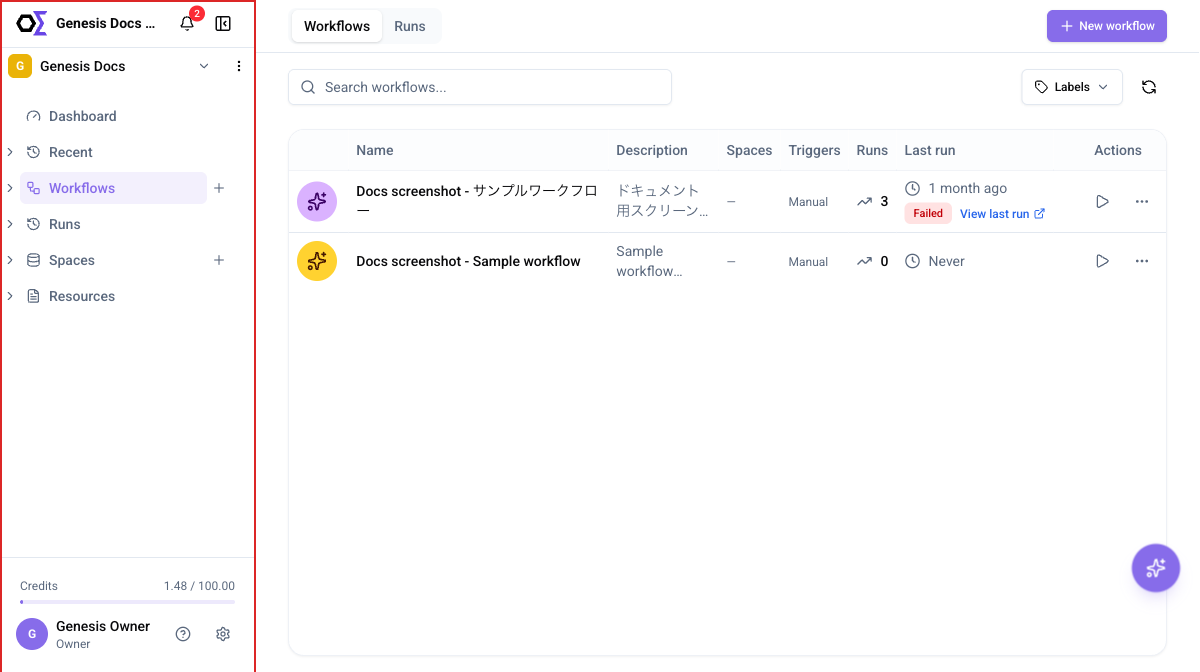

 ) at the right end of the codebase you want to delete.
4. Click **Delete**.
## Troubleshooting
### Upload errors
| Error message | Resolution |
| ---------------------------------------------------------------------- | -------------------------------------------------------------------------------------------------------------------------------------------------------------- |
| Please upload a .zip file | Compress your source code as `.zip` before uploading. |
| File size exceeds maximum allowed size of 200MB | Recreate the ZIP excluding unnecessary directories such as `node_modules/` and `dist/` so the archive stays within 200 MB. |
| Failed to fetch | Reload the page and upload again. |
| Storage limit exceeded | Your organization's storage is at the limit. Free up space by deleting unused codebases. If you need a higher limit, contact your organization Admin or Owner. |
| Usage limit reached. Contact your administrator to increase the limit. | Your organization has reached its AI usage limit. Contact your organization Admin or Owner. |
### Extraction errors
When the status becomes **Indexing failed** or **Failed** after upload, the following causes are possible. Delete the codebase once, fix the ZIP based on the cause, and upload it again.
| Cause | Resolution |
| ------------------------------------------------------------------------ | -------------------------------------------------------------------------------- |
| ZIP contains more than 100,000 files | Exclude test and cache files and recreate the ZIP with fewer than 100,000 files. |
| ZIP contains individual files larger than 200 MB | Exclude the large files and recreate the ZIP. |
| Total extracted size exceeds 5 GB | Split the codebase or exclude unnecessary files and recreate the ZIP. |
| ZIP created with a Windows tool includes drive letters (`C:\` and so on) | Recreate the ZIP in Unix/Linux or with a standard ZIP tool. |
| ZIP contains symbolic links | Replace symlinks with actual files and recreate the ZIP. |
### Indexing errors
| Situation | Cause | Resolution |
| ------------------------------------------------ | ---------------------------------- | ------------------------------------------------------------------------------------- |
| Status stays at **Indexing failed** | An error occurred during embedding | Delete the codebase and upload it again. If this happens repeatedly, contact support. |
| **Queued for indexing** persists for a long time | The processing queue is congested | Wait and check again later. If the issue does not clear, contact support. |
# Files
This article explains the **Files** feature in **Resources**. In **Files**, you can upload and manage workspace files such as specifications, design documents, images, PDFs, videos, JSON data files, HTML files, and Office documents. Files linked from Google Drive also appear alongside uploaded files in the project file list. Uploaded text-based files such as Markdown, text, and JSON are indexed by the AI and referenced when the AI Assistant or workflows run. Images, PDFs, videos, Office files, and linked Google Drive files can also be selected from chat, workflows, and Spaces. Markdown files open in a readable document view, HTML files can be previewed directly, CSV or TSV files can be reviewed as tables, and PDFs and videos can be previewed from the file detail page.
## Uploading files
1. On the workspace page, select **Resources**.
2. Select the **Files** tab.
3. Click **Upload files**.
4. Choose files in one of the following ways.
* **Select files**: Select individual files to upload.
* **Select folder**: Upload all files in a folder at once.
* Drag and drop files into the dialog.
5. Optionally, set a **Label** for the file.
6. Click **Upload**.
{% hint style="info" %}
Uploading a file with the same name as an existing file creates a new version of that file.
{% endhint %}
{% hint style="info" %}
When some files in an upload fail, the result identifies each failed file and its reason. If no files are uploaded, the dialog remains open so you can correct the issue and try again.
{% endhint %}
{% hint style="info" %}
If you add Google Drive files with the file picker and it keeps asking you to sign in, allow third-party cookies for google.com and try again. The picker runs inside an embedded Google frame.
{% endhint %}
Space Files uses the same add flow: upload new files, or link files that already exist in the workspace or come from Google Drive.
## Supported file formats
| File type | Extension | Max size |
| --------------- | -------------------------------------------------------------------------- | -------- |
| Markdown / Text | .md / .markdown / .txt | 20 MB |
| JSON | .json | 20 MB |
| HTML | .html / .htm | 20 MB |
| Image | .jpg / .jpeg / .png | 10 MB |
| PDF | .pdf | 50 MB |
| Video | .mp4 / .webm / .mov / .avi | 200 MB |
| Office | .doc / .docx / .docm / .xls / .xlsx / .xlsm / .xlsb / .ppt / .pptx / .pptm | 20 MB |
{% hint style="info" %}
JSON files can be used as data sources for [**Dashboard**](/dashboard/dashboard) widgets. From the file detail page, you can also export a JSON file as an Excel spreadsheet.
{% endhint %}
{% hint style="info" %}
Markdown files open in a readable document view on the file detail page. HTML files can also be previewed there directly, and CSV and TSV files appear as tables. Office documents such as Word, Excel, and PowerPoint files can also be previewed there, and PDFs scale to the viewer width, which makes oversized pages easier to inspect.
{% endhint %}
{% hint style="info" %}
Video files can be referenced from chat and workflows, and the AI Assistant can inspect their content with the **Analyze video** tool. Supported videos such as MP4 files also play directly on the file detail page. Video analysis is available when the Google provider is enabled for your organization.
{% endhint %}
{% hint style="info" %}
Linked Google Drive files appear in the same file browsers used by chat, workflow prompts, and Space Files. Linked Google Sheets are added as Google Drive files; if a sheet was shared as editable, agents can update it, otherwise it stays read-only.
{% endhint %}
## Viewing and searching files
) at the right end of the codebase you want to delete.
4. Click **Delete**.
## Troubleshooting
### Upload errors
| Error message | Resolution |
| ---------------------------------------------------------------------- | -------------------------------------------------------------------------------------------------------------------------------------------------------------- |
| Please upload a .zip file | Compress your source code as `.zip` before uploading. |
| File size exceeds maximum allowed size of 200MB | Recreate the ZIP excluding unnecessary directories such as `node_modules/` and `dist/` so the archive stays within 200 MB. |
| Failed to fetch | Reload the page and upload again. |
| Storage limit exceeded | Your organization's storage is at the limit. Free up space by deleting unused codebases. If you need a higher limit, contact your organization Admin or Owner. |
| Usage limit reached. Contact your administrator to increase the limit. | Your organization has reached its AI usage limit. Contact your organization Admin or Owner. |
### Extraction errors
When the status becomes **Indexing failed** or **Failed** after upload, the following causes are possible. Delete the codebase once, fix the ZIP based on the cause, and upload it again.
| Cause | Resolution |
| ------------------------------------------------------------------------ | -------------------------------------------------------------------------------- |
| ZIP contains more than 100,000 files | Exclude test and cache files and recreate the ZIP with fewer than 100,000 files. |
| ZIP contains individual files larger than 200 MB | Exclude the large files and recreate the ZIP. |
| Total extracted size exceeds 5 GB | Split the codebase or exclude unnecessary files and recreate the ZIP. |
| ZIP created with a Windows tool includes drive letters (`C:\` and so on) | Recreate the ZIP in Unix/Linux or with a standard ZIP tool. |
| ZIP contains symbolic links | Replace symlinks with actual files and recreate the ZIP. |
### Indexing errors
| Situation | Cause | Resolution |
| ------------------------------------------------ | ---------------------------------- | ------------------------------------------------------------------------------------- |
| Status stays at **Indexing failed** | An error occurred during embedding | Delete the codebase and upload it again. If this happens repeatedly, contact support. |
| **Queued for indexing** persists for a long time | The processing queue is congested | Wait and check again later. If the issue does not clear, contact support. |
# Files
This article explains the **Files** feature in **Resources**. In **Files**, you can upload and manage workspace files such as specifications, design documents, images, PDFs, videos, JSON data files, HTML files, and Office documents. Files linked from Google Drive also appear alongside uploaded files in the project file list. Uploaded text-based files such as Markdown, text, and JSON are indexed by the AI and referenced when the AI Assistant or workflows run. Images, PDFs, videos, Office files, and linked Google Drive files can also be selected from chat, workflows, and Spaces. Markdown files open in a readable document view, HTML files can be previewed directly, CSV or TSV files can be reviewed as tables, and PDFs and videos can be previewed from the file detail page.
## Uploading files
1. On the workspace page, select **Resources**.
2. Select the **Files** tab.
3. Click **Upload files**.
4. Choose files in one of the following ways.
* **Select files**: Select individual files to upload.
* **Select folder**: Upload all files in a folder at once.
* Drag and drop files into the dialog.
5. Optionally, set a **Label** for the file.
6. Click **Upload**.
{% hint style="info" %}
Uploading a file with the same name as an existing file creates a new version of that file.
{% endhint %}
{% hint style="info" %}
When some files in an upload fail, the result identifies each failed file and its reason. If no files are uploaded, the dialog remains open so you can correct the issue and try again.
{% endhint %}
{% hint style="info" %}
If you add Google Drive files with the file picker and it keeps asking you to sign in, allow third-party cookies for google.com and try again. The picker runs inside an embedded Google frame.
{% endhint %}
Space Files uses the same add flow: upload new files, or link files that already exist in the workspace or come from Google Drive.
## Supported file formats
| File type | Extension | Max size |
| --------------- | -------------------------------------------------------------------------- | -------- |
| Markdown / Text | .md / .markdown / .txt | 20 MB |
| JSON | .json | 20 MB |
| HTML | .html / .htm | 20 MB |
| Image | .jpg / .jpeg / .png | 10 MB |
| PDF | .pdf | 50 MB |
| Video | .mp4 / .webm / .mov / .avi | 200 MB |
| Office | .doc / .docx / .docm / .xls / .xlsx / .xlsm / .xlsb / .ppt / .pptx / .pptm | 20 MB |
{% hint style="info" %}
JSON files can be used as data sources for [**Dashboard**](/dashboard/dashboard) widgets. From the file detail page, you can also export a JSON file as an Excel spreadsheet.
{% endhint %}
{% hint style="info" %}
Markdown files open in a readable document view on the file detail page. HTML files can also be previewed there directly, and CSV and TSV files appear as tables. Office documents such as Word, Excel, and PowerPoint files can also be previewed there, and PDFs scale to the viewer width, which makes oversized pages easier to inspect.
{% endhint %}
{% hint style="info" %}
Video files can be referenced from chat and workflows, and the AI Assistant can inspect their content with the **Analyze video** tool. Supported videos such as MP4 files also play directly on the file detail page. Video analysis is available when the Google provider is enabled for your organization.
{% endhint %}
{% hint style="info" %}
Linked Google Drive files appear in the same file browsers used by chat, workflow prompts, and Space Files. Linked Google Sheets are added as Google Drive files; if a sheet was shared as editable, agents can update it, otherwise it stays read-only.
{% endhint %}
## Viewing and searching files
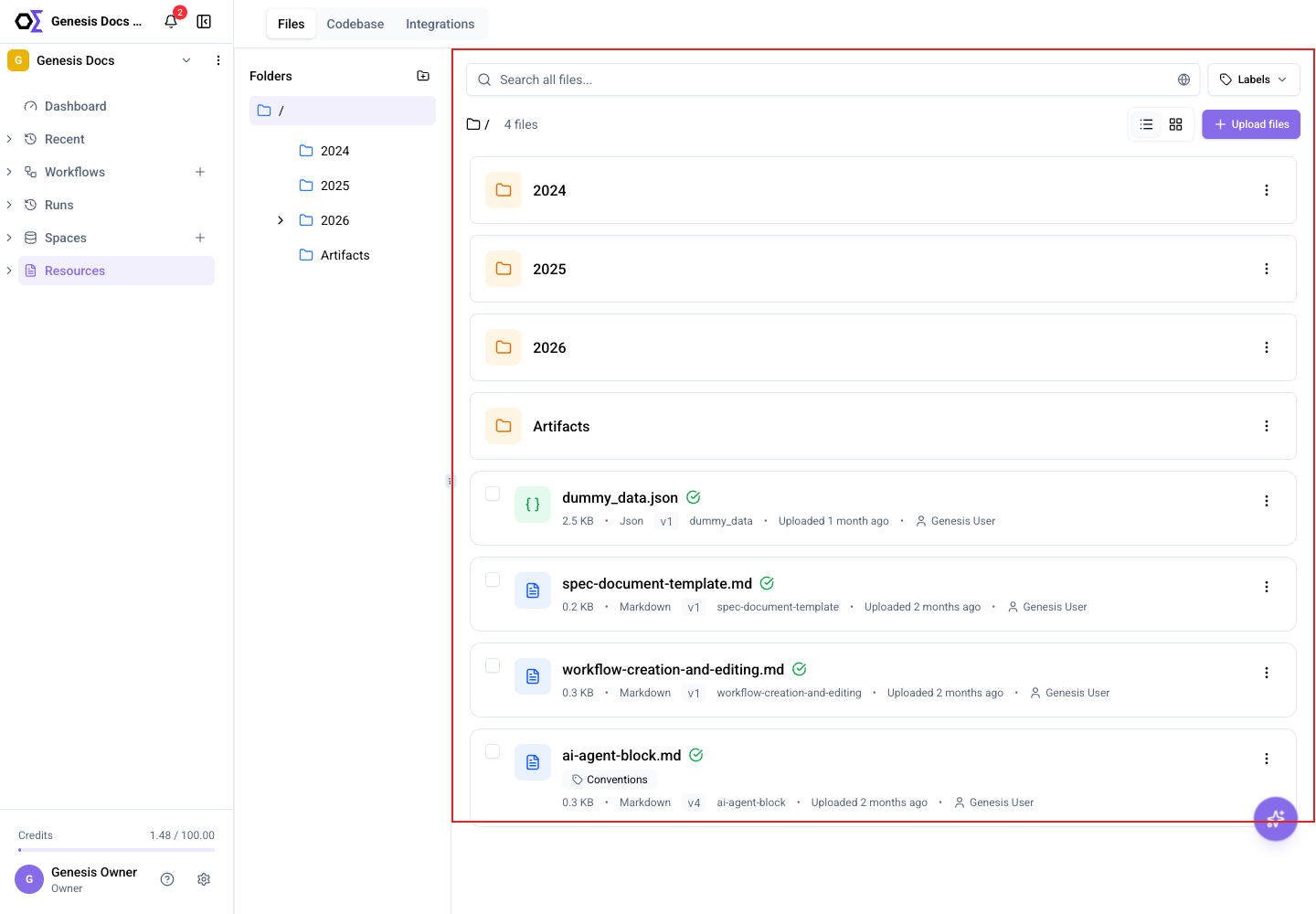

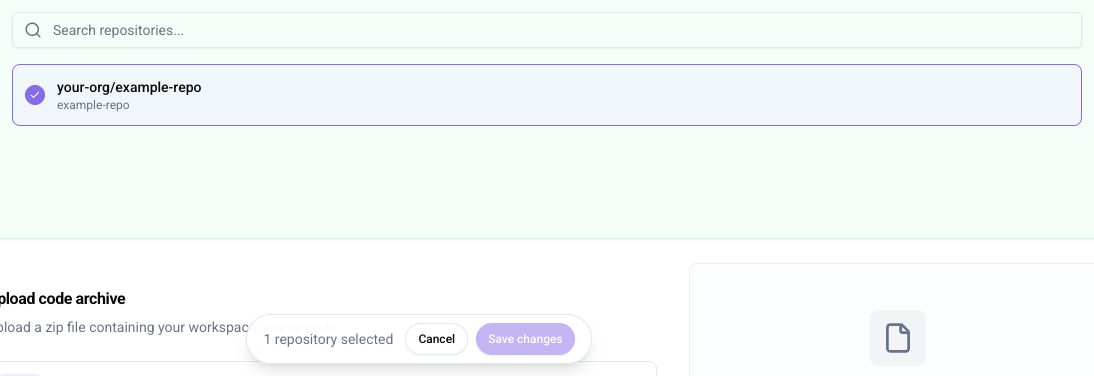


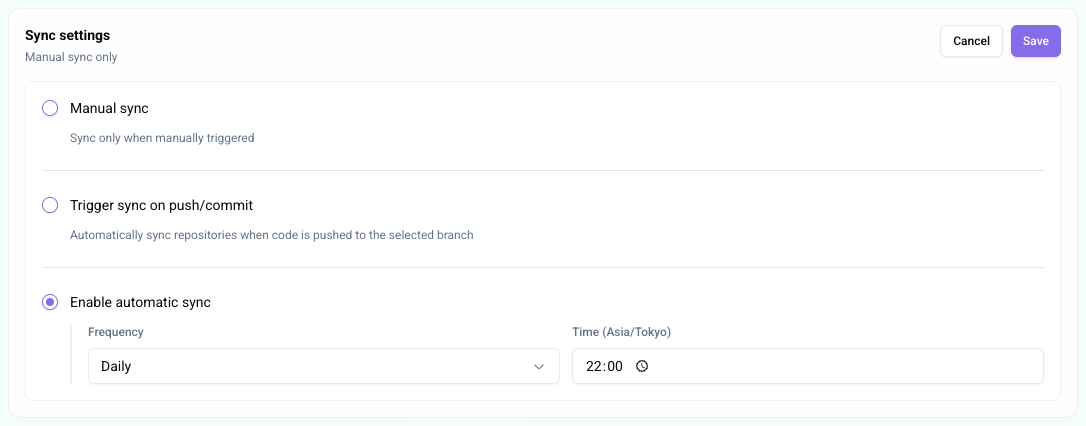
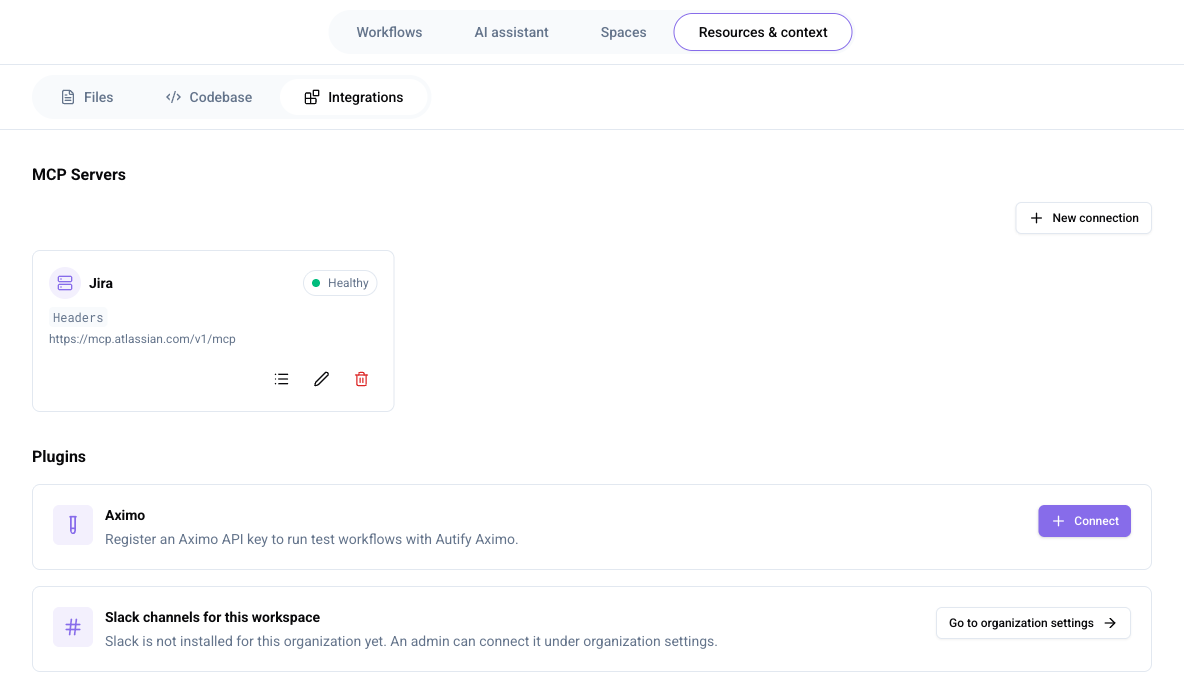
 on the connection card you want to edit.
2. Change the **Name**, **URL**, authentication method, or credentials.
3. Click **Connect & Save**.
### Deleting a connection
1. Click **Delete connection**
on the connection card you want to edit.
2. Change the **Name**, **URL**, authentication method, or credentials.
3. Click **Connect & Save**.
### Deleting a connection
1. Click **Delete connection**  on the connection card you want to delete.
2. Click **Delete connection** in the confirmation dialog.
{% hint style="warning" %}
When you delete a connection, blocks in workflows that use it can no longer call the tool. Confirm the impact on workflows before deleting. Specifically, when you delete a connection, workflows that reference it fail pre-run validation (the error "This workflow uses an MCP connection that does not exist in this workspace" appears). Before deleting, either update the MCP connection in the target workflows or remove unused blocks.
{% endhint %}
### Checking connection status
Click the status badge (**Healthy** / **Error** / **Checking…** / **Needs Authorization** / **Unknown**) on a connection card to immediately verify the connection to the MCP server.
| Status | Description |
| ------------------- | -------------------------------------------------------------------------------------------------------------------------------------------------------------------------------------------------------------------------------------------------------------------------------------------- |
| Healthy | Connected successfully. |
| Error | A problem occurred while connecting to the MCP server. Check the following two points and then click the **Error** status badge to retry the connection. Verify the MCP connection URL. Verify that the authentication header (such as `Authorization: Bearer xxx`) is configured correctly. |
| Checking… | Verifying whether the connection is reachable. |
| Needs Authorization | The OAuth access token has expired and re-authentication is required. Click the status badge to re-run the authentication flow. |
| Unknown | Could not determine whether the connection is reachable. Click the **Unknown** status badge to retry the connection. |
### Checking available tools
Click **List tools**
on the connection card you want to delete.
2. Click **Delete connection** in the confirmation dialog.
{% hint style="warning" %}
When you delete a connection, blocks in workflows that use it can no longer call the tool. Confirm the impact on workflows before deleting. Specifically, when you delete a connection, workflows that reference it fail pre-run validation (the error "This workflow uses an MCP connection that does not exist in this workspace" appears). Before deleting, either update the MCP connection in the target workflows or remove unused blocks.
{% endhint %}
### Checking connection status
Click the status badge (**Healthy** / **Error** / **Checking…** / **Needs Authorization** / **Unknown**) on a connection card to immediately verify the connection to the MCP server.
| Status | Description |
| ------------------- | -------------------------------------------------------------------------------------------------------------------------------------------------------------------------------------------------------------------------------------------------------------------------------------------- |
| Healthy | Connected successfully. |
| Error | A problem occurred while connecting to the MCP server. Check the following two points and then click the **Error** status badge to retry the connection. Verify the MCP connection URL. Verify that the authentication header (such as `Authorization: Bearer xxx`) is configured correctly. |
| Checking… | Verifying whether the connection is reachable. |
| Needs Authorization | The OAuth access token has expired and re-authentication is required. Click the status badge to re-run the authentication flow. |
| Unknown | Could not determine whether the connection is reachable. Click the **Unknown** status badge to retry the connection. |
### Checking available tools
Click **List tools**  on a connection card to view the tools provided by the MCP server. Tool name, description, and parameters are listed. You can search the list, confirm how many tools match the current filter, and expand **Input schema** only for the tools whose parameters you want to inspect.
## Plugins
Manage plugins used in this workspace: Autify product integrations (Nexus, Aximo), external services connected at the organization level (Slack), and your personal Google Drive connection.
### Nexus
Connect Autify Nexus so workflows can run its test plans and read results from this project.
1. On the **Nexus** card, click **Connect**.
2. In **Nexus URL**, paste the URL shown with your Nexus API client credentials. Genesis appends the MCP endpoint automatically.
3. In **API token**, enter a token created in Nexus under **Settings → Manage Clients**.
4. Click **Save**.
Once connected, the card shows a health status (**Healthy** / **Error** / **Checking…** / **Unknown**) and the endpoint Genesis connects to. To change the URL or token, click **Edit**. To remove the connection, click **Disconnect**.
### Aximo
Register an Aximo API key so workflows can call Autify Aximo features.
1. On the **Aximo** card, click **Connect**.
2. Enter your Aximo **API key**, then click **Connect**.
{% hint style="info" %}
You can generate an API key from your Aximo app settings.
{% endhint %}
Once connected, the card shows a health status (**Healthy** / **Error** / **Checking…** / **Unknown**). Click **Disconnect** on the card to remove the connection.
### Slack channels for this workspace
Select which Slack channels this workspace's workflows and chat may post to and read from. If Slack is not connected at the organization level, click **Go to organization settings** to set it up. For the organization-level Slack connection procedure, see [Apps](/settings/connection-settings/integrations-hub).
### Google Drive
{% hint style="info" %}
The **Google Drive** card only appears when this deployment has Google Drive integration enabled.
{% endhint %}
Connect your personal Google account so the AI can read and edit Google Sheets files you share with this workspace. The connection is personal to your account — any member can connect their own Google account regardless of role.
1. On the **Google Drive** card, click **Connect Google account** and complete the Google sign-in flow.
2. Click **Add files**, then pick one or more spreadsheets from the Google file picker.
Files you add appear under **Files shared with this project**. For each file, toggle **Allow editing** to let the AI write to it (files are read-only by default), or click **Remove** to stop sharing it. A file can be managed by the member who shared it, or by a member with the Admin, Owner, or Workspace Manager role.
Click **Disconnect** on the card to disconnect your Google account. This stops the AI from accessing files you shared with this workspace.
{% hint style="info" %}
The Google file picker runs inside an embedded Google frame, so it needs third-party cookies for `google.com`. If it asks you to sign in even though you already are, allow third-party cookies for this site and try again.
{% endhint %}
## Further reading
* [Resources and context overview](/resources-context/resources-and-context-overview)
# Workspace memory
This article explains the **Memory** feature in the **Resources and Context** tab. Workspace memory is durable, workspace-scoped knowledge that Genesis agents record through chat, workflows, and MCP. Knowledge that should outlive a single task is captured as facts, decisions, conventions, and gotchas, and current memories are automatically included as context in later chat conversations and workflow runs.
## Prerequisites
| Action | Required role |
| -------------------- | ------------- |
| View the memory list | All members |
| Archive a memory | Admin / Owner |
## Types of stored knowledge
Workspace memory is organized into four kinds.
| Kind | Description |
| ---------- | --------------------------------- |
| Fact | A fact about the project |
| Decision | A decision the team made |
| Convention | A rule or convention to follow |
| Gotcha | An easy-to-miss pitfall or caveat |
Each memory has a valid-from date and an optional valid-until date, and shows one of the following statuses.
| Status | Description |
| ---------- | ----------------------------------------------------------------- |
| Current | The memory is valid right now |
| Scheduled | The valid-from date hasn't arrived yet |
| Historical | The valid-until date has passed and the memory is no longer valid |
A memory can also show a relationship to an existing memory: **updates** (replaces the prior memory) or **extends** (both remain valid).
{% hint style="info" %}
Workspace memory can't store credentials or private keys. Content matching those patterns is rejected when you save it.
{% endhint %}
## How Genesis uses it
Genesis agents read and write workspace memory through three paths: chat, workflows, and MCP.
* **Chat and workflows**: Agents search for relevant knowledge with the `recallMemory` tool and record knowledge that should outlive the current task with the `writeMemory` tool. Current memories are also automatically added to the conversation or workflow run context, where agents treat them as evidence.
* **MCP**: External clients can read and write the same memories with the MCP `recall_memory` / `write_memory` tools, or use the `consult` tool to get an answer grounded across the whole workspace — memory plus specs, code, files, workflows, and run history.
## Viewing memories
1. On the workspace page, select the **Resources and Context** tab.
2. Select the **Memory** tab.
The list shows each memory's kind, status, content, valid period, source (chat, workflow, or MCP) and author, and the date it was recorded.
## Archiving a memory
1. On the **Memory** tab, click **Archive memory** (the trash icon) in the row of the memory you want to archive, then click **Archive memory** in the confirmation dialog.
{% hint style="warning" %}
Archiving a memory means agents will no longer recall or receive it. This action cannot be undone.
{% endhint %}
## Further reading
* [Resources and context overview](/resources-context/resources-and-context-overview)
# AI models
This article lists the AI models available in Autify Genesis and explains the characteristics of each model.
## Available AI models
Genesis supports AI models provided by OpenAI, Google, and Anthropic. Each model has different strengths in processing speed, reasoning quality, and cost efficiency.
### Auto (Recommended)
In the model selector for chat and workflow blocks, you can choose **Auto (Recommended)** instead of a specific model. With **Auto (Recommended)**, an internal router in Genesis selects an appropriate model for each step at execution time. Use it as the default when you are not sure which model to pick, or when you want each step to use the model that best fits its task.
### What is a reasoning model?
A reasoning model performs an internal, step-by-step thinking process before generating an answer. It provides high accuracy for complex analysis, coding, and agent tasks, but may take longer to respond than standard models.
### OpenAI models
| Model | Characteristics | Speed | Reasoning model |
| ------------ | ---------------------------------------------------------------------------------------- | -------- | --------------- |
| GPT-6 Sol | Strong reasoning for complex coding and agent workflows | Standard | Yes |
| GPT-6 Luna | Efficient model for focused, high-volume tasks | Fast | Yes |
| GPT-5.4 | Model with a 1M-token context window and advanced reasoning | Standard | Yes |
| GPT-5.4 Mini | Faster, cost-efficient version of GPT-5.4 | Fast | Yes |
| GPT-5.2 | Flagship model with the best overall performance | Standard | Yes |
| GPT-5.1 | Best model for coding and agent tasks | Standard | Yes |
| GPT-5 | High-performance model for a wide range of tasks | Standard | Yes |
| GPT-5 Mini | Faster, cost-efficient version of GPT-5 | Fast | Yes |
| GPT-5 Nano | Lowest-cost model for high-volume, simple tasks such as classification and summarization | Fast | No |
| GPT-4.1 | Highest-performing model without reasoning mode | Standard | No |
| GPT-4.1 Mini | Smaller, faster version of GPT-4.1 | Fast | No |
For details on each model, see the [OpenAI official documentation](https://developers.openai.com/api/docs/models/all).
### Google models
| Model | Characteristics | Speed | Reasoning model |
| --------------------- | ----------------------------------------------------------------------------------- | -------- | --------------- |
| Gemini 3.1 Pro | Latest reasoning-first model for complex agent workflows and coding | Standard | Yes |
| Gemini 3.1 Flash Lite | Lightweight, cost-efficient Gemini 3.1 model for high-volume tasks | Fast | No |
| Gemini 3.8 Flash | Most intelligent Flash model for long-running coding, agents, and complex workflows | Fast | Yes |
| Gemini 2.5 Pro | High-capability model for complex reasoning and coding | Standard | Yes |
| Gemini 2.5 Flash | Fast, general-purpose model with controllable thinking depth | Fast | Yes |
For details on each model, see the [Google official documentation](https://ai.google.dev/gemini-api/docs/models).
### Anthropic models
| Model | Characteristics | Speed | Reasoning model |
| ----------------- | -------------------------------------------------------------------------- | -------- | --------------- |
| Claude Opus 5.5 | For long-running agentic coding and knowledge work | Standard | Yes |
| Claude Sonnet 5.5 | Best balance of speed and intelligence for coding and agentic work | Fast | Yes |
| Claude Haiku 5.5 | For high-volume, latency-sensitive classification, extraction, and routing | Fast | Yes |
## Model selection examples
| Use case | Recommended models |
| -------------------------------------- | ------------------------------------------------ |
| General chat and Q\&A | GPT-5.2 |
| Coding and technical analysis | GPT-6 Sol / Gemini 3.1 Pro / Claude Sonnet 5.5 |
| Complex agent workflows | GPT-6 Sol / Gemini 3.1 Pro / Claude Opus 5.5 |
| Speed-first or high-volume processing | GPT-6 Luna / Gemini 3.8 Flash / Claude Haiku 5.5 |
| Simple classification or summarization | GPT-5 Nano / Gemini 2.5 Flash |
## Check or change available models
### How to check
The latest set of models available in your current environment appears in the model selector dropdown in the chat screen or the workflow builder. Models not listed in the dropdown are not available in your current environment.
### Change or add models
Available AI models cannot be changed from the Genesis admin UI (organization settings).
With Owner permissions, you can change which providers (OpenAI / Google Gemini / Anthropic — Azure OpenAI is also available in some environments) are available from the AI provider settings.
For details on AI provider settings, see the following article.
[AI provider settings](/settings/connection-settings/ai-provider-settings)
# Tools
In Autify Genesis, the AI Assistant and AI Agent blocks combine AI models with tools so they can explore codebases, read files, and work with external services.
## Tool types
Available tools fall into three types.
| Type | Description |
| ------------------------------------------------ | ----------------------------------------------------------------------------------------------------------------------------------------------------------------- |
| Built-in tools that are individually enabled | Built-in tools that you select from the **Tools** tab in an AI Agent block. In the AI Assistant, these are used automatically. |
| Tools that are auto-attached based on conditions | Tools that are added automatically based on the workspace state or active integrations. |
| Custom MCP servers | Tools that become available when you register an external MCP (Model Context Protocol) connection for the workspace under **Resources & context > Integrations**. |
## Built-in tools
Common built-in tools include the following.
| Tool | Description |
| --------------------- | ----------------------------------------------------------------------------------------------- |
| Explore | Use bash-style commands to inspect the workspace codebase and uploaded files in read-only mode. |
| View media | Load and analyze images and PDFs stored in the workspace. |
| Search knowledge base | Run semantic search across registered codebases and specification files. |
| File versions | List all versions of an uploaded file. |
| Fetch URL | Retrieve data from a public web URL. |
| Analyze video | Inspect an uploaded video and summarize what happens. |
| Remote machine | Run commands on a real machine the user has connected over SSH. |
| Sandbox | Run commands in a disposable, private sandbox environment and see the results. |
{% hint style="info" %}
Remote machine and Sandbox are only available when they're enabled for your organization. If **Settings > Remote machines** doesn't appear, or **Sandbox** doesn't appear among the execution tools, contact Autify support.
{% endhint %}
## Tools that are auto-attached
Some tools appear automatically without any manual selection.
* File tools such as **Read file** are always attached automatically.
* **Generate image** is attached only in the AI Assistant, when the Google provider is available for your organization.
* **GitHub tools** are available when GitHub is connected under **Resources & context > Codebase**.
* **Slack tools** are available when Slack is connected for the organization and the workspace has bound channels. They include **Connect Slack channel**, **List Slack channels**, **Read Slack thread**, **Import Slack file**, and **Send Slack message**. Replies and file sends stay in the intended Slack thread. When explicitly requested by the user, an agent can also specify the sender name and icon. To customize the sender, reconnect Slack to update its permissions.
* **Write file to Google Sheets** is automatically added when an editable Google spreadsheet is linked to the workspace. It writes JSON, CSV, TSV, or XLSX table data from a saved file. In a Sandbox-enabled execution, it can also use a Sandbox file.
* In workflow AI Agent blocks, you can read a bound channel's thread from a message permalink or from a channel ID and parent-message timestamp. You can also read channel history within a date range. When a result is paged, use the returned continuation cursor to get the remaining messages.
* In workflow **AI Agent** blocks, read-only query tools may also be auto-attached based on the execution context and permissions. These let the agent inspect workspace data such as workflows, files, specs, directories, and Spaces before it takes action.
* **Aximo tools** are available when an Aximo connection is configured for the workspace.
* **Spaces tools** are available when Spaces is enabled for your organization. They create and update Spaces and collections, search rows by keyword (**Search entries**), and view and configure boards, save default board views, and move cards.
## Custom MCP servers
Register external MCP connections from **Resources & context > Integrations** on the workspace page.
| Location | How to use |
| --------------------------- | --------------------------------------------------------------------------------------------------------------------- |
| AI Assistant (chat) | Chat starts with the always-on tools plus an MCP tool catalog, and it can load only the MCP tools you need on demand. |
| AI Agent block in workflows | Add the connections you want to use from the block's **MCP servers** tab. |
In chat, you can use `load_mcp_tools` to load tools by server, search query, explicit tool names, or a combination of those selectors.
{% hint style="info" %}
For steps to register and manage workspace-level MCP connections, see [Integrations](/resources-context/integrations).
{% endhint %}
# About AI Assistant
This article describes the role of the AI Assistant and typical use cases. The AI Assistant carries out a wide range of tasks through conversation, drawing on the resources registered in the workspace.
## Ask questions about your workspace
The AI Assistant helps you understand your workspace in ways such as the following.
* Reviewing the contents of specifications and designs
* Asking about the structure and implementation of the codebase
* Pulling key points together across related documents
For details, see [Chat](/ai-assistant/chat).
## Draft documents
Through a conversation with the AI Assistant, you can draft and refine documents such as the following.
* Feature specifications
* Requirements summaries
* User stories
* Test cases
* Help pages
## When to use the AI Assistant vs. workflows
In addition to the AI Assistant, you can also use AI agents in Workflows. A common pattern is to first work with the AI Assistant in a conversational way to understand your workspace and explore tasks and deliverables, and then turn the tasks whose steps and direction have stabilized into a workflow.
For details, see [About Workflow](/workflow/workflow-overview).
### AI Assistant
* Deepen your understanding of your workspace
* Shape the picture of the deliverables
### Workflow
* Run repeated work with the same quality and the same steps
# Chat
This article explains the chat feature of the AI Assistant. Chat is a conversational AI feature that supports QA work, such as answering questions about your workspace, generating specifications, and creating test cases. It supports natural-language conversation while referencing connected resources (codebases and specifications) as context.
## Starting a chat
1. Open the target workspace.
2. Click the
on a connection card to view the tools provided by the MCP server. Tool name, description, and parameters are listed. You can search the list, confirm how many tools match the current filter, and expand **Input schema** only for the tools whose parameters you want to inspect.
## Plugins
Manage plugins used in this workspace: Autify product integrations (Nexus, Aximo), external services connected at the organization level (Slack), and your personal Google Drive connection.
### Nexus
Connect Autify Nexus so workflows can run its test plans and read results from this project.
1. On the **Nexus** card, click **Connect**.
2. In **Nexus URL**, paste the URL shown with your Nexus API client credentials. Genesis appends the MCP endpoint automatically.
3. In **API token**, enter a token created in Nexus under **Settings → Manage Clients**.
4. Click **Save**.
Once connected, the card shows a health status (**Healthy** / **Error** / **Checking…** / **Unknown**) and the endpoint Genesis connects to. To change the URL or token, click **Edit**. To remove the connection, click **Disconnect**.
### Aximo
Register an Aximo API key so workflows can call Autify Aximo features.
1. On the **Aximo** card, click **Connect**.
2. Enter your Aximo **API key**, then click **Connect**.
{% hint style="info" %}
You can generate an API key from your Aximo app settings.
{% endhint %}
Once connected, the card shows a health status (**Healthy** / **Error** / **Checking…** / **Unknown**). Click **Disconnect** on the card to remove the connection.
### Slack channels for this workspace
Select which Slack channels this workspace's workflows and chat may post to and read from. If Slack is not connected at the organization level, click **Go to organization settings** to set it up. For the organization-level Slack connection procedure, see [Apps](/settings/connection-settings/integrations-hub).
### Google Drive
{% hint style="info" %}
The **Google Drive** card only appears when this deployment has Google Drive integration enabled.
{% endhint %}
Connect your personal Google account so the AI can read and edit Google Sheets files you share with this workspace. The connection is personal to your account — any member can connect their own Google account regardless of role.
1. On the **Google Drive** card, click **Connect Google account** and complete the Google sign-in flow.
2. Click **Add files**, then pick one or more spreadsheets from the Google file picker.
Files you add appear under **Files shared with this project**. For each file, toggle **Allow editing** to let the AI write to it (files are read-only by default), or click **Remove** to stop sharing it. A file can be managed by the member who shared it, or by a member with the Admin, Owner, or Workspace Manager role.
Click **Disconnect** on the card to disconnect your Google account. This stops the AI from accessing files you shared with this workspace.
{% hint style="info" %}
The Google file picker runs inside an embedded Google frame, so it needs third-party cookies for `google.com`. If it asks you to sign in even though you already are, allow third-party cookies for this site and try again.
{% endhint %}
## Further reading
* [Resources and context overview](/resources-context/resources-and-context-overview)
# Workspace memory
This article explains the **Memory** feature in the **Resources and Context** tab. Workspace memory is durable, workspace-scoped knowledge that Genesis agents record through chat, workflows, and MCP. Knowledge that should outlive a single task is captured as facts, decisions, conventions, and gotchas, and current memories are automatically included as context in later chat conversations and workflow runs.
## Prerequisites
| Action | Required role |
| -------------------- | ------------- |
| View the memory list | All members |
| Archive a memory | Admin / Owner |
## Types of stored knowledge
Workspace memory is organized into four kinds.
| Kind | Description |
| ---------- | --------------------------------- |
| Fact | A fact about the project |
| Decision | A decision the team made |
| Convention | A rule or convention to follow |
| Gotcha | An easy-to-miss pitfall or caveat |
Each memory has a valid-from date and an optional valid-until date, and shows one of the following statuses.
| Status | Description |
| ---------- | ----------------------------------------------------------------- |
| Current | The memory is valid right now |
| Scheduled | The valid-from date hasn't arrived yet |
| Historical | The valid-until date has passed and the memory is no longer valid |
A memory can also show a relationship to an existing memory: **updates** (replaces the prior memory) or **extends** (both remain valid).
{% hint style="info" %}
Workspace memory can't store credentials or private keys. Content matching those patterns is rejected when you save it.
{% endhint %}
## How Genesis uses it
Genesis agents read and write workspace memory through three paths: chat, workflows, and MCP.
* **Chat and workflows**: Agents search for relevant knowledge with the `recallMemory` tool and record knowledge that should outlive the current task with the `writeMemory` tool. Current memories are also automatically added to the conversation or workflow run context, where agents treat them as evidence.
* **MCP**: External clients can read and write the same memories with the MCP `recall_memory` / `write_memory` tools, or use the `consult` tool to get an answer grounded across the whole workspace — memory plus specs, code, files, workflows, and run history.
## Viewing memories
1. On the workspace page, select the **Resources and Context** tab.
2. Select the **Memory** tab.
The list shows each memory's kind, status, content, valid period, source (chat, workflow, or MCP) and author, and the date it was recorded.
## Archiving a memory
1. On the **Memory** tab, click **Archive memory** (the trash icon) in the row of the memory you want to archive, then click **Archive memory** in the confirmation dialog.
{% hint style="warning" %}
Archiving a memory means agents will no longer recall or receive it. This action cannot be undone.
{% endhint %}
## Further reading
* [Resources and context overview](/resources-context/resources-and-context-overview)
# AI models
This article lists the AI models available in Autify Genesis and explains the characteristics of each model.
## Available AI models
Genesis supports AI models provided by OpenAI, Google, and Anthropic. Each model has different strengths in processing speed, reasoning quality, and cost efficiency.
### Auto (Recommended)
In the model selector for chat and workflow blocks, you can choose **Auto (Recommended)** instead of a specific model. With **Auto (Recommended)**, an internal router in Genesis selects an appropriate model for each step at execution time. Use it as the default when you are not sure which model to pick, or when you want each step to use the model that best fits its task.
### What is a reasoning model?
A reasoning model performs an internal, step-by-step thinking process before generating an answer. It provides high accuracy for complex analysis, coding, and agent tasks, but may take longer to respond than standard models.
### OpenAI models
| Model | Characteristics | Speed | Reasoning model |
| ------------ | ---------------------------------------------------------------------------------------- | -------- | --------------- |
| GPT-6 Sol | Strong reasoning for complex coding and agent workflows | Standard | Yes |
| GPT-6 Luna | Efficient model for focused, high-volume tasks | Fast | Yes |
| GPT-5.4 | Model with a 1M-token context window and advanced reasoning | Standard | Yes |
| GPT-5.4 Mini | Faster, cost-efficient version of GPT-5.4 | Fast | Yes |
| GPT-5.2 | Flagship model with the best overall performance | Standard | Yes |
| GPT-5.1 | Best model for coding and agent tasks | Standard | Yes |
| GPT-5 | High-performance model for a wide range of tasks | Standard | Yes |
| GPT-5 Mini | Faster, cost-efficient version of GPT-5 | Fast | Yes |
| GPT-5 Nano | Lowest-cost model for high-volume, simple tasks such as classification and summarization | Fast | No |
| GPT-4.1 | Highest-performing model without reasoning mode | Standard | No |
| GPT-4.1 Mini | Smaller, faster version of GPT-4.1 | Fast | No |
For details on each model, see the [OpenAI official documentation](https://developers.openai.com/api/docs/models/all).
### Google models
| Model | Characteristics | Speed | Reasoning model |
| --------------------- | ----------------------------------------------------------------------------------- | -------- | --------------- |
| Gemini 3.1 Pro | Latest reasoning-first model for complex agent workflows and coding | Standard | Yes |
| Gemini 3.1 Flash Lite | Lightweight, cost-efficient Gemini 3.1 model for high-volume tasks | Fast | No |
| Gemini 3.8 Flash | Most intelligent Flash model for long-running coding, agents, and complex workflows | Fast | Yes |
| Gemini 2.5 Pro | High-capability model for complex reasoning and coding | Standard | Yes |
| Gemini 2.5 Flash | Fast, general-purpose model with controllable thinking depth | Fast | Yes |
For details on each model, see the [Google official documentation](https://ai.google.dev/gemini-api/docs/models).
### Anthropic models
| Model | Characteristics | Speed | Reasoning model |
| ----------------- | -------------------------------------------------------------------------- | -------- | --------------- |
| Claude Opus 5.5 | For long-running agentic coding and knowledge work | Standard | Yes |
| Claude Sonnet 5.5 | Best balance of speed and intelligence for coding and agentic work | Fast | Yes |
| Claude Haiku 5.5 | For high-volume, latency-sensitive classification, extraction, and routing | Fast | Yes |
## Model selection examples
| Use case | Recommended models |
| -------------------------------------- | ------------------------------------------------ |
| General chat and Q\&A | GPT-5.2 |
| Coding and technical analysis | GPT-6 Sol / Gemini 3.1 Pro / Claude Sonnet 5.5 |
| Complex agent workflows | GPT-6 Sol / Gemini 3.1 Pro / Claude Opus 5.5 |
| Speed-first or high-volume processing | GPT-6 Luna / Gemini 3.8 Flash / Claude Haiku 5.5 |
| Simple classification or summarization | GPT-5 Nano / Gemini 2.5 Flash |
## Check or change available models
### How to check
The latest set of models available in your current environment appears in the model selector dropdown in the chat screen or the workflow builder. Models not listed in the dropdown are not available in your current environment.
### Change or add models
Available AI models cannot be changed from the Genesis admin UI (organization settings).
With Owner permissions, you can change which providers (OpenAI / Google Gemini / Anthropic — Azure OpenAI is also available in some environments) are available from the AI provider settings.
For details on AI provider settings, see the following article.
[AI provider settings](/settings/connection-settings/ai-provider-settings)
# Tools
In Autify Genesis, the AI Assistant and AI Agent blocks combine AI models with tools so they can explore codebases, read files, and work with external services.
## Tool types
Available tools fall into three types.
| Type | Description |
| ------------------------------------------------ | ----------------------------------------------------------------------------------------------------------------------------------------------------------------- |
| Built-in tools that are individually enabled | Built-in tools that you select from the **Tools** tab in an AI Agent block. In the AI Assistant, these are used automatically. |
| Tools that are auto-attached based on conditions | Tools that are added automatically based on the workspace state or active integrations. |
| Custom MCP servers | Tools that become available when you register an external MCP (Model Context Protocol) connection for the workspace under **Resources & context > Integrations**. |
## Built-in tools
Common built-in tools include the following.
| Tool | Description |
| --------------------- | ----------------------------------------------------------------------------------------------- |
| Explore | Use bash-style commands to inspect the workspace codebase and uploaded files in read-only mode. |
| View media | Load and analyze images and PDFs stored in the workspace. |
| Search knowledge base | Run semantic search across registered codebases and specification files. |
| File versions | List all versions of an uploaded file. |
| Fetch URL | Retrieve data from a public web URL. |
| Analyze video | Inspect an uploaded video and summarize what happens. |
| Remote machine | Run commands on a real machine the user has connected over SSH. |
| Sandbox | Run commands in a disposable, private sandbox environment and see the results. |
{% hint style="info" %}
Remote machine and Sandbox are only available when they're enabled for your organization. If **Settings > Remote machines** doesn't appear, or **Sandbox** doesn't appear among the execution tools, contact Autify support.
{% endhint %}
## Tools that are auto-attached
Some tools appear automatically without any manual selection.
* File tools such as **Read file** are always attached automatically.
* **Generate image** is attached only in the AI Assistant, when the Google provider is available for your organization.
* **GitHub tools** are available when GitHub is connected under **Resources & context > Codebase**.
* **Slack tools** are available when Slack is connected for the organization and the workspace has bound channels. They include **Connect Slack channel**, **List Slack channels**, **Read Slack thread**, **Import Slack file**, and **Send Slack message**. Replies and file sends stay in the intended Slack thread. When explicitly requested by the user, an agent can also specify the sender name and icon. To customize the sender, reconnect Slack to update its permissions.
* **Write file to Google Sheets** is automatically added when an editable Google spreadsheet is linked to the workspace. It writes JSON, CSV, TSV, or XLSX table data from a saved file. In a Sandbox-enabled execution, it can also use a Sandbox file.
* In workflow AI Agent blocks, you can read a bound channel's thread from a message permalink or from a channel ID and parent-message timestamp. You can also read channel history within a date range. When a result is paged, use the returned continuation cursor to get the remaining messages.
* In workflow **AI Agent** blocks, read-only query tools may also be auto-attached based on the execution context and permissions. These let the agent inspect workspace data such as workflows, files, specs, directories, and Spaces before it takes action.
* **Aximo tools** are available when an Aximo connection is configured for the workspace.
* **Spaces tools** are available when Spaces is enabled for your organization. They create and update Spaces and collections, search rows by keyword (**Search entries**), and view and configure boards, save default board views, and move cards.
## Custom MCP servers
Register external MCP connections from **Resources & context > Integrations** on the workspace page.
| Location | How to use |
| --------------------------- | --------------------------------------------------------------------------------------------------------------------- |
| AI Assistant (chat) | Chat starts with the always-on tools plus an MCP tool catalog, and it can load only the MCP tools you need on demand. |
| AI Agent block in workflows | Add the connections you want to use from the block's **MCP servers** tab. |
In chat, you can use `load_mcp_tools` to load tools by server, search query, explicit tool names, or a combination of those selectors.
{% hint style="info" %}
For steps to register and manage workspace-level MCP connections, see [Integrations](/resources-context/integrations).
{% endhint %}
# About AI Assistant
This article describes the role of the AI Assistant and typical use cases. The AI Assistant carries out a wide range of tasks through conversation, drawing on the resources registered in the workspace.
## Ask questions about your workspace
The AI Assistant helps you understand your workspace in ways such as the following.
* Reviewing the contents of specifications and designs
* Asking about the structure and implementation of the codebase
* Pulling key points together across related documents
For details, see [Chat](/ai-assistant/chat).
## Draft documents
Through a conversation with the AI Assistant, you can draft and refine documents such as the following.
* Feature specifications
* Requirements summaries
* User stories
* Test cases
* Help pages
## When to use the AI Assistant vs. workflows
In addition to the AI Assistant, you can also use AI agents in Workflows. A common pattern is to first work with the AI Assistant in a conversational way to understand your workspace and explore tasks and deliverables, and then turn the tasks whose steps and direction have stabilized into a workflow.
For details, see [About Workflow](/workflow/workflow-overview).
### AI Assistant
* Deepen your understanding of your workspace
* Shape the picture of the deliverables
### Workflow
* Run repeated work with the same quality and the same steps
# Chat
This article explains the chat feature of the AI Assistant. Chat is a conversational AI feature that supports QA work, such as answering questions about your workspace, generating specifications, and creating test cases. It supports natural-language conversation while referencing connected resources (codebases and specifications) as context.
## Starting a chat
1. Open the target workspace.
2. Click the  icon at the bottom right of the screen.
* On the workflow editor, click **Workflow Builder** instead of this button.
* On mobile, chat opens as a full-screen overlay.
icon at the bottom right of the screen.
* On the workflow editor, click **Workflow Builder** instead of this button.
* On mobile, chat opens as a full-screen overlay.


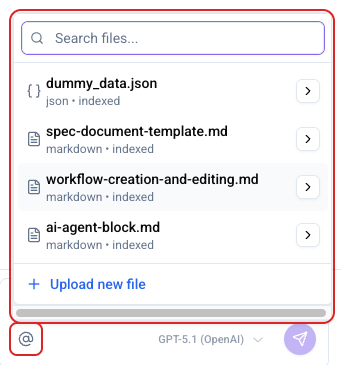
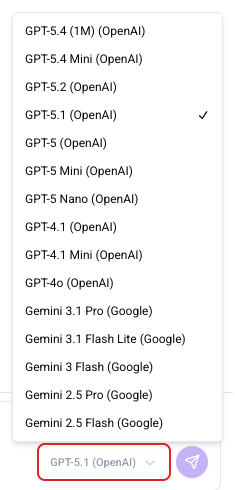
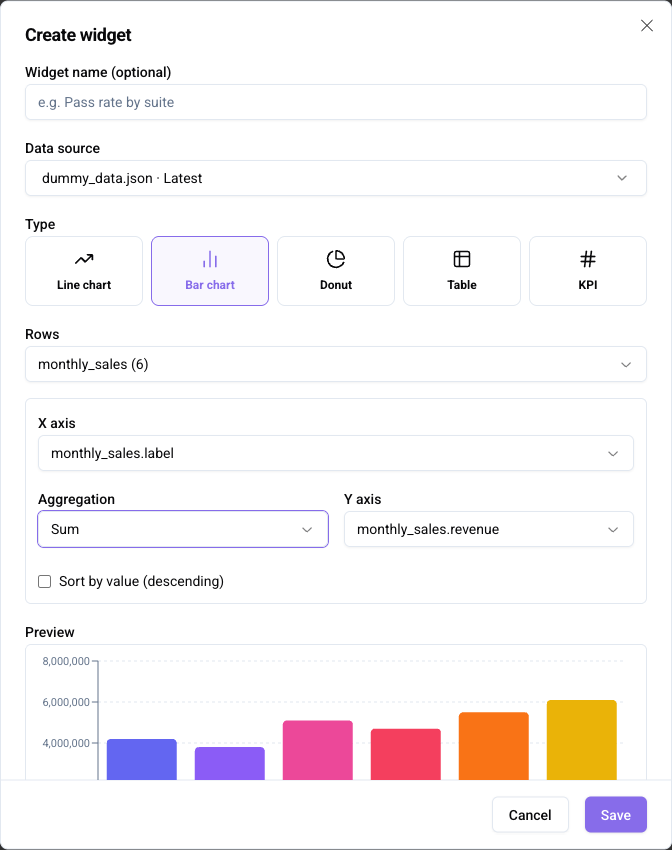
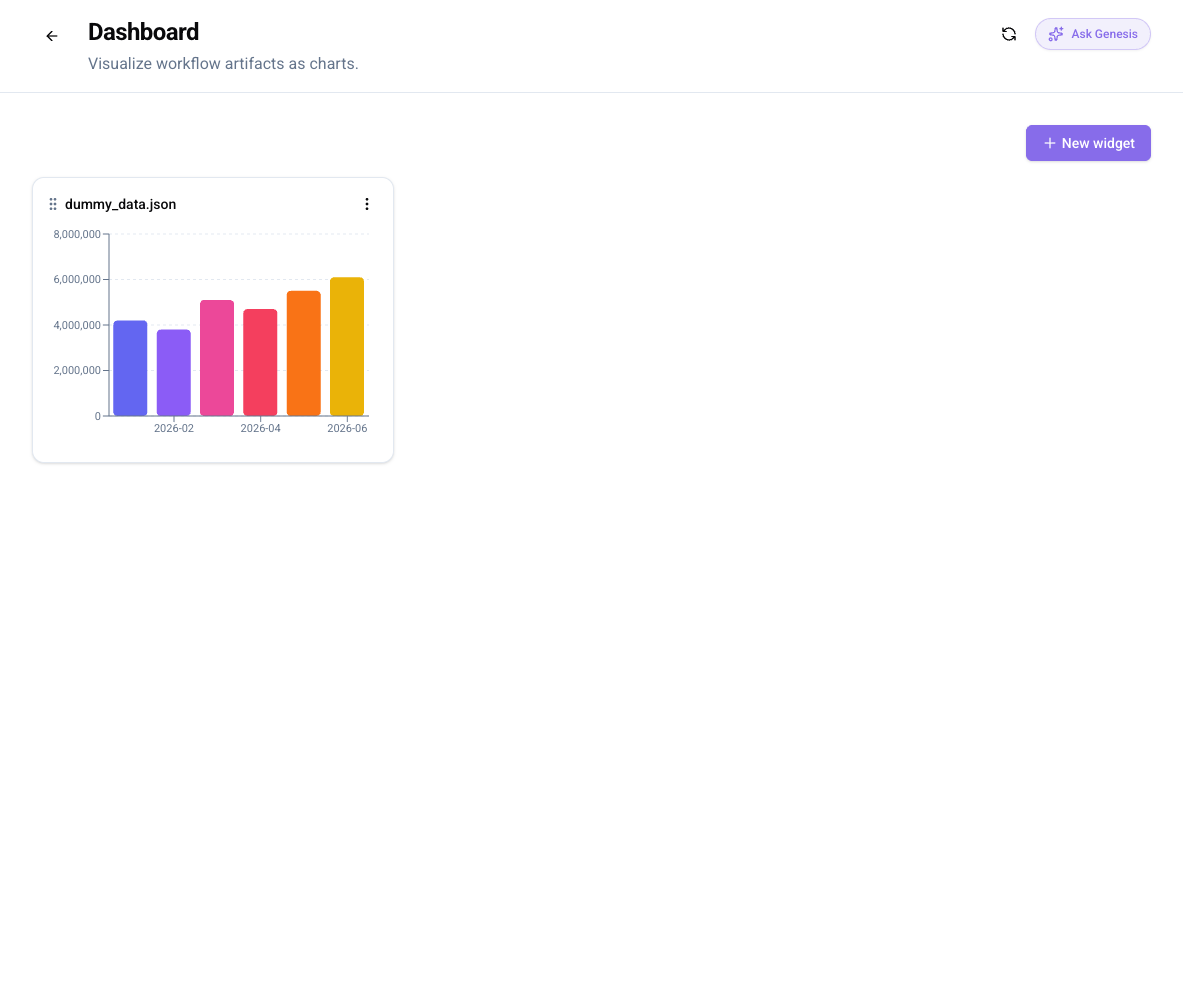
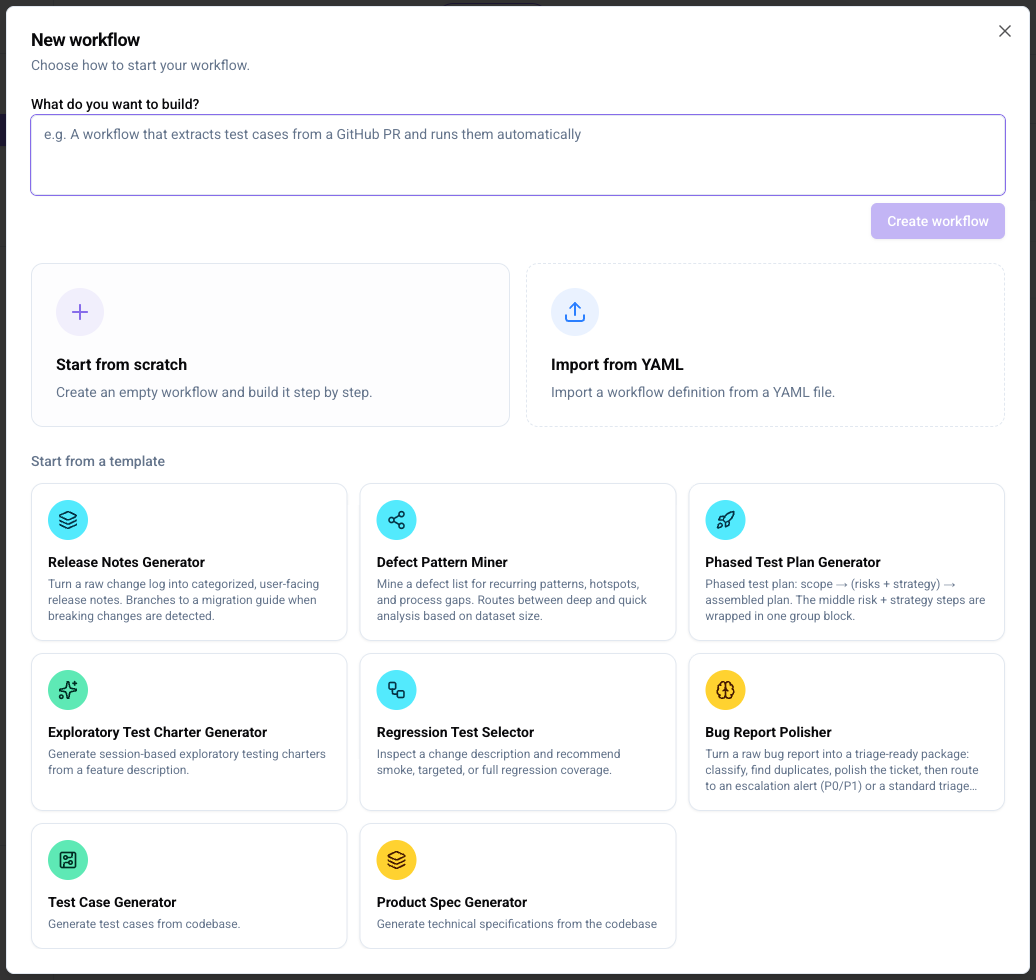


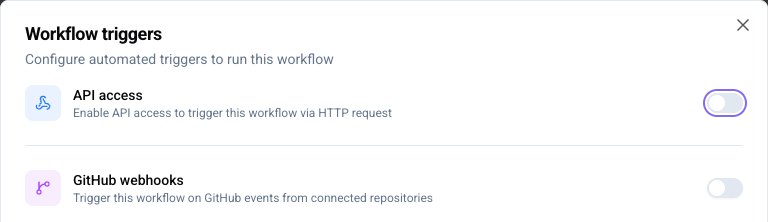


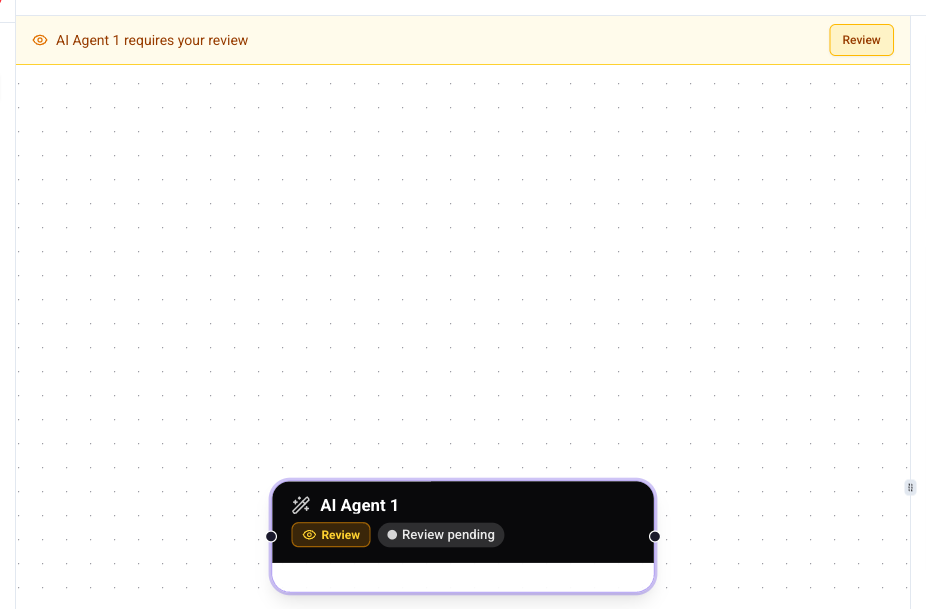



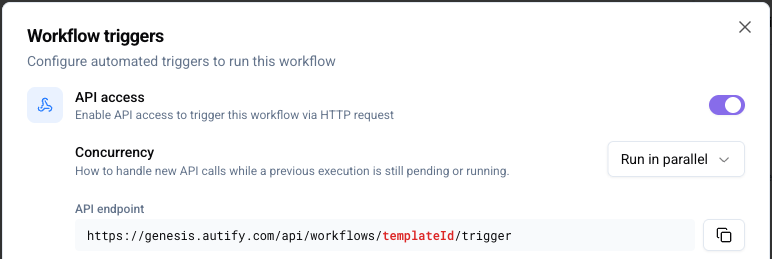
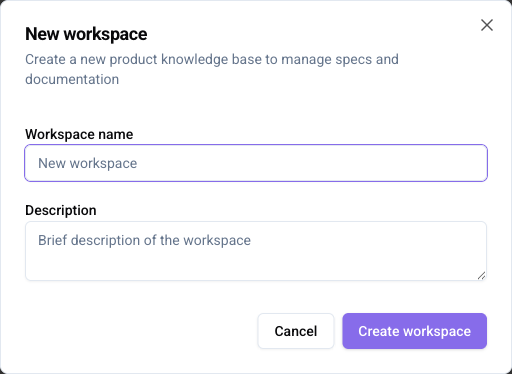
 next to the workspace name in the left sidebar.
2. Click **Workspace settings**.
3. Change the **Workspace name** or **Description**.
4. Click **Save changes**.
next to the workspace name in the left sidebar.
2. Click **Workspace settings**.
3. Change the **Workspace name** or **Description**.
4. Click **Save changes**.
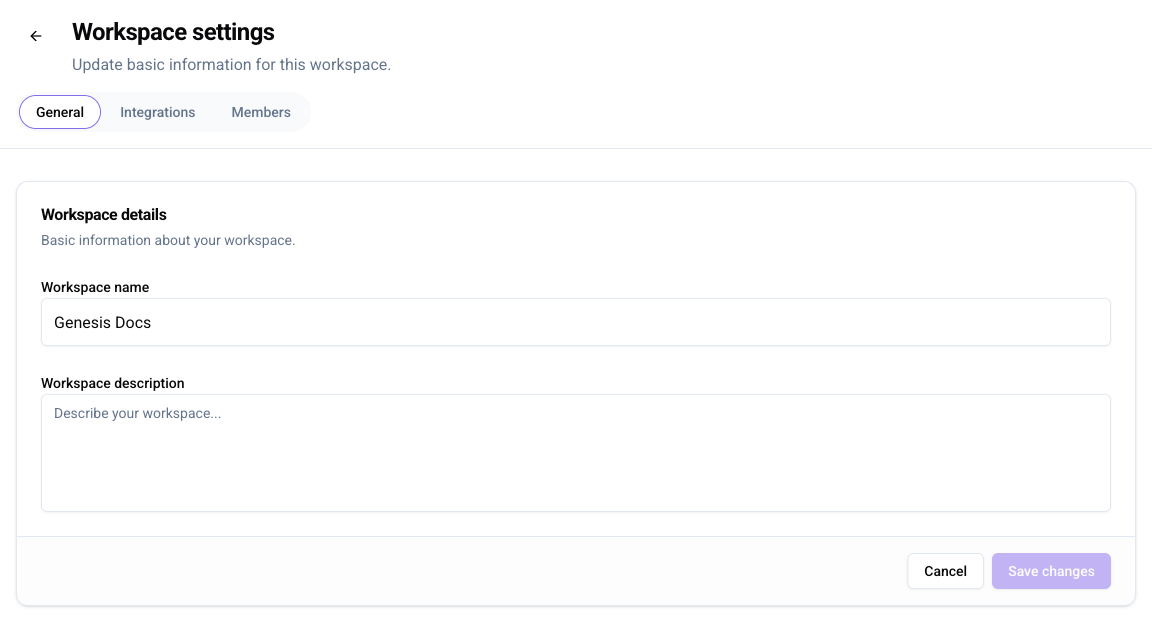
 at the bottom of the left sidebar.
2. Click **Archived workspaces**.
3. Click **Restore**
at the bottom of the left sidebar.
2. Click **Archived workspaces**.
3. Click **Restore**  in the row of the workspace you want to restore.
4. Click **Restore** in the confirmation dialog. When the restore is complete, a banner showing **Workspace restored** appears in the lower-right corner.
in the row of the workspace you want to restore.
4. Click **Restore** in the confirmation dialog. When the restore is complete, a banner showing **Workspace restored** appears in the lower-right corner.